Get started by building your first data model in Quest Data Modeler. This topic walks you through both AI‑assisted and manual approaches using a simple business scenario, so you can choose the workflow that works best for you.
-
AI-assisted modeling: fast, guided, and ideal for quick starts
-
Manual modeling: full control, best when aligning to specific databases
Scenario: Lead‑to‑Cash in a Growing Organization
As an organization scales its revenue operations, it needs a reliable way to understand how demand turns into cash. Different stakeholders depend on this visibility:
-
Sales leaders need confidence in pipeline and forecast data
-
Finance teams need accurate tracking of orders, invoices, and payments
-
Executives need a single, trusted view of revenue performance
To support these needs, the organization models the Lead-to-Cash process, from lead creation through order fulfilment and invoicing.
This is where you start by capturing the process at a high level and add more detail as the model evolves.
Build Models using AI
AI-assisted model creation helps you get started quickly or build models from a plain-language description. Use the AI Model Generator to create baseline models, then refine them as needed.
To create logical/physical models using AI, follow these steps:
-
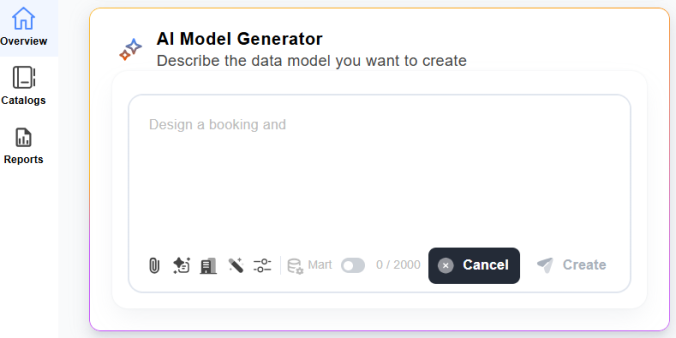
On the Overview page, go to the AI Model Generator section.
-
In the prompt area, enter your model description in plain language or select a prompt. You can also upload an image in SVG, JPG/JPEG, and PNG formats for the AI to analyze.
For more information, refer to the Use AI Model Generator topic.
For example,
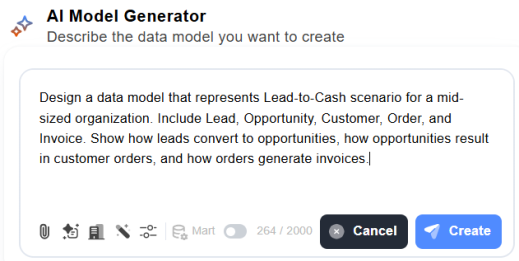
Design a data model that represents Lead‑to‑Cash scenario for a mid-sized organization. Include Lead, Opportunity, Customer, Order, and Invoice. Show how leads convert to opportunities, how opportunities result in customer orders, and how orders generate invoices.
- Select
 and select Logical/Physical.
 - (Optional) Switch on the Mart Integration option to enhance the generated model in your organization's governed Mart metadata.
When Mart integration is enabled, a label confirms: Mart integration ON — entities will be matched against Mart repository. As the model is generated, each AI‑generated entity is matched against the Mart repository using semantic search, and matched entities are enriched with the official Mart attribute definitions. For more information, see Enrich AI-Generated Models with Mart Metadata.
- Select Create.
- Select Confirm.
-
Select
 to queue the message.
 The message is submitted automatically after the current request completes.
-
Select
 to view additional options:
-
Stop and send: Stops the current task and starts the new message immediately. Use this option when the new message replaces the work in progress.
-
Add to queue: Queues the message and submits it automatically after the current task finishes. Use this option when the new message depends on the current task.
-
Steer with message: Applies the message after the AI Copilot finishes its current step, adding to the work in progress instead of restarting it. Use this option to refine or extend an in-progress task.
-
-
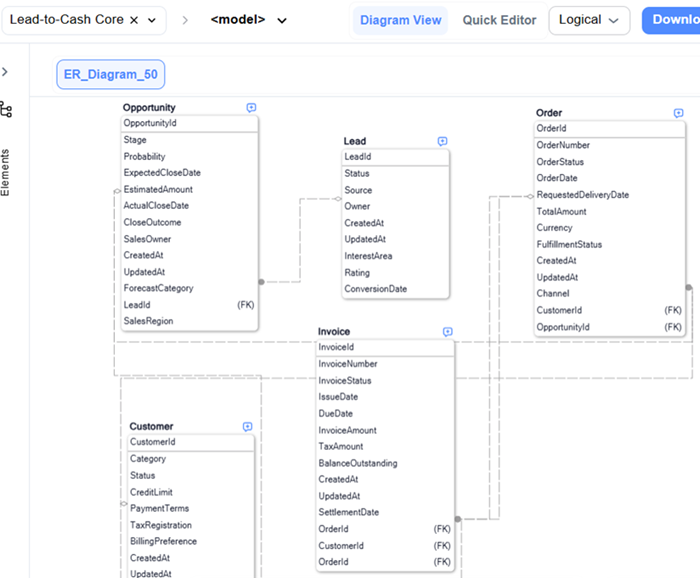
In Logical view, confirm that the added attributes and relationships align with business requirements.
-
In Physical view, verify that the same changes are reflected as database columns, keys, and relationships that are ready for implementation.
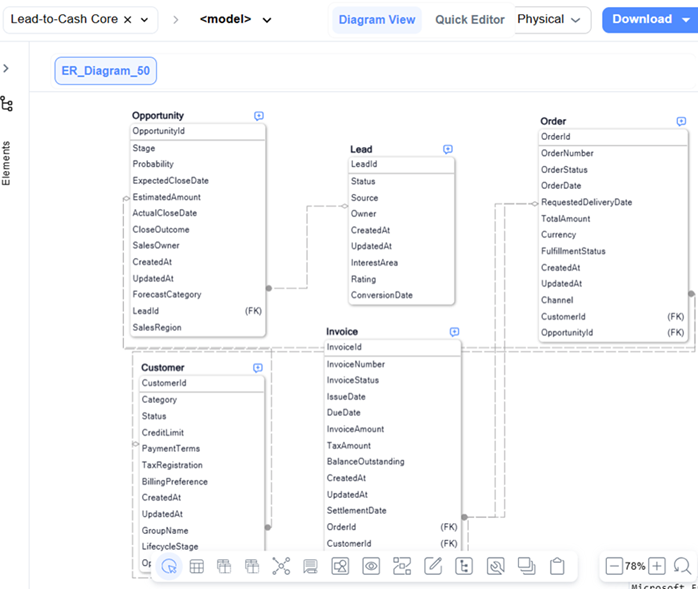
Both views remain synchronized, which helps keep the business design and technical implementation aligned as the model evolves.
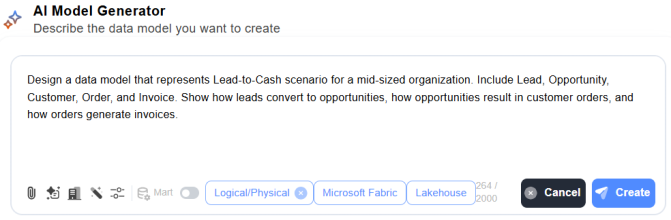
The Lead-to-Cash Core review and selection section appears.
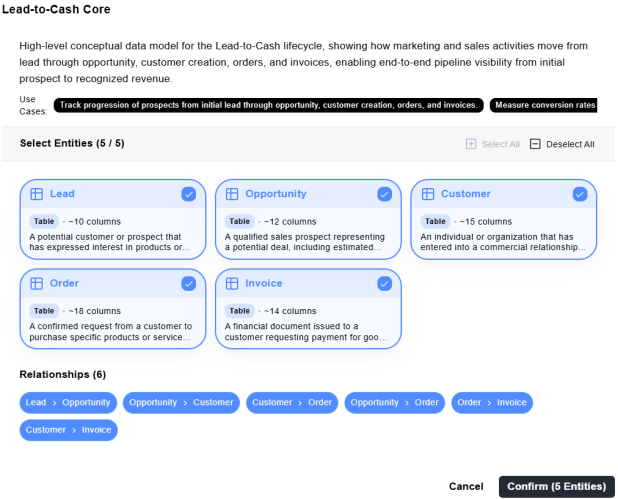
Review the generated entities and relationships and edit your selections by selecting or clearing the corresponding checkboxes.
AI analyzes the selected entities and relationships, generates the model and opens it in the Diagram View. The AI Copilot Conversation pane opens alongside the diagram with the actions that generated the model. You can continue to refine your model using further descriptions here.
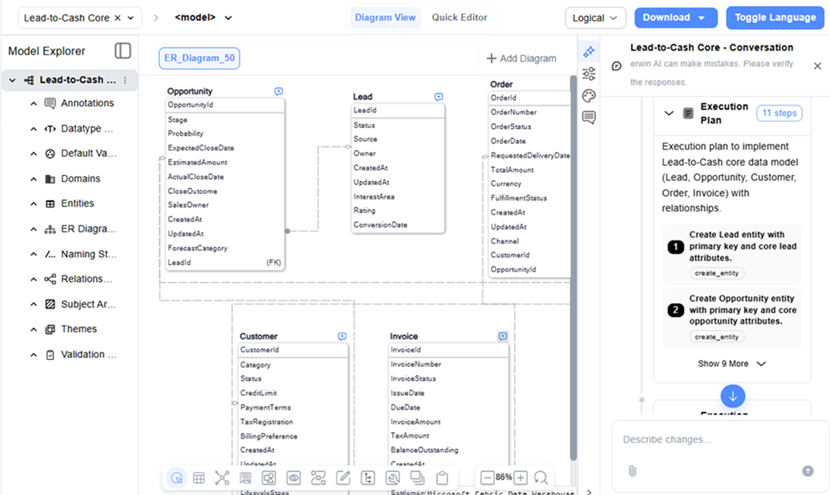
As you review the diagram, you might identify areas that need refinement. For example, sales might require better visibility into where opportunities are managed, and finance might require clearer separation between orders and invoices. Instead of rebuilding the model, you refine it incrementally using AI.
In the AI Copilot Conversation pane, describe the required changes in plain language. For example,
Add a Sales Region attribute to Opportunity to track where each opportunity is managed.
While AI Copilot processes a request, you can enter a new message, for example, Create a one‑to‑many relationship between Order and Invoice to track multiple invoices per order and choose how to handle it:

For example, while AI Copilot adds the Sales Region attribute to the Opportunity entity, you can steer it with the message shown above to also create a one-to-many relationship between Order and Invoice. AI Copilot finishes its current update and then applies the additional change.
AI updates the model directly. The Opportunity entity is updated with the new attribute, SalesRegion, and the relationship between Order and Invoice is changed to one-to-many.
Review the updated diagram to confirm that the Lead-to-Cash flow is clear and accurately represented.
To validate the impact of these refinements:
Build Models Manually
Manual model creation gives you full control over models right from the beginning and enables you to align the models with specific database platforms.
To create models manually, follow these steps:
-
On the Overview page, select New Model.
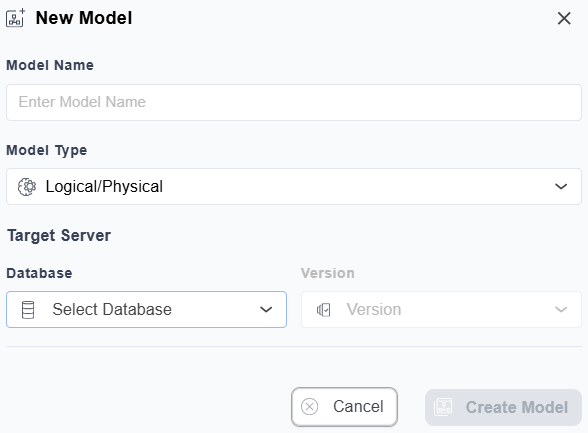
The New Model screen appears.
-
Enter a model name.
For example, Lead‑to‑Cash Model.
-
In the Model type list, select Logical/Physical.
-
In the Database list, select the required database.
For example, Microsoft Fabric.
-
In the Version list, select the appropriate version. For example, Data Warehouse.
-
Select Create Model.
The model opens in Diagram View with a blank canvas.
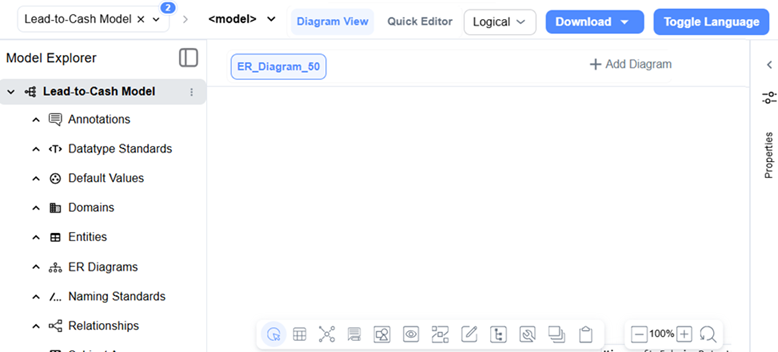
Note: For information on application UI, refer to the Quest Data Modeler UI topic.
The next step is to add model objects that represent the Lead-to-Cash process.
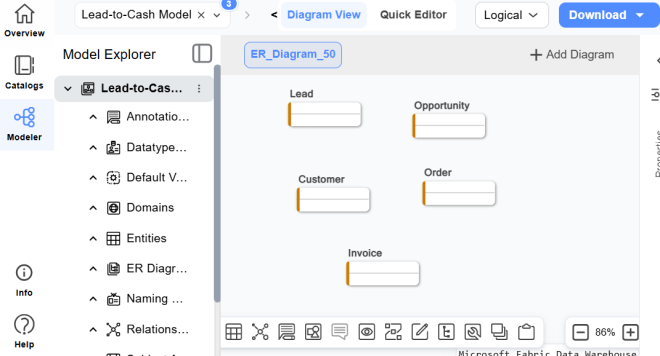
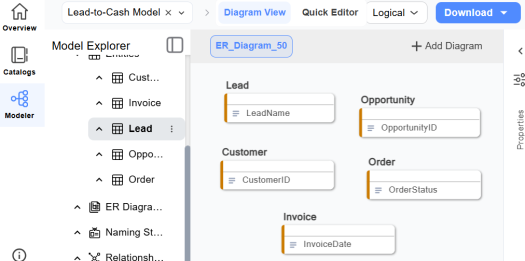
You typically begin by adding core business entities such as Lead, Opportunity, Customer, Order, Invoice, and Payment, then enriching them with key attributes (LeadName, OpportunityID, CustomerID, OrderStatus, InvoiceDate) and defining relationships that represent the end‑to‑end data flow from lead creation through invoicing.
You can perform these tasks in either Model Explorer or Diagram View - both views remain synchronized. As your model grows, organize it using additional diagrams or logical groupings for clarity.
Adding Entities
To add an entity, follow these steps:
-
On the diagram toolbar, select
 , then click in Diagram View to add an entity.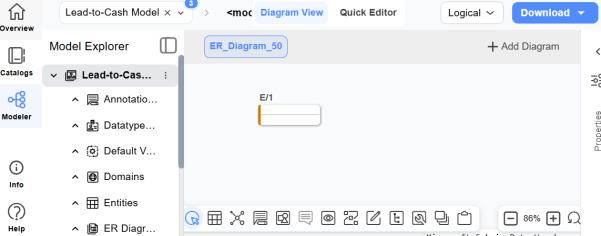
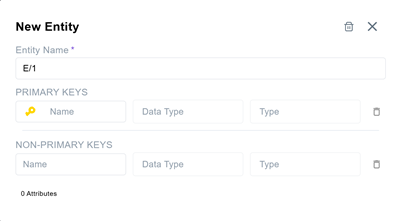
The entity is created with a default name (E/1) and the New Entity dialog opens.
-
In Entity Name field, enter a meaningful name. For example, Lead or Customer.
You can add primary and non-primary keys here, or add them later in Quick Editor. Click anywhere outside the dialog box to close it.
-
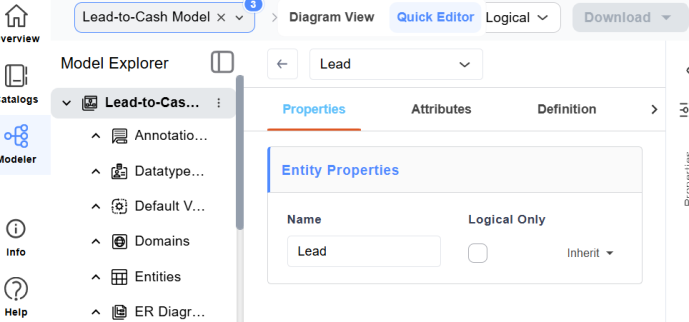
In Diagram View, double-click the entity.
The Quick Editor opens.
-
Update other properties as required, and then select Diagram View to return.
Similarly, add more entities in the model. Entities can also be added from Model Explorer.
Adding Attributes
You can add attributes to the logical model by using the Model Explorer or Quick Editor. Attributes can also be defined when you create entities in the logical model.
This section focuses on adding attributes by using Quick Editor, which provides a fast and efficient way to define and update attributes directly in the logical model.
To add an attribute, follow these steps:
-
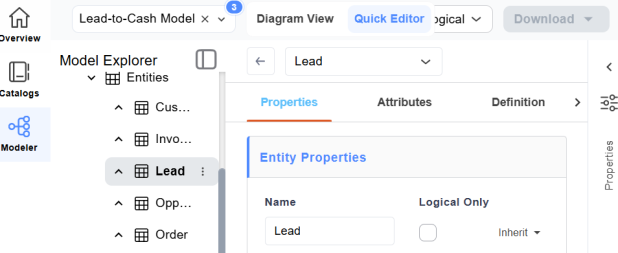
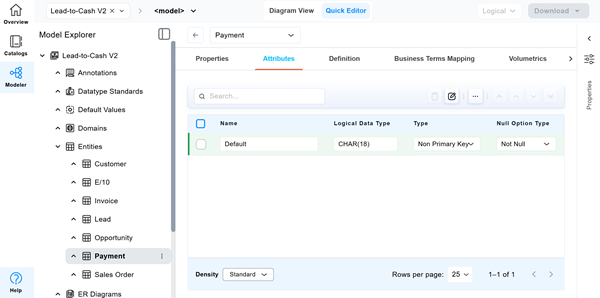
Double‑click the entity to which you want to add attributes. For example, Lead.
The Quick Editor opens.
-
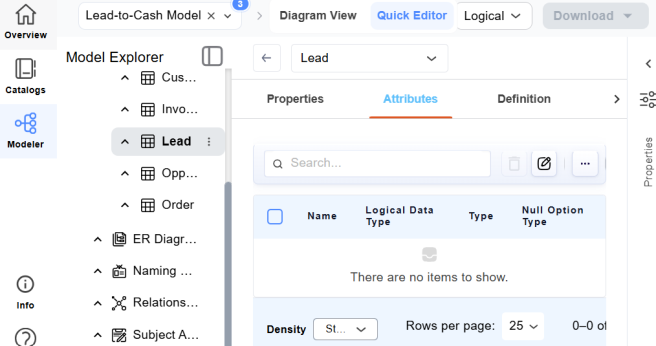
Select the Attributes tab.
-
Select
 .
.A new row is added for defining an attribute.
-
Define the attribute by specifying values in the following fields:
-
Name: Enter a meaningful name for the attribute.
-
Logical data type: Select the appropriate logical data type.
-
Type: Specify whether the attribute is Primary or Non‑Primary.
-
Null option: Specify whether the attribute allows Null or Not Null values.
-
The attribute is added to the entity. For example, LeadName is added to the Lead entity.
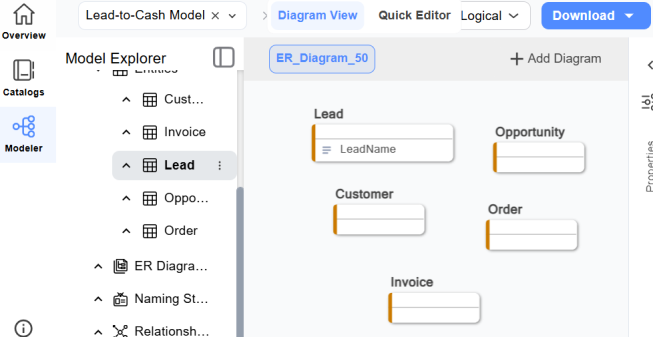
Similarly, add the remaining attributes.
Adding Relationships
To add a relationship, follow these steps:
-
On the diagram toolbar, select
 .
. -
Select the type of relationship you want to add. For example, Identifying.
-
In Diagram view, select the parent entity, drag to the child entity, and then select it to create a relationship.
When the relationship is created, the cursor changes to the identifying relationship symbol, and the relationship appears in the diagram.
The identifying relationship is added.
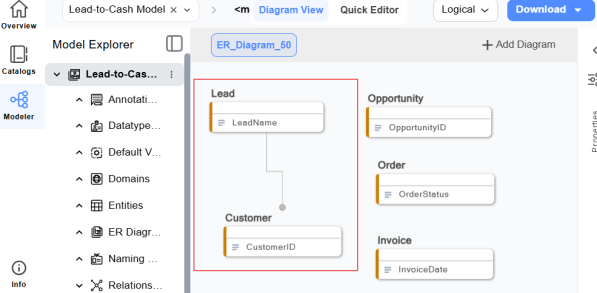
Similarly, add the remaining relationships to complete the logical/physical model.
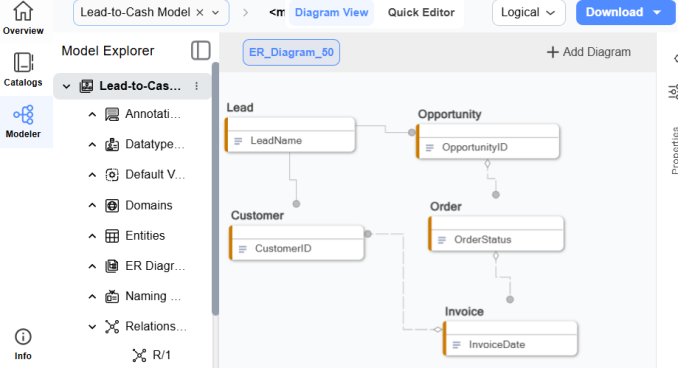
Save Models
After you create and refine the data model, save it to the mart so that you can collaborate with your team. You can save the model manually from the diagram toolbar, or, if you built or refined it using AI, you can save it from the AI Copilot Conversation pane using a plain-language prompt.
Save Models to Mart Manually
To save models to the mart, follow these steps:
-
On the diagram toolbar, select
 , and then select Save or Save As.
 -
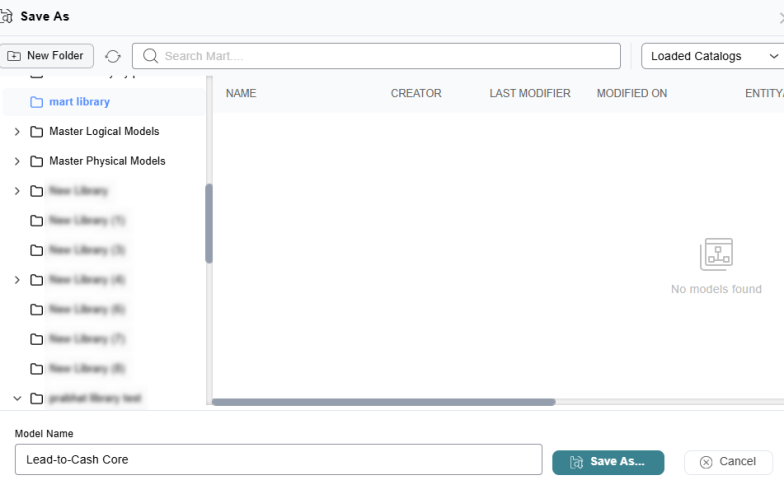
Select a library or the root node and then enter a model name.
For example, in the following screenshot, the Save As dialog box shows the mart library selected as the destination and Lead-to-Cash Core entered as the model name before saving the model to the mart.
-
Select Save As.
The model is saved to the mart, where your team can access, review, and refine it further.
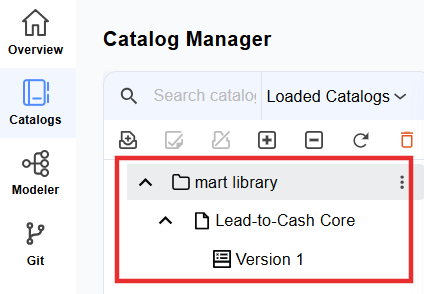
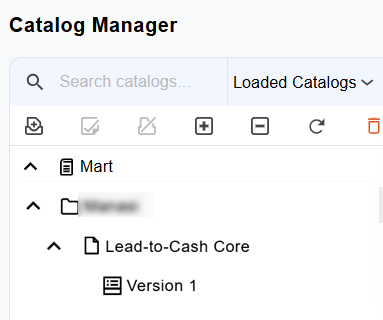
For example, the following screenshot shows the Lead-to-Cash Core model saved in the mart library. The model contains Version 1, which is available for team members to access, review, and refine.
After you make changes to a model that is already stored in Quest erwin Mart Portal, save the model again to create the next version. Incremental Save records only the changes made since the previous save instead of rewriting the entire model each time. It applies to models saved manually or by using AI Copilot and helps optimize save operations and version tracking in Quest erwin Mart Portal.
When you save the updated model, the following Save dialog appears to let you enter a description for the changes, and then select Save.
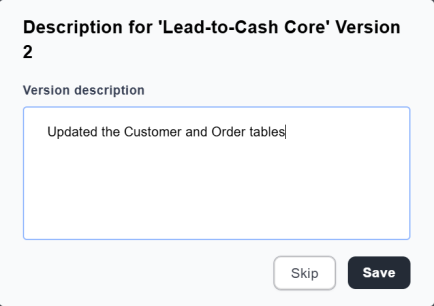
The updated model is saved as the next version in Quest erwin Mart Portal.
Save Models to Mart Using AI Prompts
If you built or refined a model using AI, you can ask the AI Copilot to save it to the mart.
-
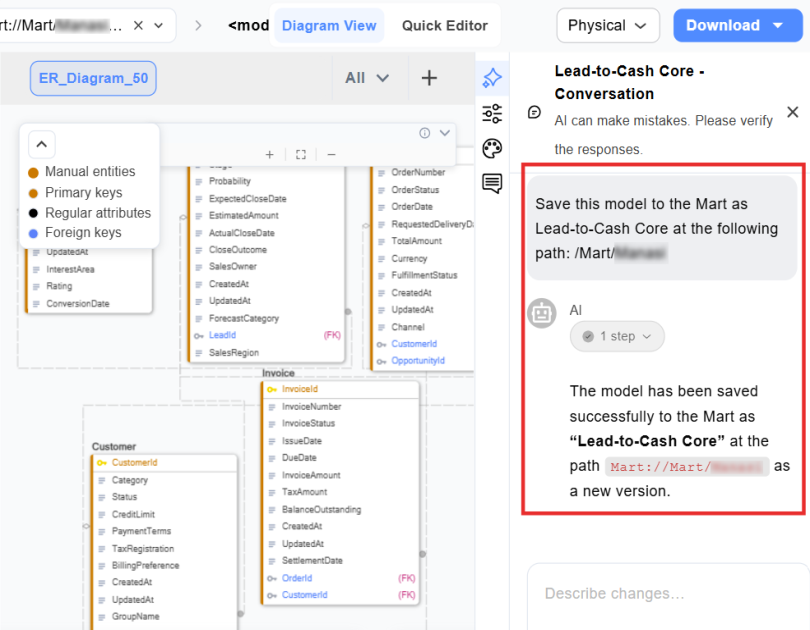
In the AI Copilot Conversation pane, enter a prompt. For example,
Save this model to the Mart as Lead-to-Cash Core at the following path: /Mart/<library_name>
AI saves the model to the specified location in the mart, creates a new version of the model, and confirms the successful save operation in the conversation pane.
Note: If you do not specify a library, the model is saved to the root node.
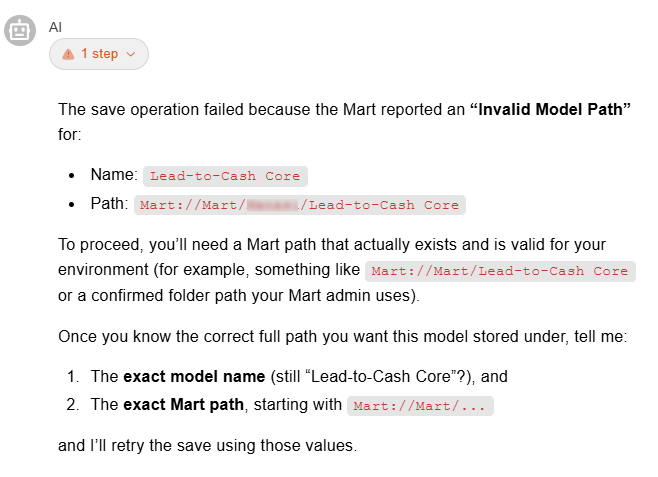
Note: The specified Mart path must already exist in the Mart repository. If the path does not exist, AI Copilot returns an Invalid Model Path error and prompts you to provide a valid Mart path.