Quest Data Modeler (QDM) User Interface (UI) is designed to help you create, open, and manage data models efficiently. It provides a task-focused, web-based experience that supports both guided and advanced modeling workflows.
Welcome Screen
The Welcome screen is your starting point when you sign in to QDM. It provides quick access to common modeling tasks, recently used models, favorite models, and AI-assisted modeling features.
This design prioritizes frequently used features, minimizing navigation steps.
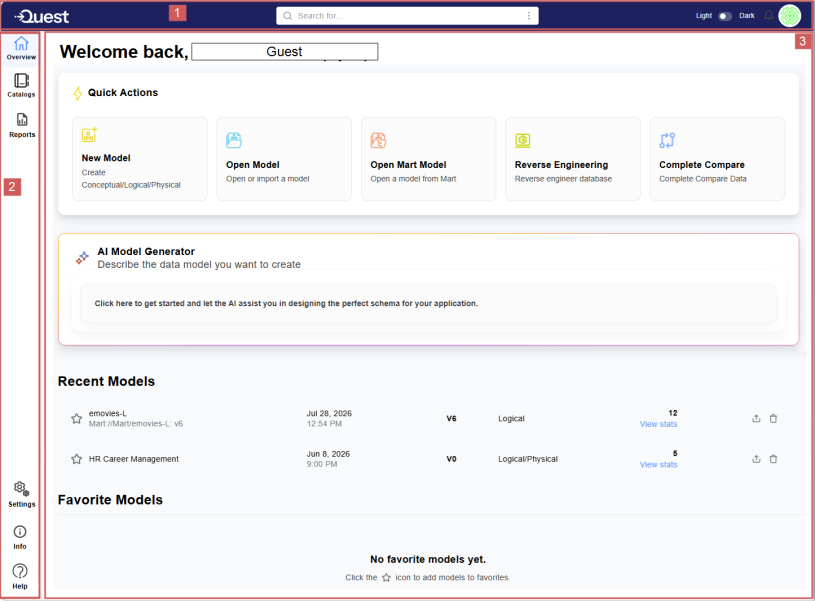
Use this screen to create, open, or manage data models without navigating through menus. The Welcome screen includes the following sections.
1. Header Area
The header includes the following elements:

- Quest logo: Displays the company logo.
- Search bar: Searches relevant information with semantic search across Quest erwin Mart Portal models and supported objects.
- Display mode toggle: Switches between light and dark modes.
- Notification icon: Provides updates related to models and other activities.
- User profile icon: Displays the signed-in user profile image or icon and provides related account settings.
2. Side Menu
The side menu provides access to key areas of the application.

It includes the following options:
-
 - Takes you to the welcome screen.
 -
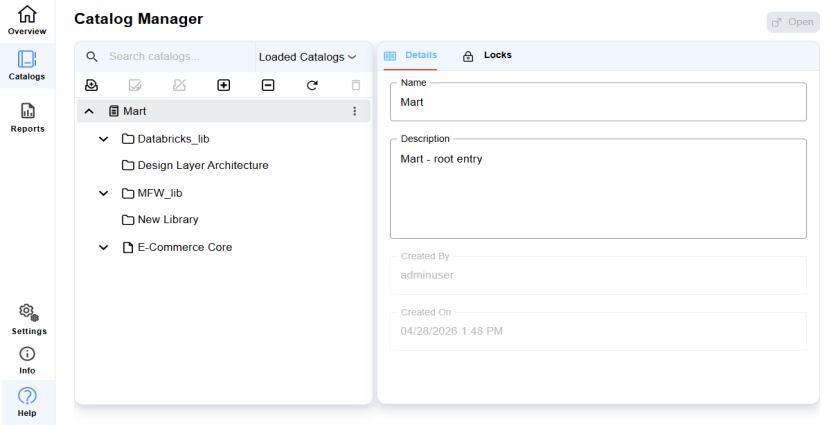
 - Opens Mart Catalog Manager to provide access to catalogs and shared assets.
The Catalog Manager Page looks like this:
-
 - Opens Quest Data Modeler Workspace. It appears only when you open a model.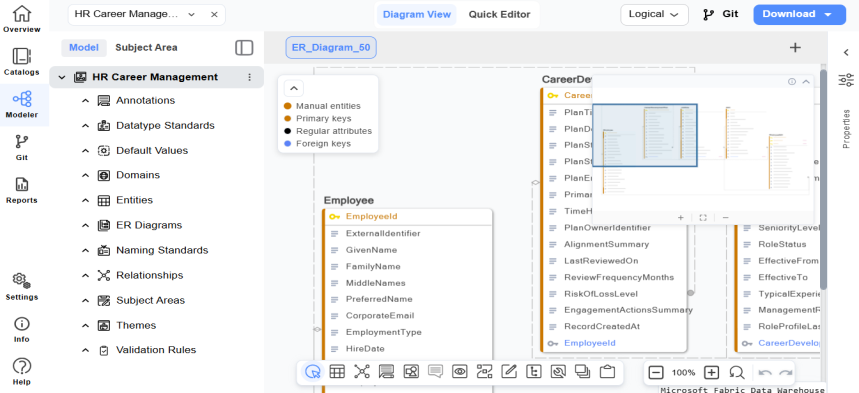
-
The QDM workspace includes the following components:
-
Open model dropdown - Displays the currently open model name and lets you switch between open models.
-
Model Explorer - Shows your data model in a structured, hierarchical view. Use it to create, browse, and manage model objects.
-
Subject Area Explorer - Displays the Subject Area members.
-
Diagram View - Allows you to perform all modeling tasks in the diagram window, where you design and refine your data model.
-
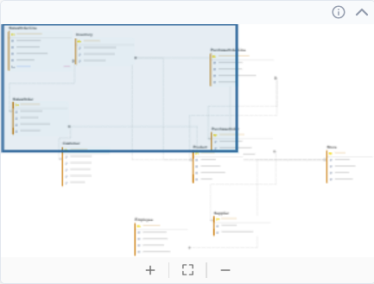
Mini Map - Lets you to navigate the diagram by panning across a miniature view of the model and can be moved anywhere within the diagram view.
-
Legends - Displays the color-coding used to identify different object types in the diagram. The legend displays only the object types currently visible in the diagram view.
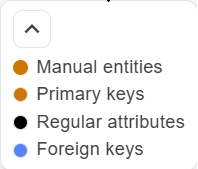
The color codes for all the objects are as follows:
- Entity colors
- Blue: Mart-generated entities
- Purple: AI-generated entities
- Amber/Orange: Manually created entities
- Attribute colors
- Amber: Primary keys
- Blue: Foreign keys
- White (light theme) or Black (dark theme): Regular attributes
- Entity colors
-
Floating Toolbar - Displays all the object and tool options for creating and managing model objects. The available options update automatically based on the current model view. The following image displays all the options available on the toolbar in Physical view.

The following table describes the available options in the toolbar.
Toolbar Icons Name Description 
Select Allows selection of objects in the diagram view. 
Add Table/Add Entity Adds a table to the model in the diagram view. In case of logical model view, this icon adds an entity to the model. 
Add View Adds a database view. This option is not available in the logical model view. 
Add Relationships Allows you to add relationships between the tables or entities. 
Add Annotations Allows you to add the annotations to the diagram. 
Add Drawing Objects Allows you to add drawing objects to the diagram. 
Comments Allows you to add comments in the diagram. Mentioning a user's name or email address in a comment sends an email notification to that user. 
View Options Lets you switch between view types, namely Table View, Column View, Icon View, Key View, PK View, and Comment View. 
Layout Options Organizes diagram elements using layouts, such as Group, Ungroup, Hierarchical, Tree, Circular, Hide, Hide Neighborhood, Unhide, and Unhide All. 
Editors Opens specialized editors, such as Default values, Domains, Tables, Functions, Relationships, Stored Procedures, Materialized View, View Editor, Subject Area Editor, User Defined Properties, and Model properties editor. 
Mart Provides access to commonly used Mart options, such as Save, Save As, Catalog Manager, DBT, Open, and Lock (All lock options and unlock option). 
Tools Provides options to perform Complete Compare, Reverse Engineering, Forward Engineering, and Model Naming Options.
Note that Reverse Engineering option only appears if the model is opened in the physical model view.

Derive Model Allows you to create a new derived model. 
Clipboard Allows cut, copy, and paste operations. -
 - Provides options to view a model at different magnification levels. You can zoom out, zoom in and reset the zoom using these options.
 -
 - Allows you to revert or reapply model changes on the diagram view.
-
-
Quick Editor - Opens an editor with tabbed options for the selected model or object. You can use it to edit the properties of the selected model or objects.
-
 - Lets you switch between the logical and physical view of the model.
 -
 - Opens the Git Quick Actions menu with shortcuts for common Git version control operations for the open model. The Git actions appear enabled only when your model is connected to a Git repository. For more information, refer to the Establish a Git Workflow topic.
 -
 - Provides options to export the model to JSON, SVG, PDF, RDF/TTL Ontology, and RDF/TTL Constraint formats along with the option to print the diagram.
 -
Properties Pane - It includes the following options:
-
 - Opens AI Copilot conversation chat.
 -
 - Opens commonly used properties of the selected model or object
 -
 - Opens available styling options for the selected objects
 -
 - Opens comments pane to add your comments.
-
-
-
-
 - Set up Git and connect models to Git repositories and perform version control operations. For more information, refer to the Establish a Git Workflow topic.
 -
 - Generate and manage custom reports by selecting report subjects, designing report content, and opening saved reports. For more information, refer to the Design and Run Reports topic.
 -
 - Opens the configuration settings page for the following options:
-
Git Configuration: Configure and manage connections between QDM and Git repositories. For more information, refer to the Git Configuration topic.
-
BigQuery OAuth: Configure OAuth authentication for Google BigQuery connections. For more information, refer to the Configure OAuth for Google BigQuery topic.
-
-
 - Displays tabs that provide information about product versions, new features, and upcoming features in QDM.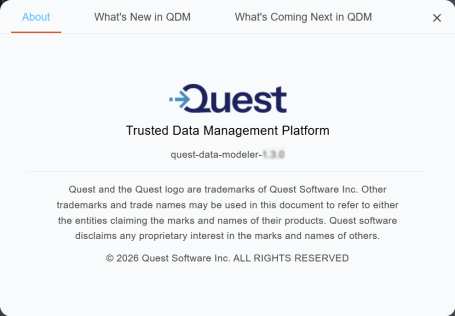
-
 - Opens QDM documentation.
3. Work Area
The work area gives you access to the most commonly performed tasks, AI model generator, recently opened models, and your favorite models.
Quick Actions
The Quick Actions provide shortcuts to the most frequently used tasks.

New Model
Opens the New Model screen which allows you to create a new data model by entering the required details, namely model name, model type, target server and its version.
Open Model
Opens the Open Model screen to allow you to open an existing model by choosing one of the following options:
-
Browse – Open a local model by uploading a JSON file containing model data. The file size should have the maximum size of 100 MB.
-
Open Existing Model – Open previously saved model in the app.
Open Mart Model
Opens the Mart Catalog Manager to display the list of models stored in the Mart. It allows you to browse and select models available in Mart repositories. For detailed steps, refer to the Use an Existing Model topic.
Reverse Engineering
Opens the Reverse Engineer wizard that lets you generate a data model from an existing database or a script. For detailed steps, refer to the Reverse Engineer a Model topic.
Complete Compare
Opens the Complete Compare wizard that lets you compare your model with a database or another model. For detailed steps, refer to the Perform Complete Compare topic.
AI Model Generator
Use AI Model Generator to create models using natural language descriptions. Describe the data model you want to create or provide a public URL that describes your model requirements, and the AI assists you by generating tables, relationships, and structures as per your requirements. It helps accelerate model creation, especially during early design phases.
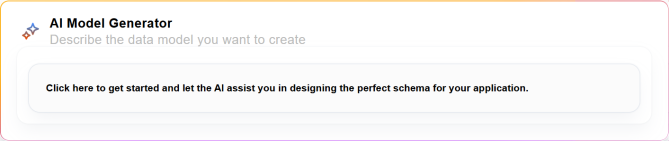
To start using the AI Model Generator, select Click here to get started..... to launch the AI-assisted workflow.
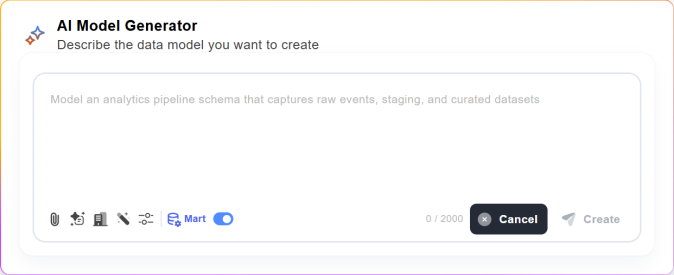
Here, you can enter your natural language prompt and also choose to work with the following options:
-
 - Allows you to attach up to 5 files to generate a data model. These files include images (SVG, JPG/JPEG, and PNG) Word (.doc and .docx) document, CSV, Excel, JSON, PDF, text (.txt), SQL, and markdown files with maximum size up to 2 MB.
 -
 - Opens the Prompt Gallery to provide predefined example prompts and templates that help you quickly get started with AI‑based model creation. It acts as a starter library for common business domains and modeling scenarios.
 -
 - Provides access to the ready-to-use prompts tailored to specific industries and business domains.
 -
 - Allows to define custom AI instructions to automatically apply modeling standards to AI-generated models. Your preferences are saved per user and applied across sessions.
 -
 - Provides all the model type options for you to choose from.
 -
 - Enables Quest erwin Mart Portal integration to match entities against the Quest erwin Mart Portal repository.
For detailed information and workflow, refer to the Use AI Model Generator topic.
Recent Models
The Recent Models section displays models you have worked on recently. You can double-click a model to open it in QDM. You can also share the model using  option and delete the model using
  option available next to the model name.
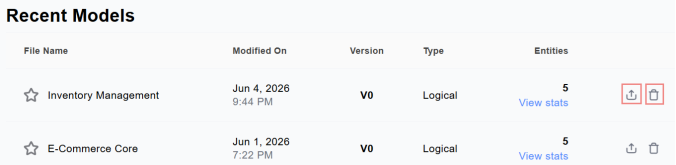
If no models are available, the section displays "No recent models found".
Note: Models that are not saved to Quest erwin Mart Portal are treated as draft models and are automatically deleted after 30 days.
Favorite Models
The Favorite Models section displays models you have marked as favorites for quick access.
Use the  on a model to add or remove it from the list.
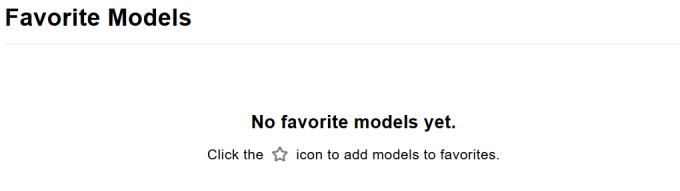
If no favorites are available, the section displays "No favorite models yet".