You can connect Quest Data Modeler to source control repositories. This enables you to save Forward Engineering (FE) scripts for a Mart model to your source control repository.
Note: The model must be saved to Quest erwin Mart Portal before committing it to Git.
You cannot store FE scripts or DDL on a Quest erwin Mart Portal but only Quest Data Modeler models.
With source control support you can implement:
-
DevOps adoption
-
collaboration with team members
-
version control
-
workflow management
-
data integrity
Pushing FE scripts to a repository involves:
-
Ensuring connections with Quest erwin Mart Portal
To summarize, following is the workflow to commit FE scripts.
Connecting to Source Control Repositories
A repository can be hosted on GitLab, GitHub, Bitbucket, or Azure DevOps. For a successful connection to these repositories, following are the prerequisites:
-
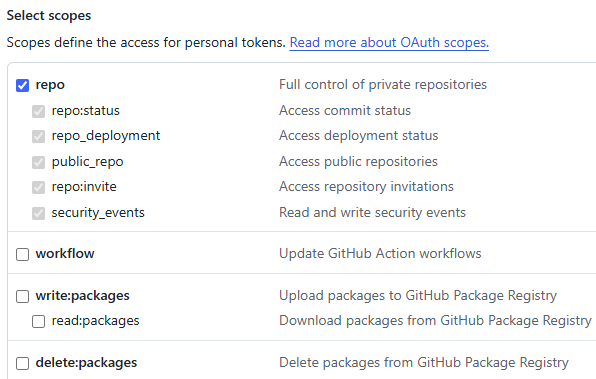
GitHub Scope: Ensure that the following minimum scope is configured.
-
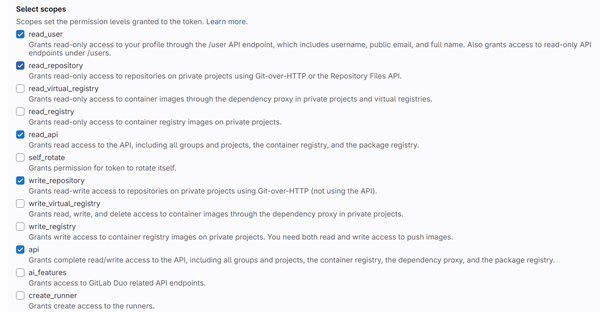
GitLab Scope: Ensure that the following minimum scope is configured.
-
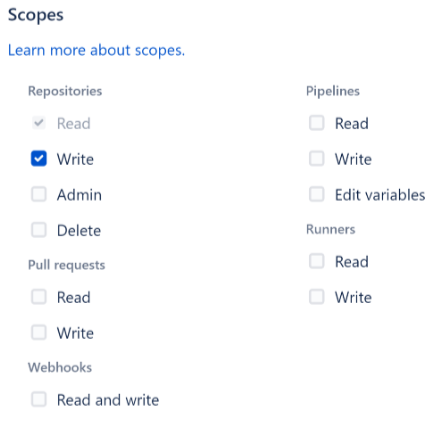
Bitbucket Scope: Ensure that the following minimum scope is configured.
-
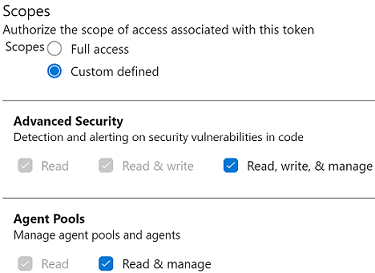
Azure DevOps Scope: Ensure that the following minimum scope is configured.
-
Quest erwin Mart Portal Scope:
Ensure that the following minimum permission is configured for your profile in Quest erwin Mart Portal.
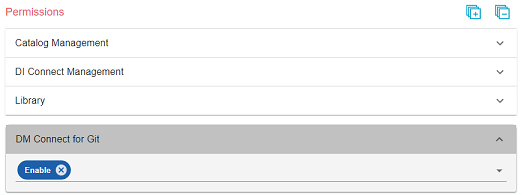
Note: This permission is not available for Viewer profile.
-
Personal Access Token: Ensure that you have created the required personal access token. To know how to create personal access tokens for GitLab, refer to the GitLab documentation, for GitHub, refer to the GitHub documentation and for Azure DevOps, refer to the Azure DevOps documentation.
Committing Forward Engineering Scripts
There are two scenarios in which you commit Forward Engineering (FE) scripts to a Git repository:
-
Scenario 1: Committing new or full FE scripts:
Use the Forward Engineer Schema Generation Wizard to commit a physical database schema or FE script from a Mart Model.
To avoid script files from being overwritten, ensure that you use unique file names.
-
Scenario 2: Committing alter scripts:
-
Use the Forward Engineer Alter Script Schema Generation Wizard to commit an alter script after you make changes to a Mart Model. You can commit an alter script in two ways:
-
Commit and append an alter script to an existing script file
-
Commit and create a new alter script file in the Git repository
For more information, refer to the Scenario 2: Committing Alter Scripts section.
-
Scenario 1: Committing New or Full FE Scripts
The Forward Engineer Schema Generation Wizard generates a physical database schema or Forward Engineering (FE) script. For a Mart Model, you can push the FE script to a Git repository.
To commit new or full FE scripts to Git repositories, follow these steps:
-
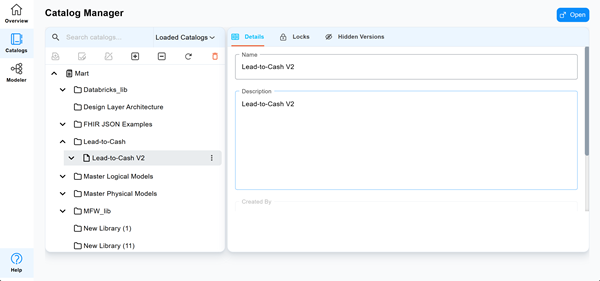
On the Overview page, select Open Mart Model.
The Catalog Manager page opens.
-
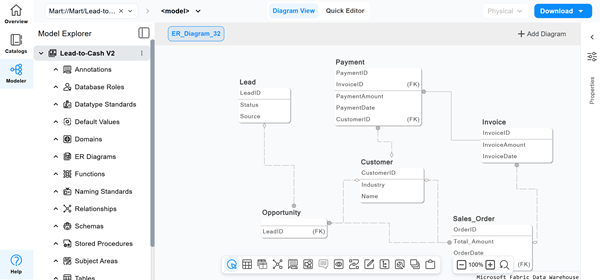
Select the model, and then select Open.
You can also select
 on the model node, and then select Open in Modeler.
The model opens in Diagram View.
-
On the tool bar, select
 , and then select Forward Engineering.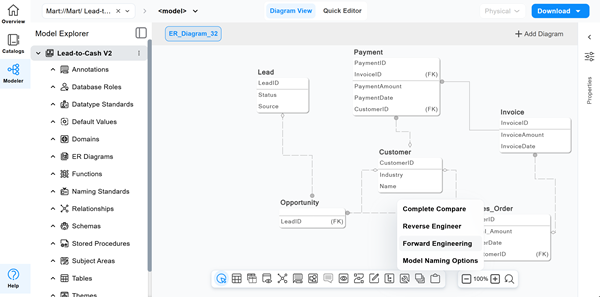
The Forward Engineering page opens.
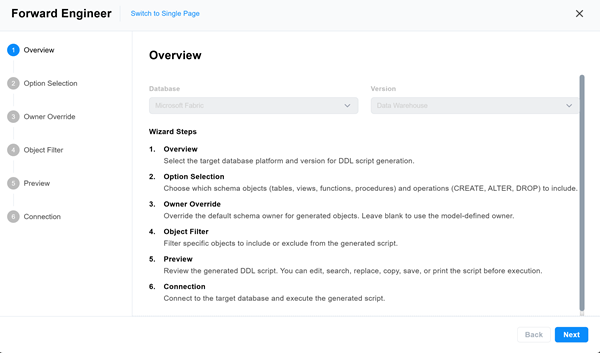
-
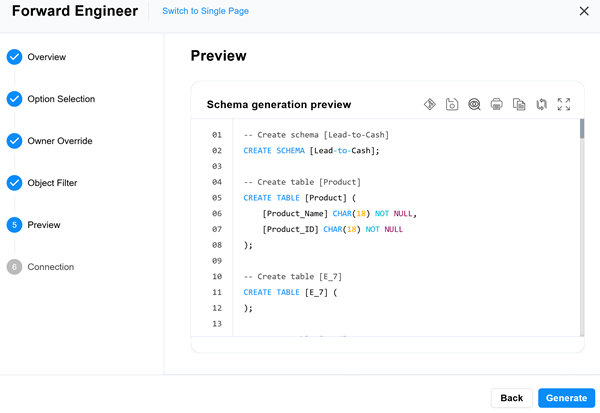
Select the Preview section.
The FE script appears. For example, in the following image the Preview section displays FE script of a Microsoft Fabric database. For more information on generating FE scripts, refer to the Forward Engineer a Model topic.
-
Select
 .
. The Schema Generation Preview page opens.
-
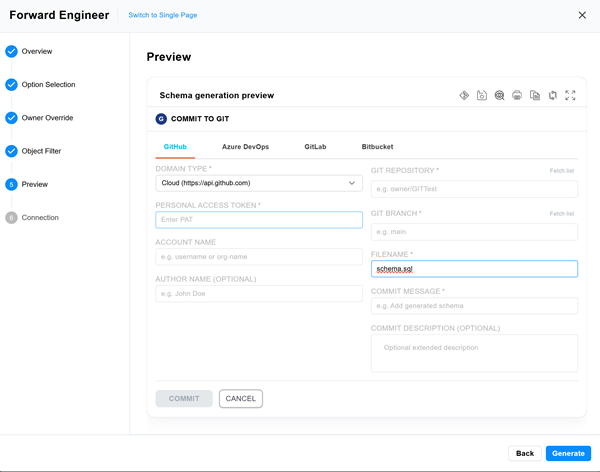
Enter appropriate values in the fields. Refer to the following table for field descriptions. Fields marked with an asterisk (*) are mandatory.
Field Name Description Additional Information Domain Type* Specifies the cloud account connection type For example, GitHub, GitLab, Azure DevOps, or Bitbucket Personal Access Token* Specifies the personal access token to connect to the hosting service Account Name Specifies the user name of the author who pushes the commit Author Name (Optional) Specifies the name of the author who pushes the commit Git Repository* Specifies the Git repository configured for the connection For example, https://github.com/d4215/GITTest is set for the ConnectGit connection. Git Branch* Specifies the Git branch configured for the connection For example, main is set for the ConnectGit connection. File Name* Specifies the user-defined name of the FE script file being committed to a Git repository For example, MicrosoftFabric-LeadtoCash-Data.sql. To avoid script files from being overwritten, ensure that you use unique file names. Commit Message* Specifies the message of the push commit For example, Lead to Cash Rectification. Commit Description (Optional) Specifies the description of the push commit -
Select Commit.
The FE script file is saved and committed to the Git repository.
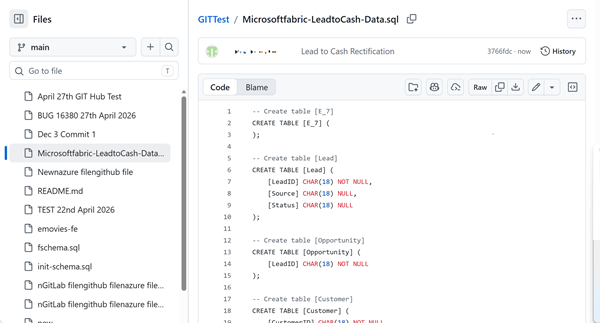
For example, in the following image, FE script is committed to a Git repository in a file, Microsoftfabric-LeadtoCash-Data.sql, with a commit message, Lead to Cash Rectification using the main branch.
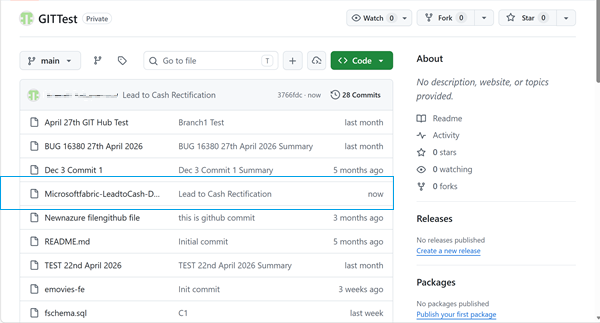
You can select the file to review its content. For example, in the following image, Microsoftfabric-LeadtoCash-Data's content is visible.
Scenario 2: Committing Alter Scripts
The Forward Engineer Alter Schema Generation Wizard generates an alter script for a database after you make changes to a model. For a Mart Model, you can push the alter script to a Git repository.
To commit alter scripts to Git repositories, follow these steps:
-
On the Overview page, select Open Mart Model.
The Catalog Manager page opens.
-
Select the model, and then select Open.
You can also select
on the model node, and then select Open in Modeler.The model opens in Diagram View.
-
Make the required changes in the model.
For example, in the following model, a new table, Product, with two columns is added.
-
On the tool bar, select
, and then select Alter Script.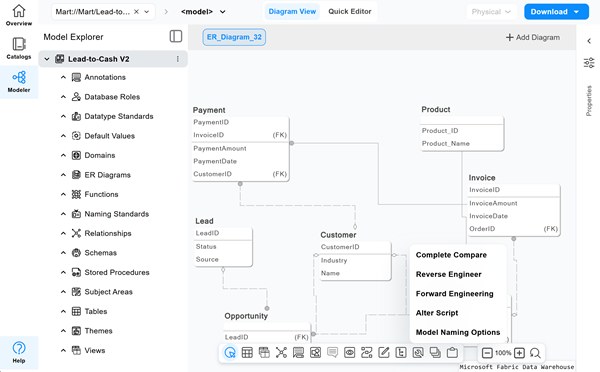
The Alter Script page opens.
-
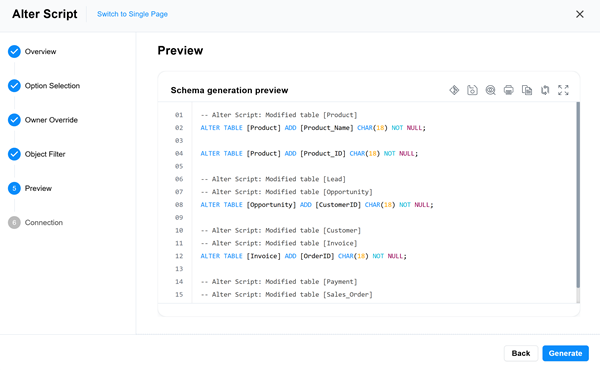
Select the Preview section.
The FE script appears. For example, in the following image the Preview section displays FE script of a Microsoft Fabric database.
-
Select
. The Schema Alter Script Generation Preview page opens.
-
Enter appropriate values in the fields. Fields marked with an asterisk (*) are mandatory. Refer to the following table for field descriptions.
Field Name Description Additional Information Domain Type* Specifies whether the connection connects to a cloud account Personal Access Token* Specifies the personal access token to connect to the hosting service Account Name Specifies the user name of the author who pushes the commit Author Name (Optional) Specifies the name of the author who pushes the commit Git Repository* Specifies the Git repository configured for the connection For example, https://gitlab.com/d4215/GitLabIntegration is set for the ConnectGit connection. Git Branch* Specifies the Git branch configured for the connection For example, main is set for the ConnectGit connection. File Name* Specifies the user-defined name of the FE script file being committed to a Git repository For example, MicrosoftFabric-LeadtoCash-Data.sql. To avoid script files from being overwritten, ensure that you use unique file names. Commit Message* Specifies the message of the push commit For example, Lead to Cash Rectification. Commit Description (Optional) Specifies the description of the push commit -
Select Commit.
The alter script file is saved and committed to the Git repository.
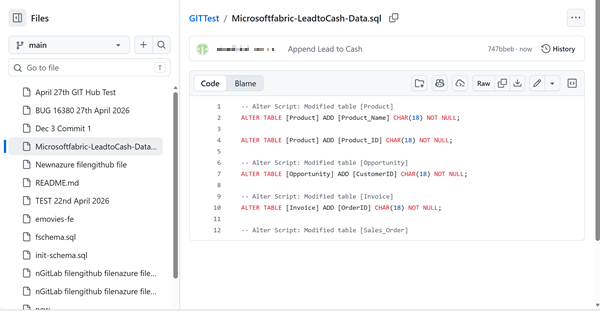
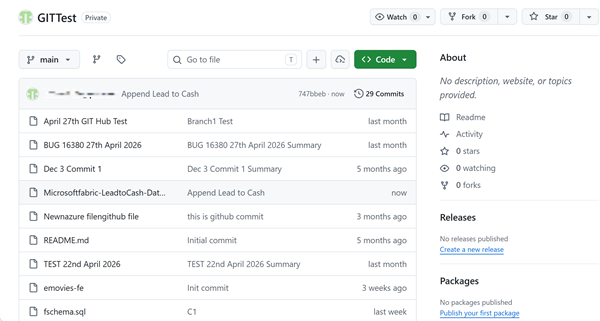
For example, in the following image, FE script is committed to a Git repository and and appended to an existing file, Microsoftfabric-LeadtoCash-Data.sql, with a commit message, Append Lead to Cash using the main branch.
You can select the file to review its content. For example, in the following image, Microsoftfabric-LeadtoCash-Data contains the alter script.