Data movement lets you record where the data in a physical model comes from. In this walkthrough, you import an external source into your model and map one of your columns to it, so the column's origin is documented in the model and can be traced through vertical lineage.
For information about data movement concepts and objects, refer to the Data Movement topic.
Scenario: Documenting Sources for the Lead‑to‑Cash Core Model
The Lead‑to‑Cash Core physical model includes tables such as Customer and Order. Before the model is handed to the data engineering team, the origin of the data that populates these tables must be captured in the model. This gives the team a clear source-to-target reference to build and maintain the load processes.
In this walkthrough, you import an external source that contains the EMPLOYEE and DEPARTMENT tables. You then map the Customer table's Name column to the source emp_name column, and the Order table's Name column to the source dep_name column. Finally, you trace both columns through vertical lineage.
Workflow Overview
Complete the following stages in order:
Enable Data Movement for the Model
Data movement sources and their options become available only after you enable data movement for the model.
To enable data movement, follow these steps:
-
Open the model, and switch to physical mode.
-
In Model Explorer, select the model node.
-
Select
 , and then select Properties.
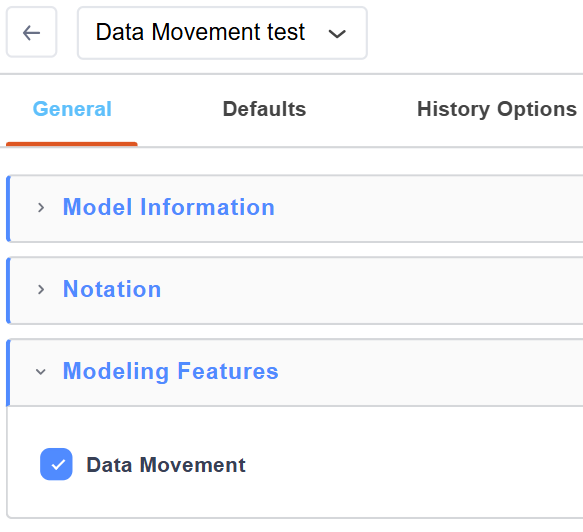
The model properties open on the General tab.
-
Under Modeling Features, select the Data Movement checkbox.
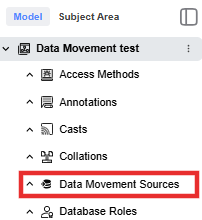
A Data Movement Sources node becomes available in Model Explorer.
Create a Data Movement Source
A data movement source, also called a data source object, represents an external system that your data comes from.
To create data movement sources, follow these steps:
-
In Model Explorer, select the Data Movement Sources node.
-
Select
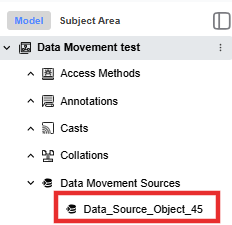
, and then select Create New.A new data source object is added under the node. For example, Data_Source_Object_45.
-
Double-click the new data source object.
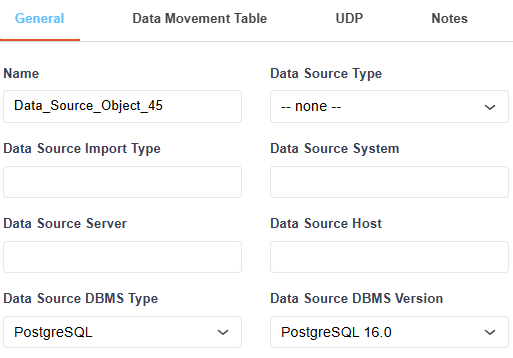
The Data Source Object editor opens on the General tab.
-
(Optional) On the General tab, enter identifying details for the source, such as its name and the source system, server, and host. You import the source's tables and columns on the Data Movement Table tab in the next stage.
Import the Source Tables and Columns
Instead of entering the source structure manually, you import the tables and columns of the external source. The Data Source Import wizard works like Complete Compare: you load a source model, review the objects it finds, and then merge the objects you want into the data source.
You can load the source from a File, a Database / Script, a Data Source CSV, or the Mart. For example, you can select the CSV option and load a Data Source CSV file that lists the source's tables and columns. You move through the wizard with the Next button and finish with Import.
To import source tables and columns, follow these steps:
-
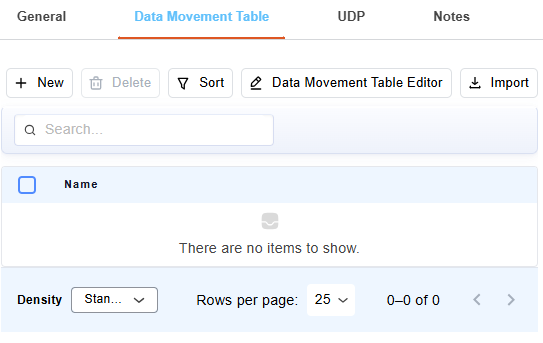
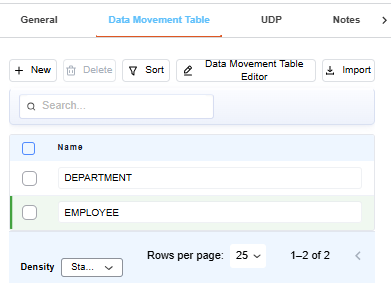
In the Data Source Object editor, select the Data Movement Table tab, and then select Import.
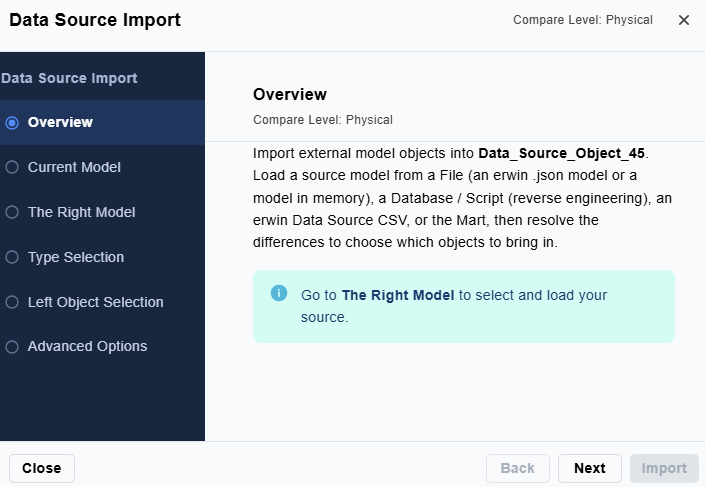
The Data Source Import wizard opens on the Overview page. The left pane lists the wizard pages: Overview, Current Model, The Right Model, Type Selection, Left Object Selection, and Advanced Options.
-
Select Next.
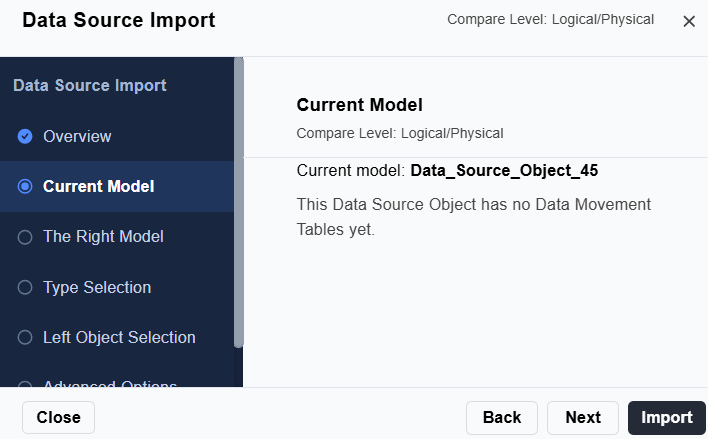
The Current Model page shows the data source you are importing into. For example, Data_Source_Object_45.
-
Select Next.
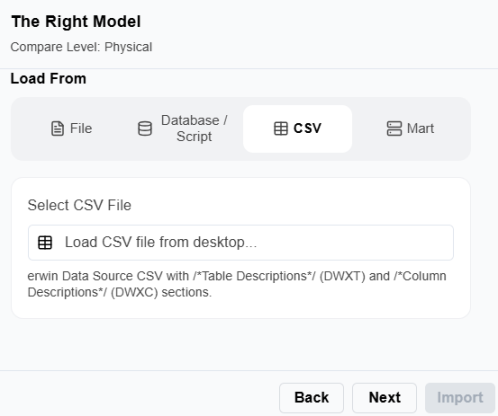
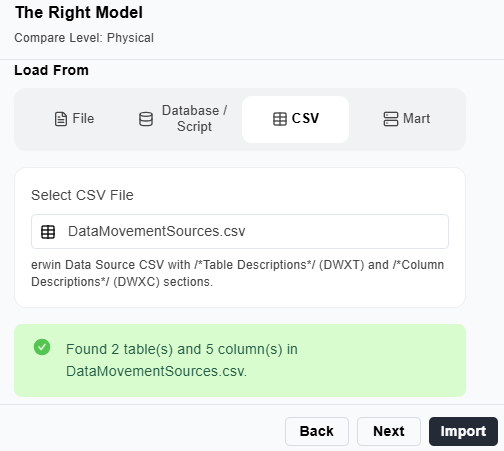
On the The Right Model page, choose where to load the source structure from. You can load from a File, a Database / Script, a Data Source CSV, or the Mart. This example loads from a CSV file:
-
Under Load From, select CSV.
-
Select Select CSV File, and then browse to and select a Data Source CSV file. For example, DataMovementSources.csv.
The wizard loads the file and reports what it found. For example, Found 2 table(s) and 5 column(s).
-
-
Select Next.
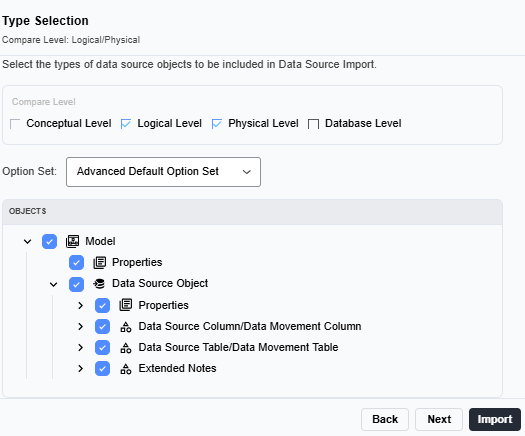
On the Type Selection page, confirm the compare level and the objects to include. By default, the Logical and Physical levels are selected with the Advanced Default Option Set. Leave the defaults unless you need to narrow the import.
-
Select Next.
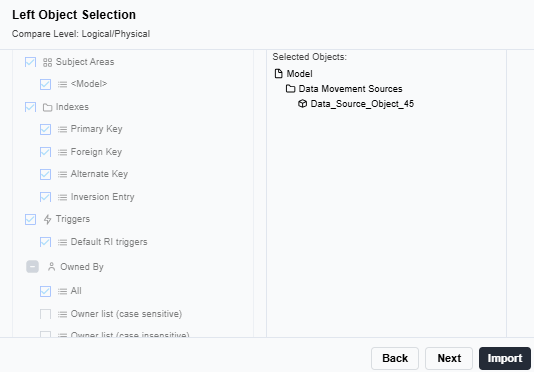
On the Left Object Selection page, confirm the objects to compare from the data source. The Selected Objects list shows the data source, for example, Data_Source_Object_45. Leave the defaults to include everything.
-
Select Next.
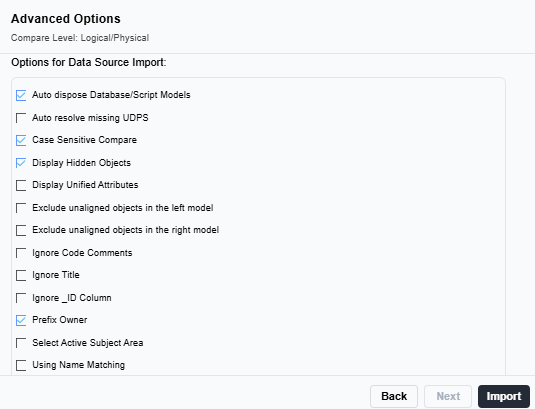
On the Advanced Options page, review the import options. Leave the defaults unless you need to change how objects are matched.
-
Select Import.
-
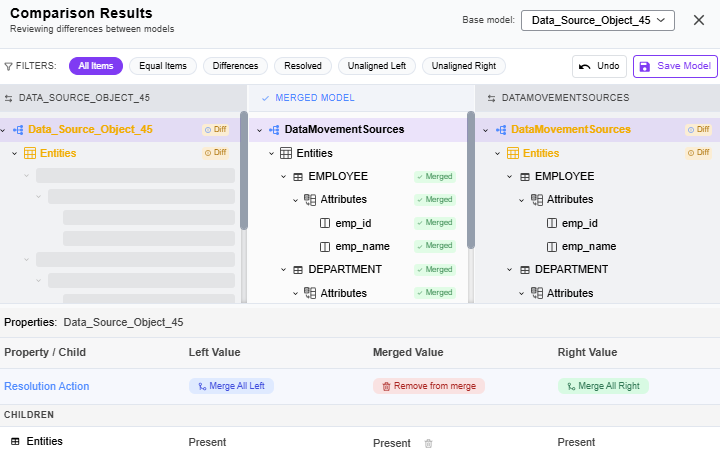
In the Base model dropdown, confirm the data source is selected, for example, Data_Source_Object_45.
The base model receives the merged objects, so every merge you apply updates the data source.
The base model is the target for the merged objects; changes are applied to the data source only when you select Save Model.
-
Merge the source objects into the data source:
-
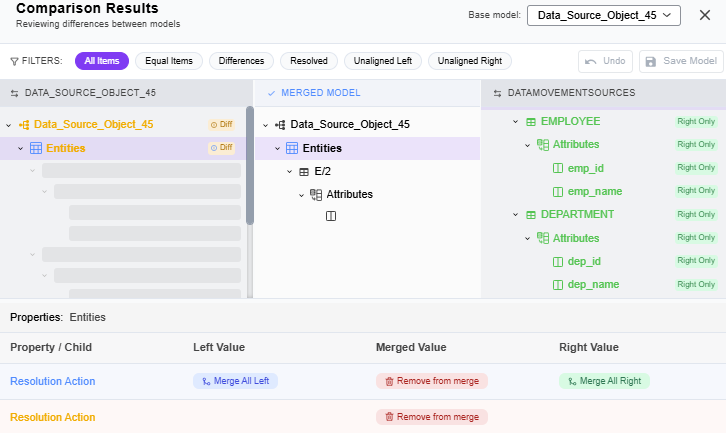
To bring in every object, select the source in the right panel, and then, in the Resolution Action row, select Merge All Right.
-
To bring in specific objects only, select an object marked Right Only in the right panel, for example, the EMPLOYEE table, and then, in the Resolution Action row, select Merge. Repeat for each object you want.
The merged tables and columns appear in the Merged Model panel. Your actions affect only the Merged Model until you save.
-
-
Select Save Model.
Selecting Save Model applies your merge actions to the data source. The imported tables and columns are added to the data movement source. For example, the source now contains the EMPLOYEE and DEPARTMENT tables and their columns.
The Comparison Results screen opens with three panels: the data source (left), the Merged Model (middle), and the loaded source (right). Objects found in the source, but not yet in the data source, are marked Right Only and shown in green. For example, the imported source contains the EMPLOYEE table (emp_id, emp_name) and the DEPARTMENT table (dep_id, dep_name).
Importing brings in the source model's structure only, so that you can map to it. It does not copy the source data into your model.
Map a Model Column to a Source
Map a column in your model to a column in the imported source to record where the model column's data comes from. In this example, you map two columns:
-
The Customer table's Name column to the source emp_name column.
-
The Order table's Name column to the source dep_name column.
Mapping both columns lets you compare their origins side by side in vertical lineage.
Map the Customer Name Column
To map the Customer table's Name column, follow these steps:
-
Open the column editor for the Name column in the Customer table. Use either method:
-
In the Diagram view, double-click the column.
-
In Model Explorer, expand the table's Columns node, select
, and then select Properties.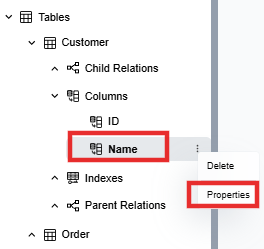
The column editor opens.
-
-
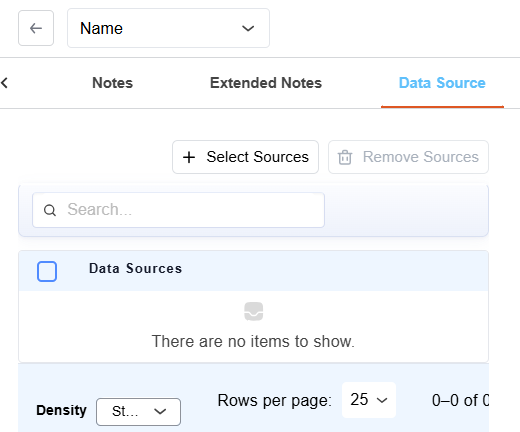
Select the Data Source tab.
-
Select Select Sources.
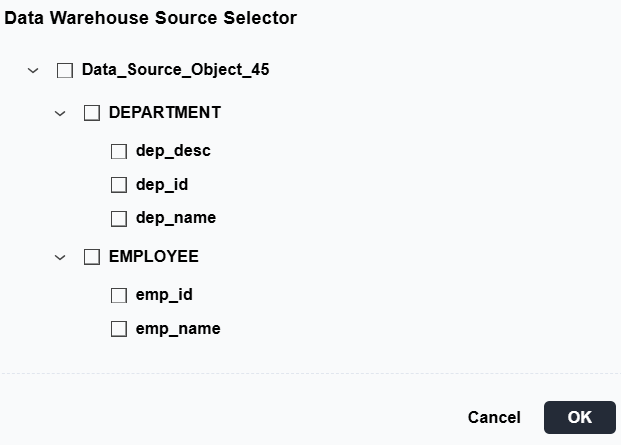
The Data Warehouse Source Selector opens. It lists the tables and columns from the source you imported.
-
Select the source column that the model column's data comes from.
For example, the emp_name column in the EMPLOYEE table.
-
Select Ok.
The selected source appears under Data Sources on the Data Source tab.
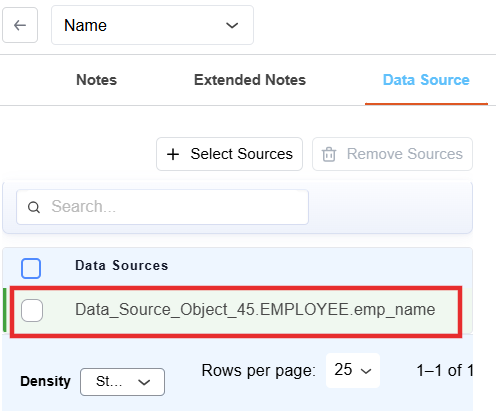
The Customer Name column now records that its data comes from the source emp_name column.
Map the Order Name Column
Map a second column so you can trace two origins in the lineage diagram.
-
Open the column editor for the Name column in the Order table, as described in the previous procedure.
-
Select the Data Source tab, and then select Select Sources.
-
In the Data Warehouse Source Selector, select the dep_name column in the DEPARTMENT table, and then select Ok.
The selected source appears under Data Sources on the Data Source tab.
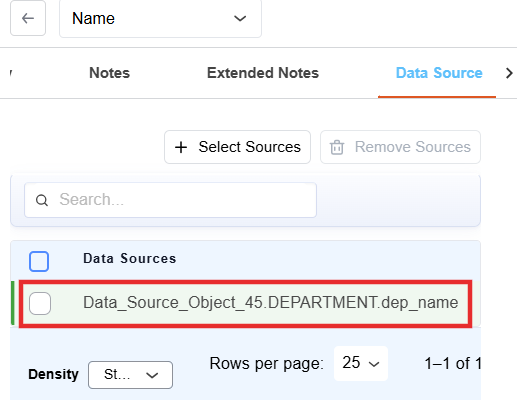
The Order Name column now records that its data comes from the source dep_name column.
View How the Data Moves Through Vertical Lineage
After you map a column, you can trace where its data comes from by viewing the column's vertical lineage. Vertical lineage opens for one column at a time and shows how that column has evolved across models over time, including the data movement source you mapped it to.
To view the lineage of the Customer Name column, follow these steps:
-
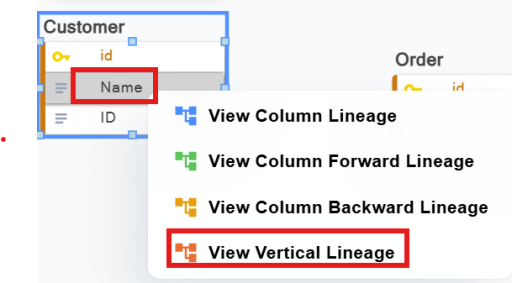
In the Diagram view, right-click the mapped column (for example, Customer Name column), and then select View Vertical Lineage.
The Vertical Lineage window opens for the column.
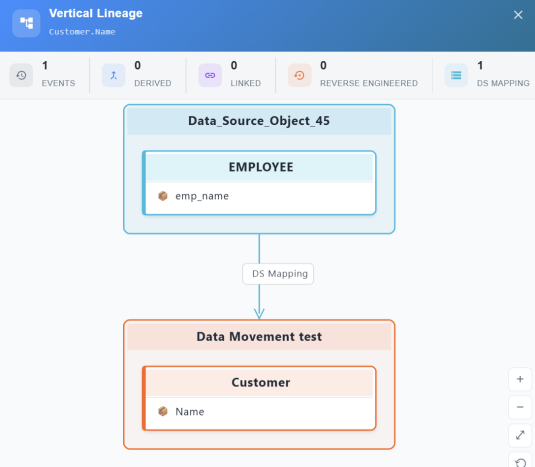
A category bar across the top groups the lineage into Derived, Linked, Reverse Engineered, and DS Mapping, with a count for each. Because you mapped the column to a data movement source, the DS Mapping count shows 1.
The diagram shows the source at the top and the model column below it, connected by a DS Mapping link. In this example, the source emp_name column (in the EMPLOYEE table under Data_Source_Object_45) maps down to the Customer Name column, confirming where the column's data comes from.
-
Close the Vertical Lineage window.
To view the lineage of the Order Name column, repeat the steps for that column. Its Vertical Lineage window shows a DS Mapping link from the source dep_name column (in the DEPARTMENT table) to the Order Name column.
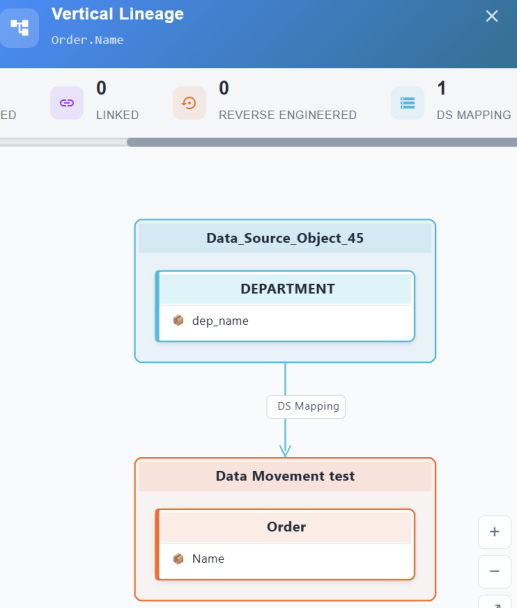
Viewing both columns confirms that each traces back to its own data movement source.
Trace Vertical Lineage Using AI Copilot
You can also trace the lineage of a mapped column from the AI Copilot Conversation pane. AI Copilot returns a text summary of the same information that the Vertical Lineage window shows, including the data movement sources that the column is mapped to.
To trace vertical lineage using AI Copilot, follow these steps:
-
With the model open, open the AI Copilot Conversation pane.
-
Enter a prompt that names the lineage type, the column, and its table. For example,
Trace the vertical lineage of the Name column in the Customer table.
AI Copilot traces the vertical lineage of the column and returns a summary in the conversation pane.
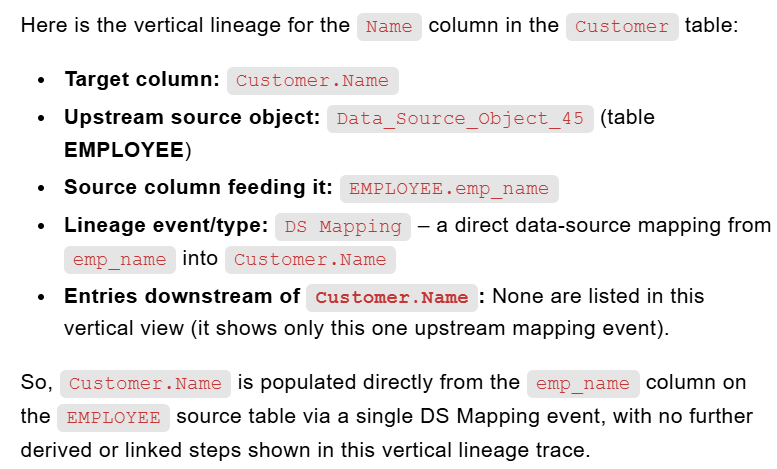
In this example, AI Copilot confirms that Customer.Name is populated directly from the emp_name column in the EMPLOYEE source table through a single DS Mapping link, with no derived or linked steps. This matches the DS Mapping link shown in the Vertical Lineage window.
Data movement must be enabled for the model, and the column must be mapped to a data movement source, before AI Copilot can report its data movement sources.
The type of lineage that AI Copilot traces depends on your prompt:
-
Vertical lineage: Shows where an object comes from outside the current model. This includes data movement sources mapped through the Data Source tab, and models derived from another model. To get this lineage, include vertical lineage in your prompt.
-
Data or column lineage: Shows how data flows between objects within the current model. AI Copilot traces table-level lineage for a table and column-level lineage for a column. To get this lineage, include data lineage or column lineage in your prompt.
-
The Lead‑to‑Cash Core model now documents its data movement sources directly in the model. Each mapped column records where its data originates and traces back to its source through vertical lineage, giving the data engineering team a single, governed source-to-target reference.