The Reports page in Quest Data Modeler lets you create, run, and export reports about models stored in your Quest erwin Mart Portal and about models that you select in Quest Data Modeler. You define a report once, save it with its properties, and then run or export it whenever you need the current information.
Mart reports query the Mart directly. They apply the selected filters and properties and can run without an open model or span multiple models in the Mart. Model-level reports use a selected model and provide report types based on that model.
Note: For Mart reports, your report coverage is determined by your Mart permissions.
Explore the Reports Page
To open the Reports page, select  in the left navigation bar. The first time you open the Reports page, no reports are defined and the workspace is empty.
The workspace includes the following areas and report types:
-
Report subjects: A report subject determines what a report is about and which properties are available to include in it.
-
Mart reports: For a Mart report, the properties are queried from the Mart. You can base a new report on the following subjects:
-
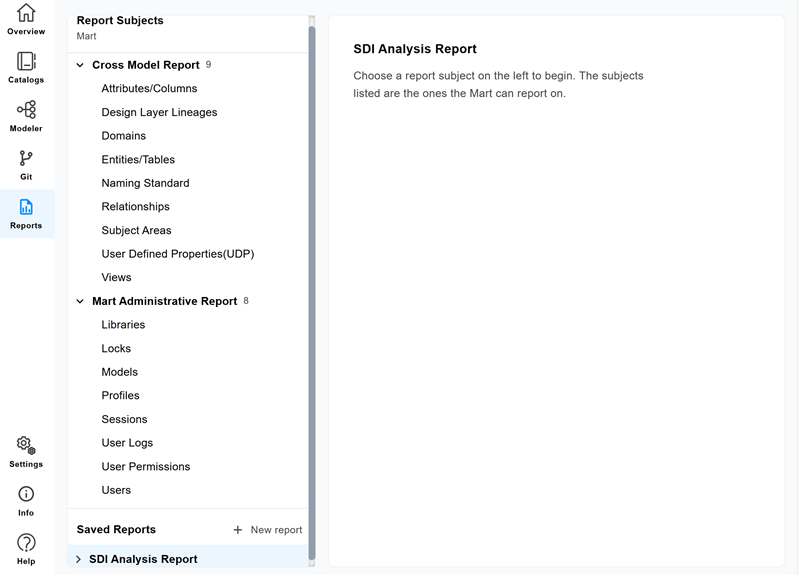
Cross Model Report: Reports on the design content of the models stored in the Mart. Use this subject to query and compare modeling objects across one or more models, such as Attributes/Columns, Design Layer Lineages, Domains, Entities/Tables, Naming Standard, Relationships, Subject Areas, User Defined Properties (UDP), and Views.
-
Mart Administrative Report: Reports on the administration and usage of the Mart itself. Use this subject to query operational and governance information, such as Libraries, Locks, Models, Profiles, Sessions, User Logs, User Permissions, and Users.
-
Model-level reports: Select a model to see the report types available for it. Depending on the model, you can create a Logical, Physical, or Logical/Physical report and select properties.
-
-
-
Saved reports: This area includes the reports that you have already created and saved, and any reports that have been shared with you.
Create a Model-Level Report
Use a model-level report to review the design content of a specific model. The report types, report subjects, and properties that are available depend on the model that you select.
For example, you need a data dictionary that includes every entity in the Lead-to-Cash-v4-new model, with its attributes and their logical definitions. You can share this report with the ETL or development team before they build data loads.
To create a model-level report, follow these steps:
-
On the QDM Overview page, in the left navigation bar, select
. The Reports page opens.
-
Select New Report.
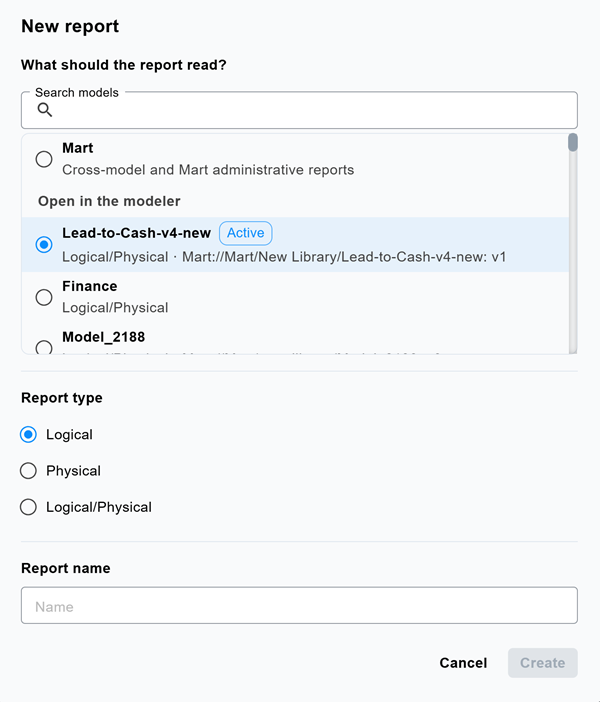
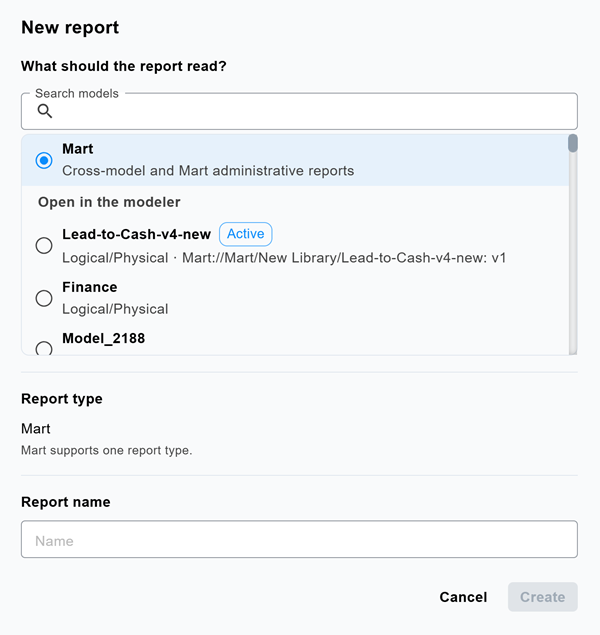
The New report dialog appears.
-
Search for or select the model that you want to report on. For example, Lead-to-Cash-v4-new.
Models that are open in the modeler are listed under Open in the modeler, and the active model is marked as Active. Each model is listed with its model type.
-
Under Report type, select the report type. For example, Logical.
The available report types depend on the model type. For example, for a Logical/Physical model, you can select Logical, Physical, or Logical/Physical.
-
In the Report name field, enter a name for the report. For example, ETL Handoff Data Dictionary.
-
Select Create.
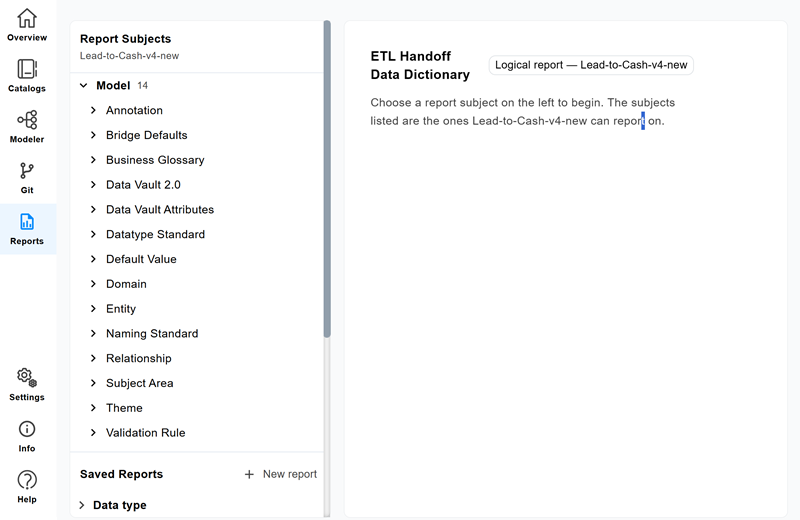
The report page opens. The Report Subjects pane lists the subjects that are available for the selected model and report type, such as Domain, Entity, Relationship, and Subject Area.
-
In the Report Subjects pane, select the report subject. For example, Entities.
-
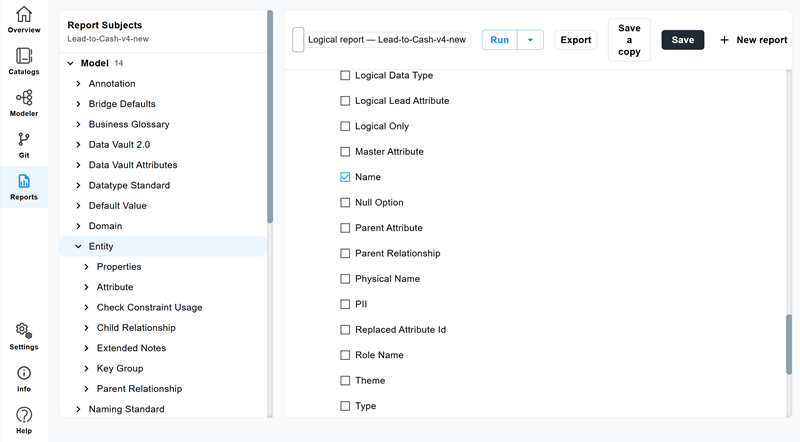
Select the properties that you want to include in the report. For example, Attribute Name and Definition.
-
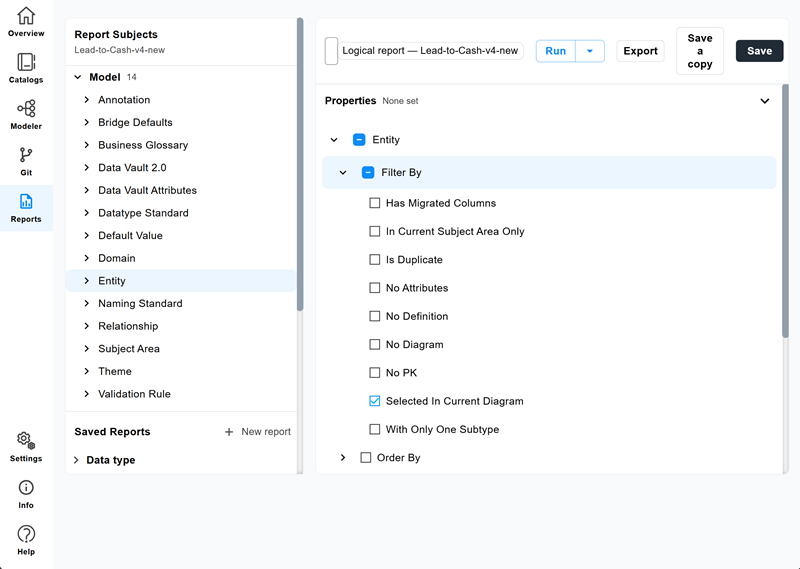
(Optional) Select a filter to limit the results. For example, Selected in current diagram.
-
Select Save.
The report is added to the Saved Reports section, and its properties are stored with it.
-
Select Run.
The report results are displayed in the Results pane. The status bar displays the report name, report type, and the number of rows and objects.
The run options for a model-level report are the same as for a Mart report. For example, you can run the report in a paginated format or load all rows in a single view. For more information, refer to the Run a Report section.
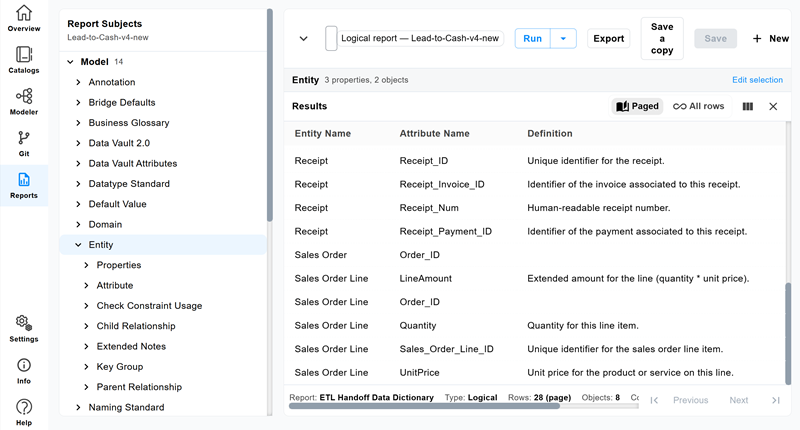
Review the results, and then export the report to share it with the ETL or development team. For more information, refer to the Export a Report section.
Create a Mart Report
To create a mart report, follow these steps:
-
On the QDM Overview page, in the left navigation bar, select
. The Reports page opens.
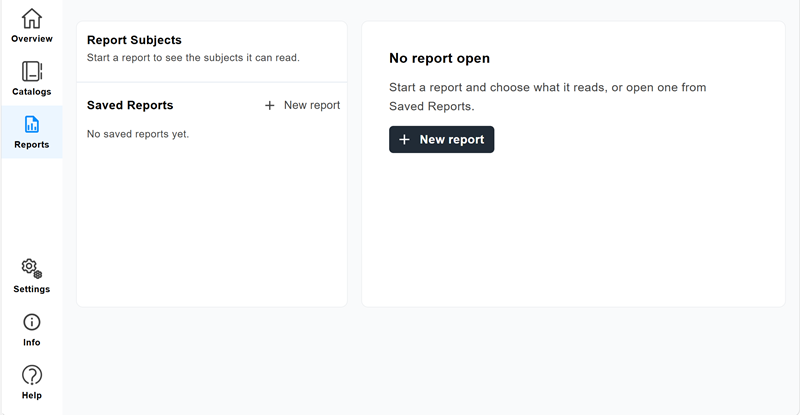
-
Select New Report.
The New Report dialog appears.
-
To create a Mart report, under What should the report read?, select Mart.
-
In the Report name field, enter the report name. For example, SDI Analysis Report.
-
Select Create.
The report is saved and displayed in the Saved Reports section.
-
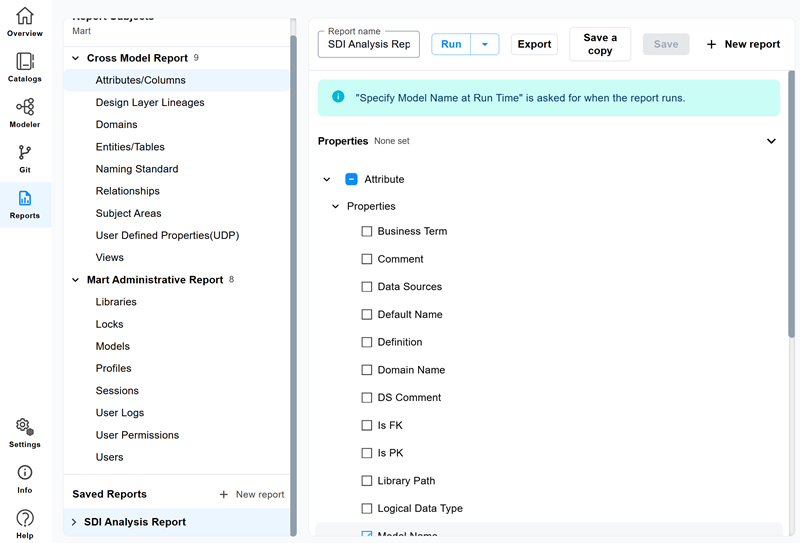
On the Report page, select the report object. For example, Attributes/Columns.
-
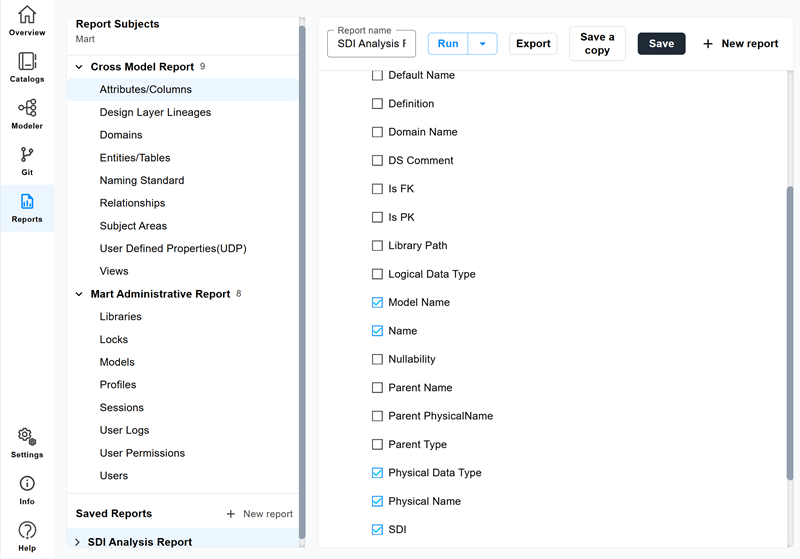
Select the properties that you want to include in the report. For example, Name, Model Name, Physical Data type, Physical Name, and SDI.
The available properties depend on the selected subject, object, and are retrieved from Mart.
-
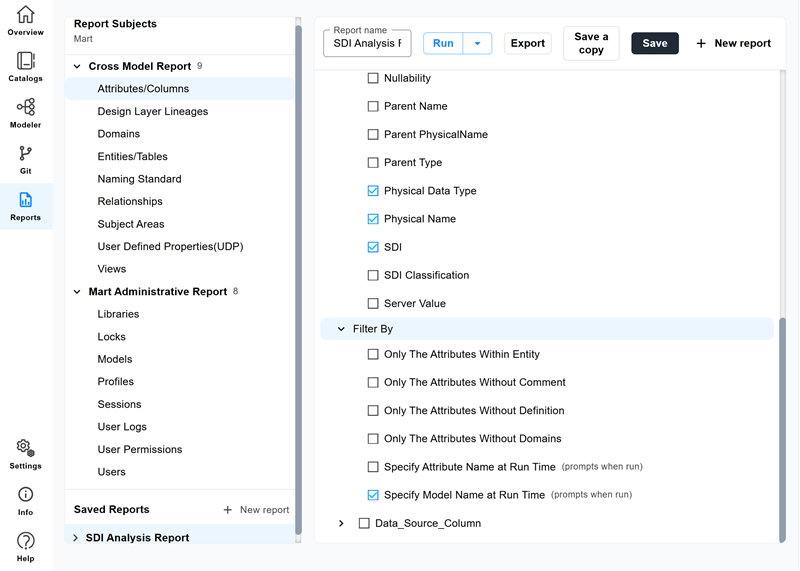
Select additional filters. For example, select Specify Model Name at Run Time to choose models when you run the report.
-
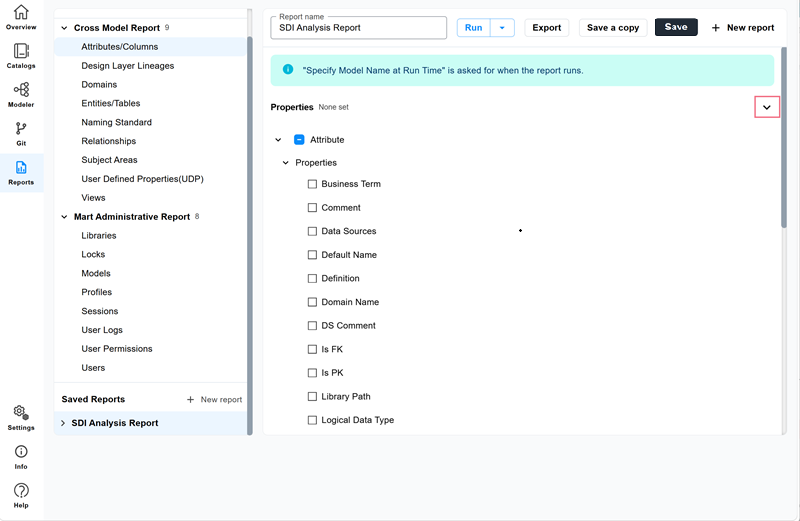
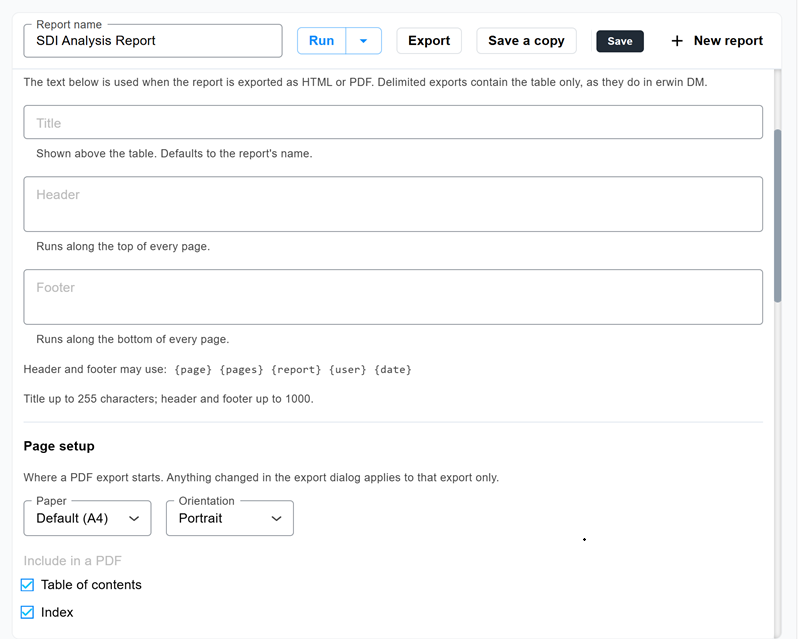
Expand Properties to open the Page setup and Properties pane.
-
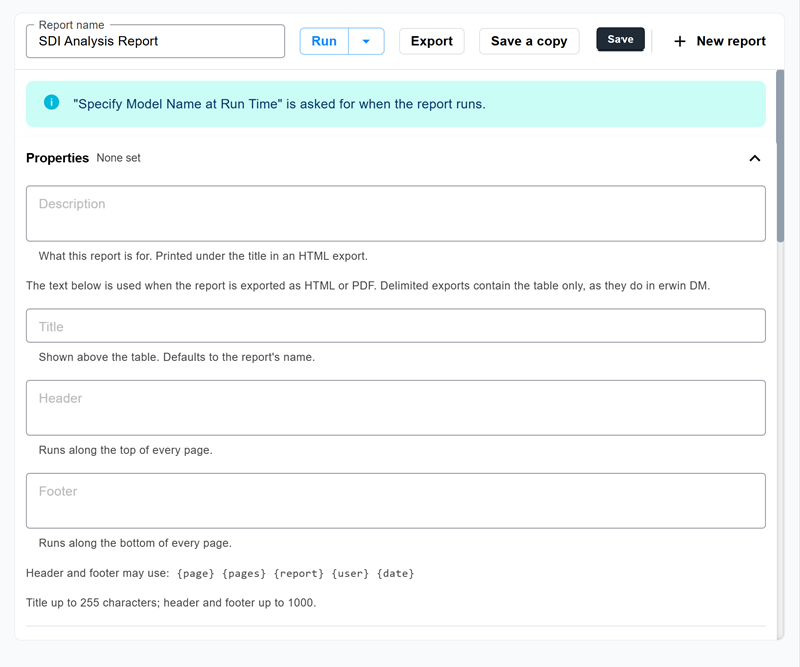
Configure the following properties:
- Title: Specifies the report title
-
Description: Specifies the description of the report
-
Headers and footers: Specifies the header and footer text that is added to each page of a PDF export
-
Scroll down to view and configure the following page setup options:
-
Paper: Specifies the default page size to use when exporting the report to a PDF file
-
Orientation: Specifies the orientation to use when exporting the report to a PDF file
-
Table of contents: Specifies whether the table of contents is included in a PDF file
-
Index: Specifies whether the index section is included in a PDF file.
-
-
Select Save.
The report is added to the Saved Reports section, and its properties are stored with it.
Run a Report
Run a saved report to query current information and view the results. Mart reports send the selected properties and filters to Mart. Model-level reports query the selected model using the report type, properties, and filters that you configured.
Mart report results reflect the current state of the models in Mart, regardless of which models are open in the modeler. A model-level report uses the model selected when you created it.
Select Run to display the report in a paginated format. To display all rows in a single, scrollable view, select the down arrow next to Run, and then select Run and load all rows.
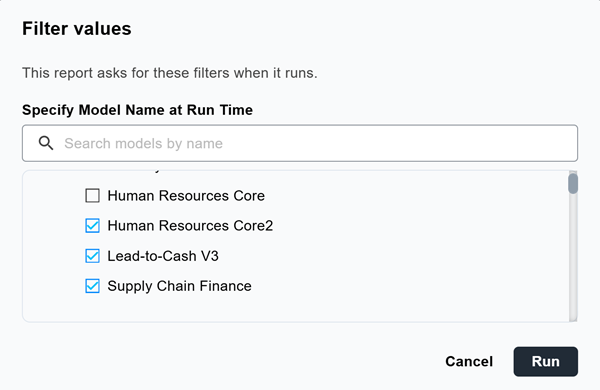
If you configured a filter with the Specify at Run Time option when creating the report, the Filter Values dialog appears when you run the report. Select the required model and attribute values, and then select Run to generate the report.
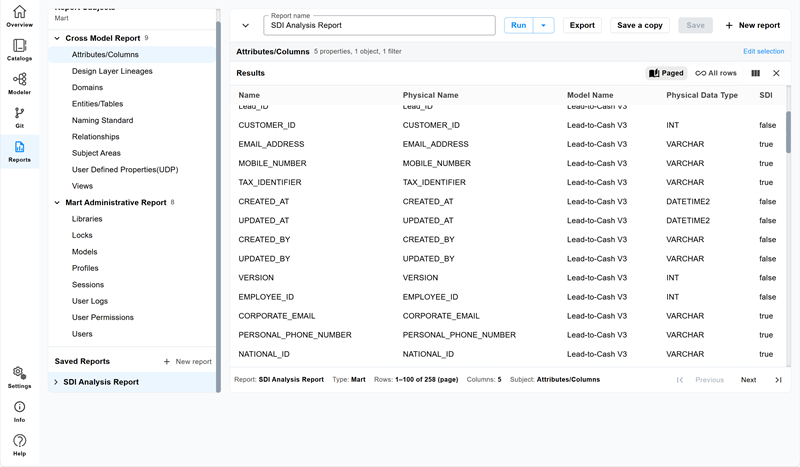
The report results are displayed in the Results pane.
View a Report
After you run a report, the results appear in the Results pane. You can change how the results are displayed without changing the saved report definition. The status bar at the bottom of the Results pane displays the report name, type, number of rows, number of columns, and the report subject.
When you view a report, you can do any of the following:
-
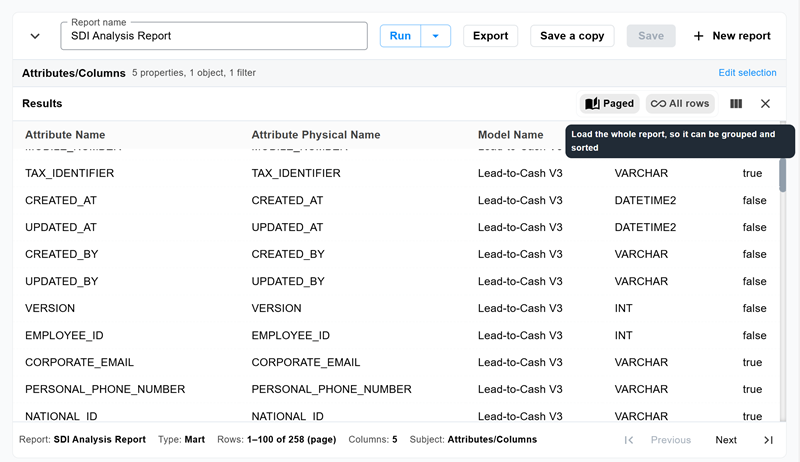
Switch between paged and full views: Select Paged to display the results one page at a time, or select All rows to display every row in a single, scrollable view. The default view is Paged.
-
Group rows: Drag one or more column headers to the grouping bar above the results to group rows by those columns, such as Model Name or Domain Name. Collapse or expand the groups to hide or show the grouped results. To remove a grouping, select
 on the grouping chip. This option is available in the All Rows view only.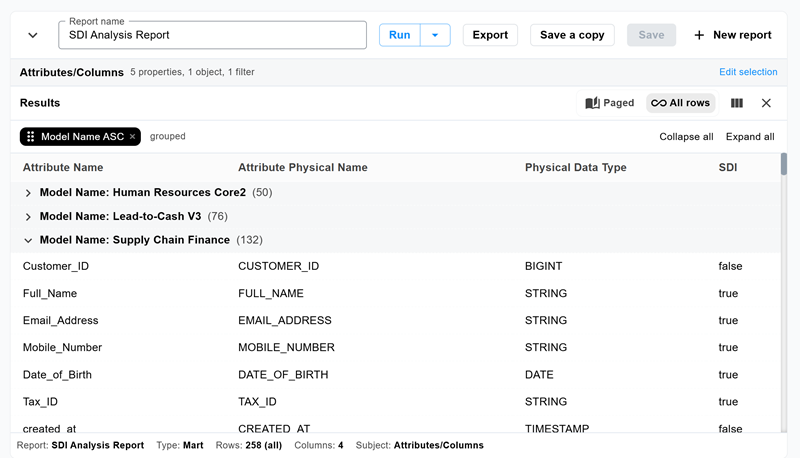
-
Navigate between pages: In the Paged view, use the Previous and Next controls at the bottom of the Results pane to move through the pages of results. Use
 and
and  controls to jump directly to the first or last page of results.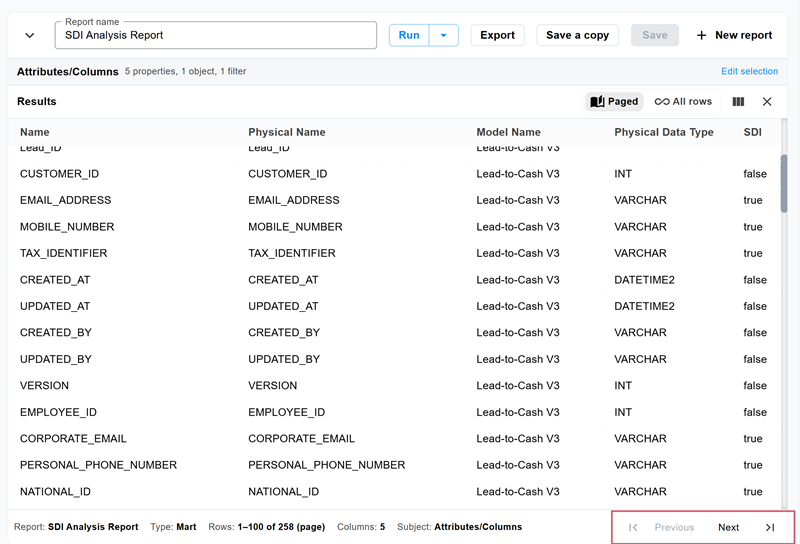
-
Show or hide columns: Select
 , and then select or deselect the check boxes to control which columns appear in the results.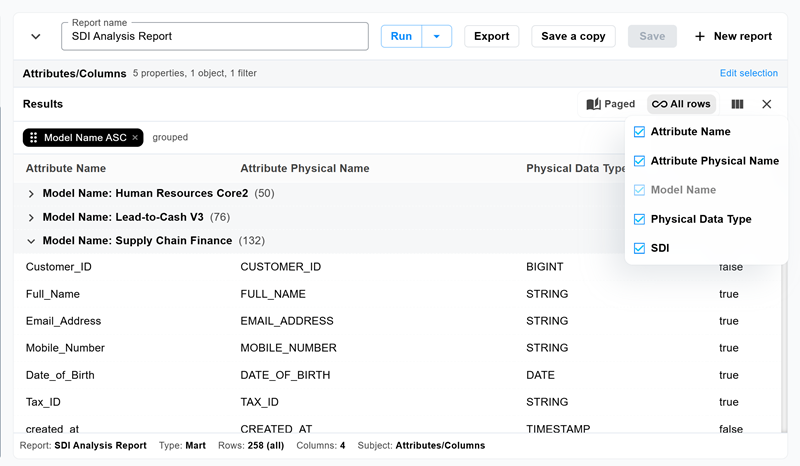
These display changes affect only the current view. They do not change the saved report definition or the properties.
Modify a Report
If you need to change the selected properties after running a report, you can modify the report properties and save the report again. The updated report definition is stored with the report and is used the next time you run or export it.
To modify a report:
-
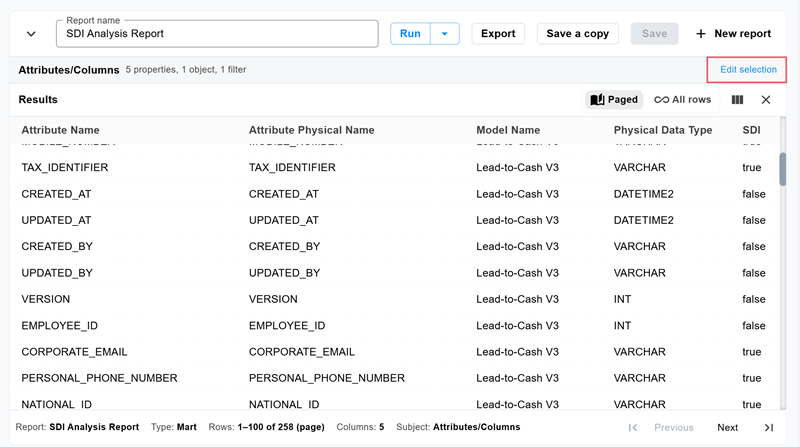
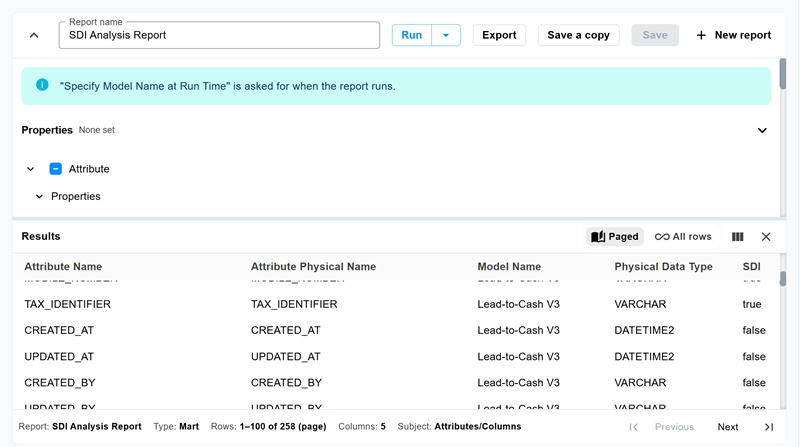
On the Reports page, select Edit Selection.
The Properties pane opens.
-
Add or remove report properties as required, and then select Save.
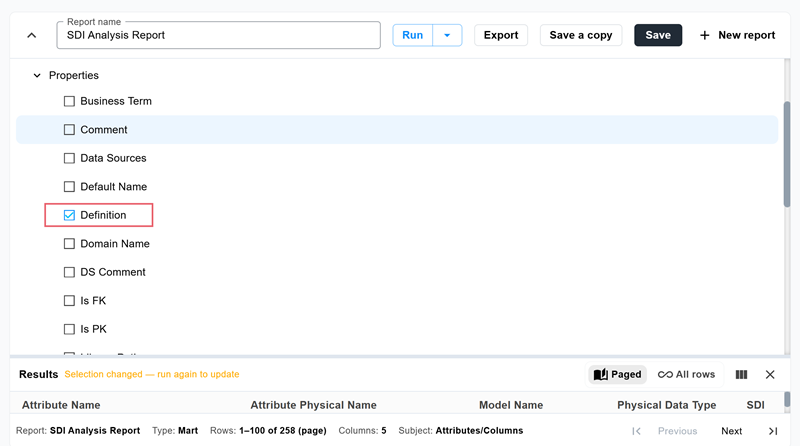
Run the report again to view the updated results.
Save a Copy of a Report
Use Save a Copy to create a duplicate of a report that you can modify independently of the original report. This option is useful when you want to:
-
Create a variation of your own report
-
Modify a report that was shared with you and save it as a new report
To save a copy of a report, follow these steps:
-
Open the report that you want to duplicate.
-
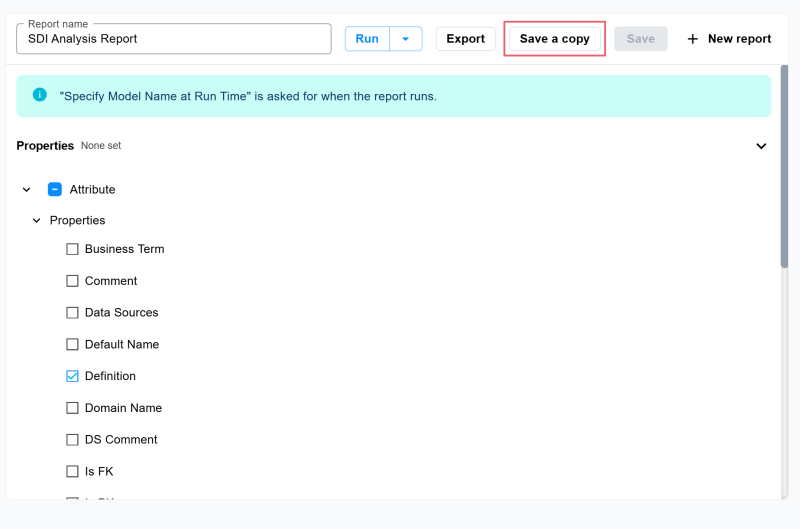
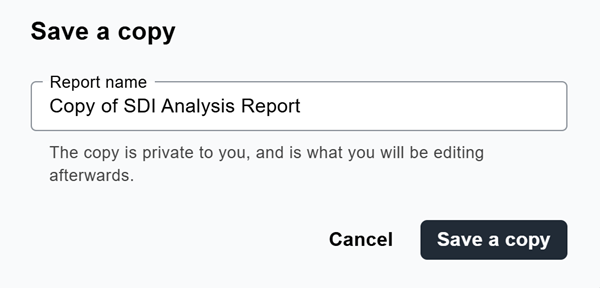
Select Save a copy.
The Save a copy dialog opens.
-
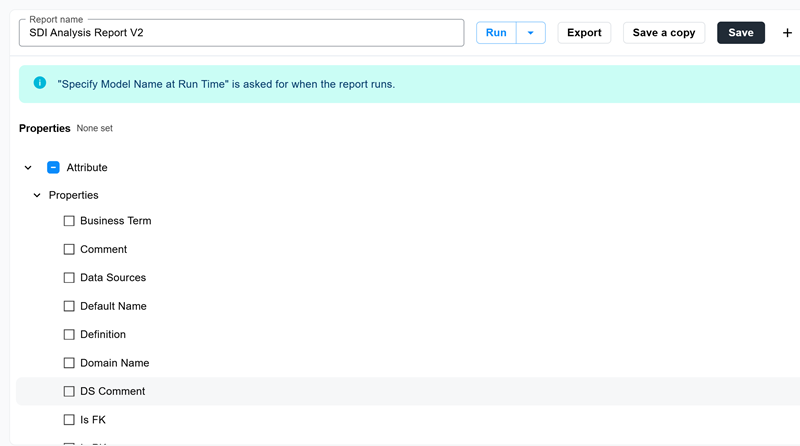
In the Report name field, enter a name for the copy. For example, SDI Analysis Report V2.
-
Select Save a copy.
A new report is created with the same definition as the original. The copy is private to you and opens so that you can edit it, and you can modify it without affecting the original report.
Export a Report
You can export a report so that you can save or distribute the results. When you export a report, you can override some of the saved report properties for that export without changing the report definition. For example, if a report is saved with the table of contents and index turned off, you can include them for a single PDF export. The property that is saved with the report remains unchanged, so the next export uses the saved defaults again.
To export a report, follow these steps:
-
Open the report that you want to export and select Export.
-
If the report defines run-time prompts, provide the filter values that you want to apply to this export and select Run.
-
Select one of the following formats.
-
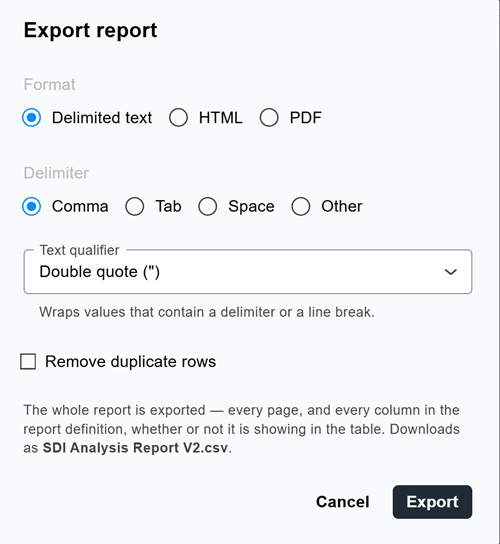
Delimited text: Exports the report as a delimited text file that is downloaded as a .csv file with the following options:
-
Delimiter: Specifies the character that separates values. Select Comma, Tab, Space, or Other to define a custom delimiter
-
Text qualifier: Specifies the character, such as a double quote ("), that wraps values that contain a delimiter or a line break so that they are not split into separate columns
-
Remove duplicate rows: Excludes duplicate rows from the exported file
-
-
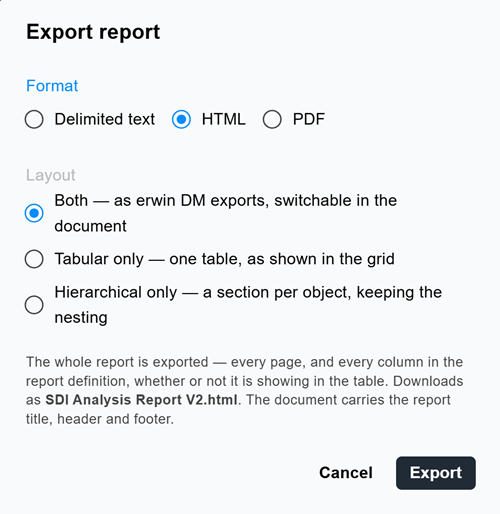
HTML: Exports the report as an HTML document. Select one of the following layouts:
-
Both: Exports both the tabular and hierarchical layouts, switchable within the document, using the same layout as erwin DM
-
Tabular only: Exports a single table, as shown in the grid
-
Hierarchical only: Exports a section per object, keeping the nesting
-
-
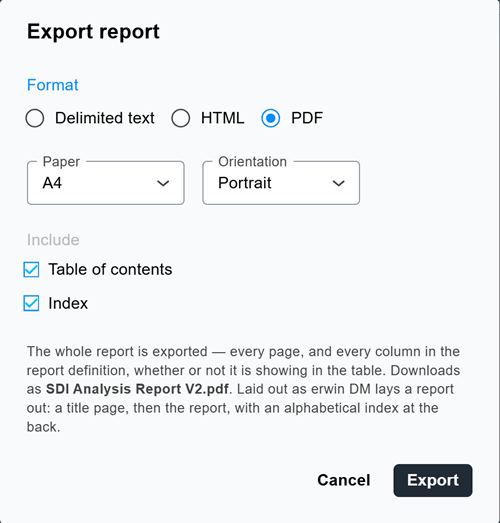
PDF: Exports the report as a PDF document, using the same layout as erwin DM, with a title page, the report, and an alphabetical index at the back. Configure the following options:
-
Paper: Specifies the page size, such as A4, used for the export
-
Orientation: Specifies whether the pages are laid out in Portrait or Landscape orientation
-
Include: Specifies whether to include the Table of contents and the Index in the exported document
-
-
-
Select Export.
The report is exported in the selected format using the filters and properties that you specified. The saved report definition is unchanged.
Share or Delete a Report
In the Saved reports section, hover over a report name to display the actions that are available for that report.
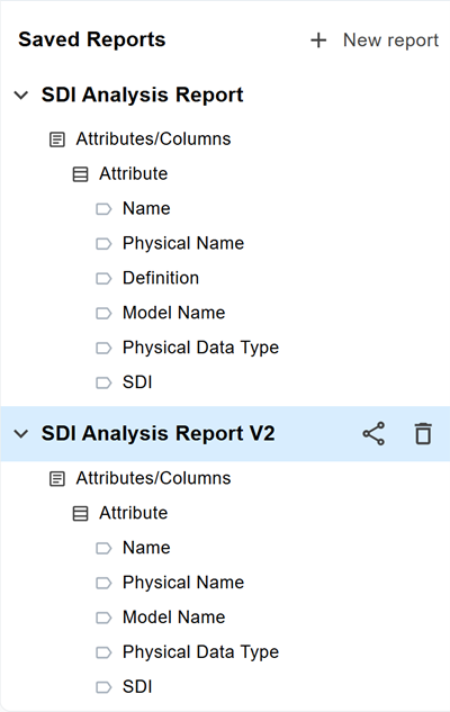
To share a report, hover over the report name and select  . You can share a report with other members of your tenant. When you share a report, recipients can view and run it, but they cannot modify the original report.
To delete a report, select  .
.