Forward Engineering allows you to generate a physical database schema directly from your physical model. The generated schema includes only the features and options supported by your target database platform.
This walkthrough demonstrates how to generate a database schema for a Fabric Warehouse model using the Forward Engineer wizard. You can use the wizard to configure schema generation options, connect to your database, and deploy the schema.
The Forward Engineering Schema Generation Wizard guides you through the schema generation process and lets you configure database-specific settings. These database‑specific options help ensure that the generated schema aligns with the capabilities and requirements of that database.
- On the Quest Data ModelerOverview page, under Quick Actions, select Open Model.
The Open Model dialog opens.
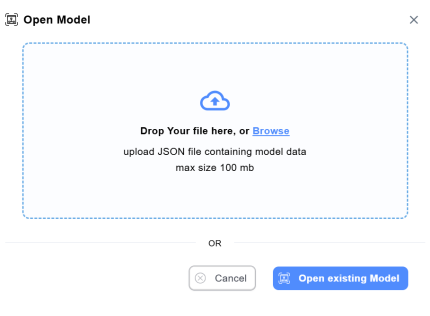
- Open the model by using one of the following options:
Drag and drop a JSON file into the dialog, or select Browse to upload a model from your system, and then select Open.
Select Open existing Model to open a model created in the app.
In this example, we opened HR Career Management model.
- In the upper-right corner, use the view selector to switch to the physical view.
The model opens in the physical view.
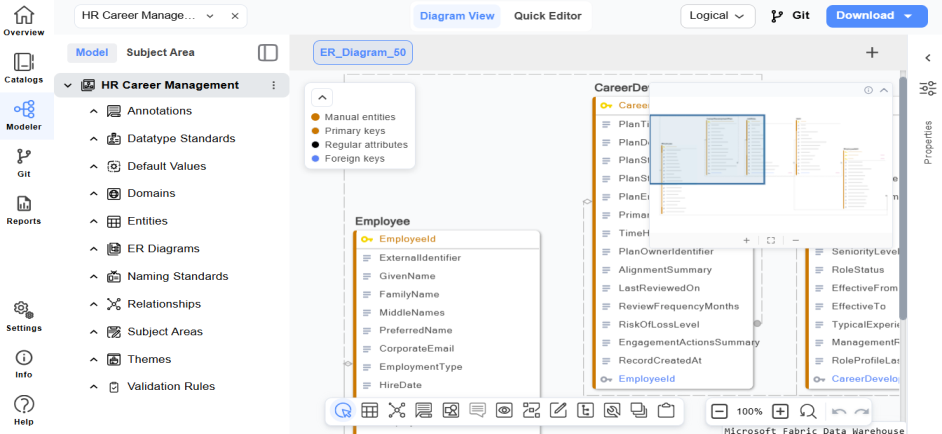
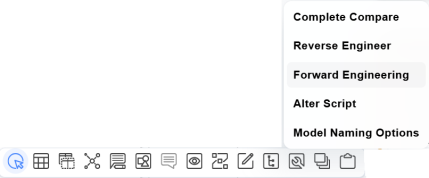
- On the toolbar, select
 > Forward Engineering.
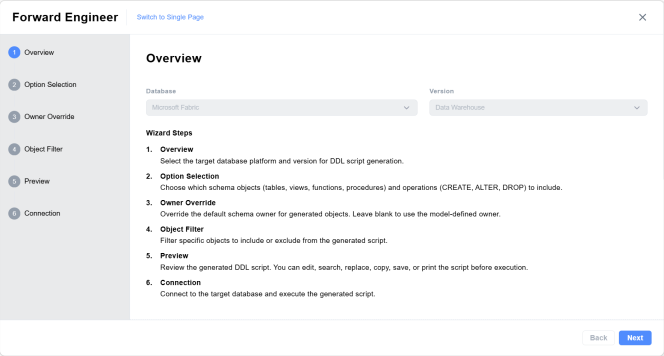
The Forward Engineer Overview page opens displaying all the steps to follow through the wizard.
- Verify the database name and version in the Database and Version drop-down lists. Then select Next.
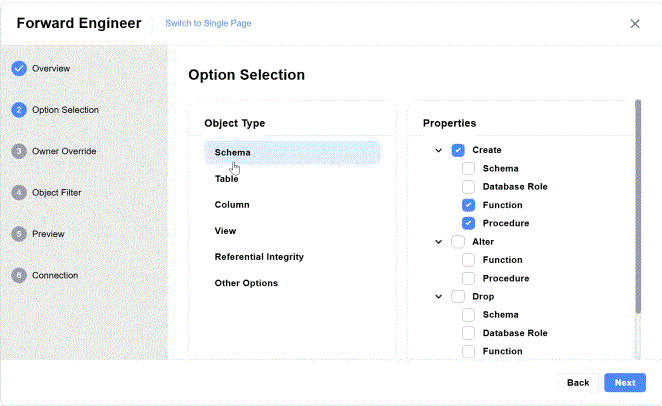
- On the Option Selection page, select the schema generation syntax options as required.
In the Object Type pane, select the database objects to include and in the Properties pane, select their respective properties to apply. Then select Next.
- [Optional] On the Owner Override page, review the owner overrides for the objects. Then select Next.
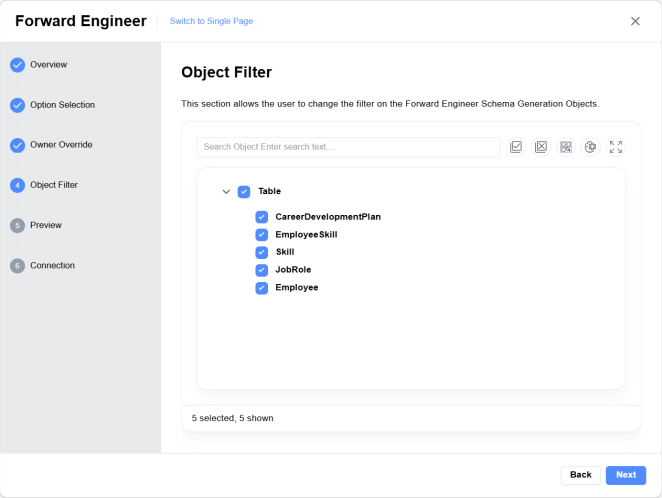
- On the Object Filter page, select or clear options to apply the object filters as required.
Then select Next.
Preview page opens and the schema preview is generated.
- Select
 to export and save the generated schema as a SQL
script file to your local system.
to export and save the generated schema as a SQL
script file to your local system.
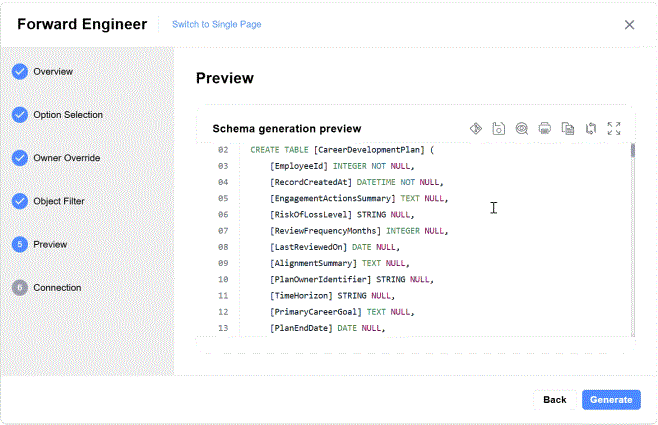
At this stage, in addition to saving the schema, you can perform the following actions:
Actions Description  Commit to Git
Save and version control schema changes in Git.
This option allows you to connect to GitHub, Azure DevOps, GitLab, and Bitbucket repositories. For detailed information and steps to connect to the source control repositories, see Git Support. Find
FindSearch for specific objects within the schema  Print
PrintGenerate a printable version of the schema  Copy
CopyCopy schema content to clipboard  Replace
Use Find & Replace to modify schema objects  Full screen
Expand schema preview to full screen - Select Generate.
The Connection page opens.
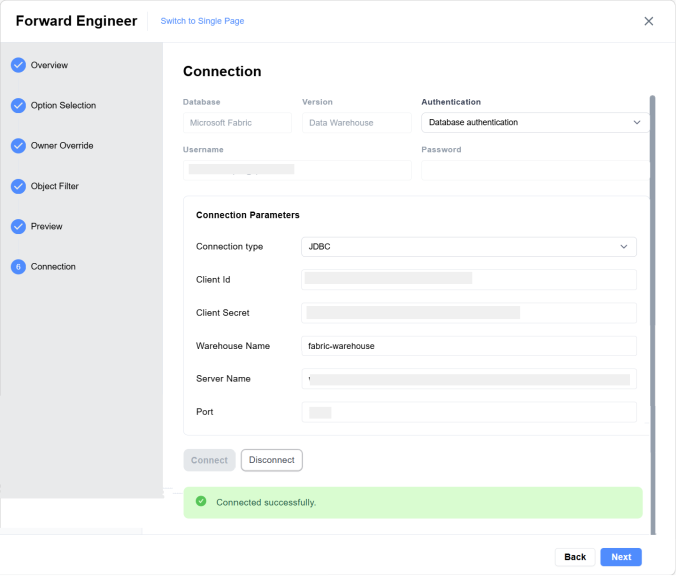
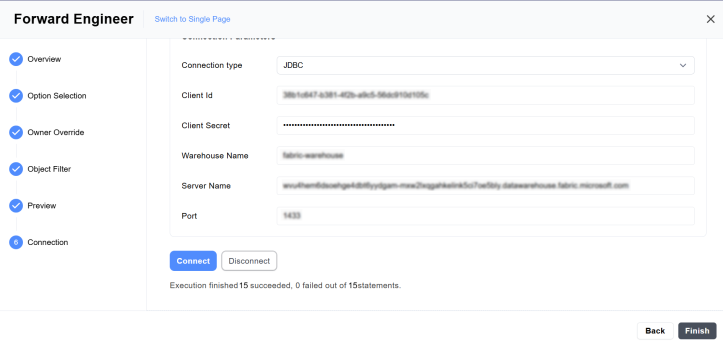
- On the Connection page, enter the following connection parameters to establish a connection to your database server and then select Connect. The following table lists the parameters for the Microsoft Fabric Data Warehouse database. For other supported databases, see Database Support.
Parameters
Description
Connection Type
Specifies the type of connection required to connect to the database.
Select the type of connection as JDBC to connect to database.
Currently, only JDBC is supported.
Client ID
Unique identifier of the OAuth application used to connect to the cloud database required for databases that use OAuth authentication.
Client Secret
Confidential key associated with the Client ID used to securely obtain an access token from the OAuth provider during database connection.
Warehouse Name
Identifies the virtual compute warehouse that the database uses to execute queries.
Server Name
Host name or endpoint of the database server for reverse engineering.
Port
Network port used by the database server to accept incoming connections.
- Select Next to connect to the database and start script execution.
Script execution begins.
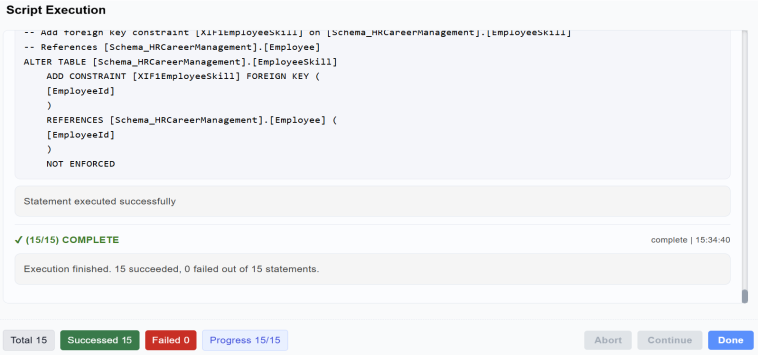
- Select Done after the script runs successfully.
- Select Finish.
Tip: You can also generate schema scripts and models directly from natural language descriptions using the AI Model Generator. This helps reduce manual effort and accelerate model creation.
Key Considerations
-
Ensure that the correct database and version are selected before you proceed.
-
Use filters to generate schema only for the required objects.
-
Save the schema before connecting, so you have a local copy.