A Subject Area in Quest Data Modeler is a logical subset of a data model that includes only the entities, relationships, and related objects for a specific business domain. It helps simplify complex models and lets you focus on relevant components. You can create multiple subject areas within a model to organize large designs and support specific business functions.
Use the Subject Area Editor to create and manage subject areas. In this editor, you can:
-
Specify the subject area name
-
Configure global options
-
Select logical and physical model members
You can also exclude references to tables that are not part of the current subject area during schema generation. The Spanning Neighborhood feature lets you include a defined number of related ancestor or descendant objects.
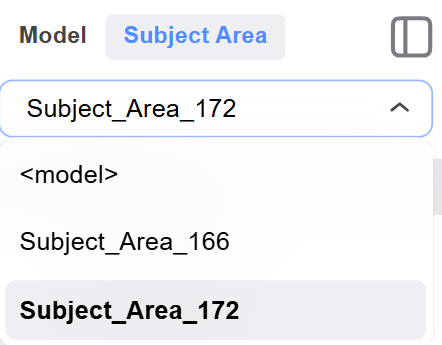
The Modeler panel provides two tabs: Model and Subject Area. The Model tab shows the full model tree, including the Subject Areas node. Select the Subject Area tab to display a drop-down list of subject areas, with the selected one by default to show the full model. When you select a subject area, only the diagrams associated with it appear.
In logical and physical models:
-
Creating a subject area on one side automatically creates it on the other.
-
Membership changes apply to both sides but do not affect other subject areas.
-
Adding or deleting objects in one subject area does not affect other subject areas.
-
Changes are saved when you close the Subject Area Editor.
-
Subject areas are stored within the model file (.json) and are available when you reopen the model.
-
In combined models, both sides share the same subject areas.
Key Benefits
-
Simplify complex models: Break large data models into manageable business-focused subsets.
-
Improve navigation: Easily locate and work with model objects related to specific business areas.
-
Enhanced communication: Present focused views to stakeholders and non-technical audiences.
-
Support modular development: Enable phased implementation and deployment strategies.
-
Improve documentation: Generate targeted reports and diagrams for specific domains.
This topic covers the following sections:
Create Subject Areas
To create subject areas, follow these steps:
-
On the Model tab, select Subject Areas.
-
Select
 next to Subject Areas, and then select Create New.
A new subject area is created and appears under Subject Areas on the model tab.
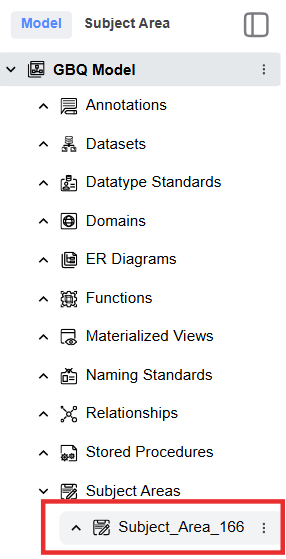
Use the following tabs in the Quick Editor to add details:
-
Members: Use the members tab to:
-
Select members of a subject area
-
Include or exclude ancestors or descendants of the selected entity, table, or view
-
Delete Subject Areas
Use the Subject Area Editor to delete subject areas in the current model. When you delete a subject area, only that subject area is removed; the entities, tables, and views it contains are not deleted from the model.
If you delete an object from a subject area, you can choose whether to remove it from the model or only from that subject area. If you remove it from the current subject area, it remains available in any other subject areas that include it.
To delete subject areas, follow these steps:
-
On the Model tab, under Subject Areas, select the subject area you want to delete.
-
Select
next to the subject area, and then select Delete.The subject area is deleted.
You can also delete a subject area from the Subject Area Quick Editor by selecting the required subject area and then selecting the Delete icon.
Rename Subject Areas
Use the Properties tab to rename a subject area.
To rename subject areas, follow these steps:
-
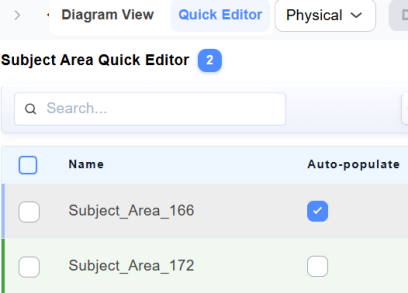
On the Model tab, under Subject Areas, select the subject area, and then select Quick Editor.
The Subject Area Quick Editor opens.
-
Select the subject area you want to rename to open it in the editor.
By default, the Properties tab opens.
-
In the Name box, enter a new name.
The subject area is renamed.
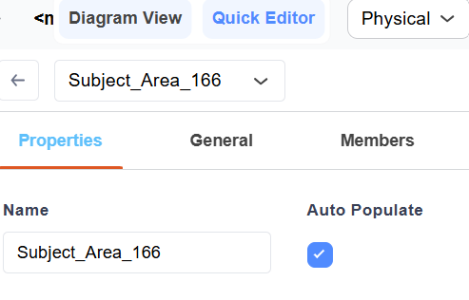
Note: To include model objects automatically, select the Auto Populate checkbox on the Properties tab.
Specify the Author of a Subject Area
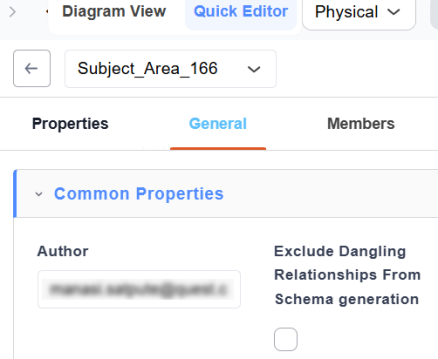
Use the General tab in the Quick Editor to specify the author of a subject area.
To specify an author for a subject area, follow these steps:
-
On the Model tab, under Subject Areas, select the subject area, and then select Quick Editor.
The Subject Area Quick Editor opens.
-
Select the subject area you want to modify to open it in the editor.
By default, the Properties tab opens.
-
Select the General tab.
-
In the Author box, enter the author's name.
The author name is saved.
You can also select the Exclude Dangling Relationships from Schema Generation checkbox to exclude references to tables outside the current subject area.
Select Members of a Subject Area
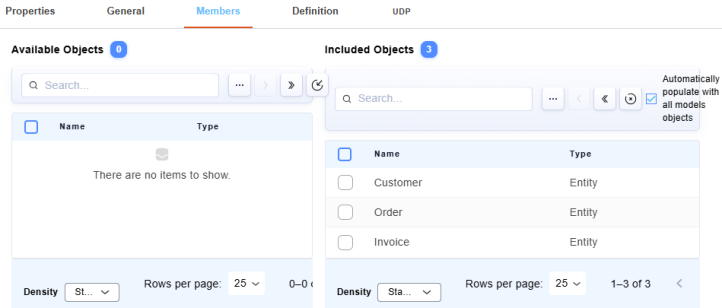
Use the Members tab in the Quick Editor to manage entities, tables, and views that belong to a subject area. The Available Objects section displays objects that you can add, and the Included Objects section displays objects that are currently members of the selected subject area.
Note: When you add members to a subject area, the objects are not added to the corresponding diagram automatically. You must add them manually.
To select members of a subject area, follow these steps:
-
On the Model tab, under Subject Areas, select the subject area, and then select Quick Editor.
The Subject Area Quick Editor opens.
-
Select the subject area you want to modify to open it in the editor.
By default, the Properties tab opens.
-
Select the Members tab.
-
Use the following options:
- Automatically populate with all model objects
-
Populates the selected subject area with all objects from the Available Objects section.
-
Available Objects
-
Displays objects that you can include as members of the selected subject area. Use the following options to add members:
-
-
Move selected objects to included Objects: Moves the selected objects to the Included Objects section.
-
Move all objects to included Objects: Moves all objects from the Available Objects section to the Included Objects section.
-
Include all objects contained in another subject area: Includes all objects from another subject area in the model. When you select this option, a dialog box opens with a drop-down list, so you can choose the subject area from which to include objects.
-
Included Objects
- Displays objects that are currently members of the selected subject area. Use the following options to remove members:
-
-
-
Move selected objects to Available Objects: Removes the selected object from the Included Objects section and moves it to the Available Objects section.
-
Move all objects to Available Objects: Removes all objects from the Included Objects section and moves them to the Available Objects section.
-
Remove all objects contained in another Subject Area: Removes all objects contained in another subject area in the model. When you select this option, a dialog box opens with a drop-down list so that you can choose the subject area from which to remove objects.
-
The Subject area members are defined.
Enter a Definition for a Subject Area
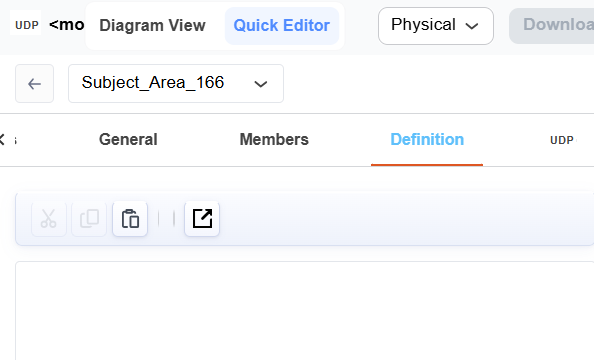
Use the Definition tab in the Quick Editor to enter a definition for a subject area in your model.
To enter a definition for a subject area, follow these steps:
-
On the Model tab, under Subject Areas, select the subject area, and then select Quick Editor.
The Subject Area Quick Editor opens.
-
Select the subject area you want to modify to open it in the editor.
By default, the Properties tab opens.
-
Select the Definition tab.
-
Enter a definition.
The definition is added.
You can also select  to open the Definition Editor and edit the definition text. Select Save to apply your changes or Cancel to discard them.
Enter User-Defined Property Values
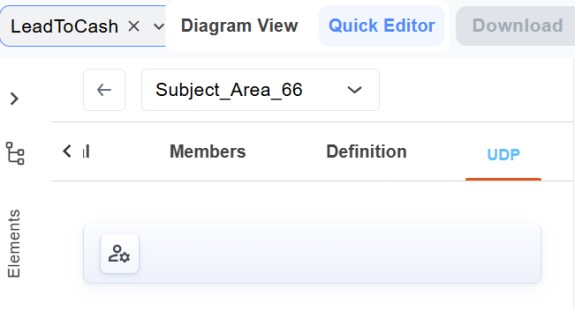
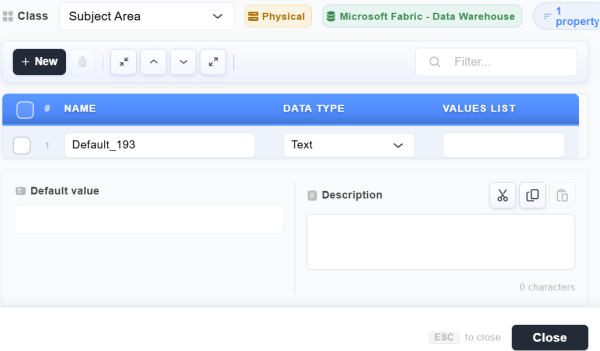
Use the UDP tab in the Quick Editor to enter user-defined property values for a subject area. From the UDP tab, you open the User Defined Properties: Logical editor (in a logical model) or the User Defined Properties: Physical editor (in a physical model), where you can add, edit, or delete user-defined properties for a subject area.
To enter a user-defined property value for a subject area, follow these steps:
-
On the Model tab, under Subject Areas, select the subject area, and then select Quick Editor.
The Subject Area Quick Editor opens.
-
Select the subject area you want to modify to open it in the editor.
By default, the Properties tab opens.
-
Select the UDP tab.
-
Select
 to open the User Defined Properties Editor.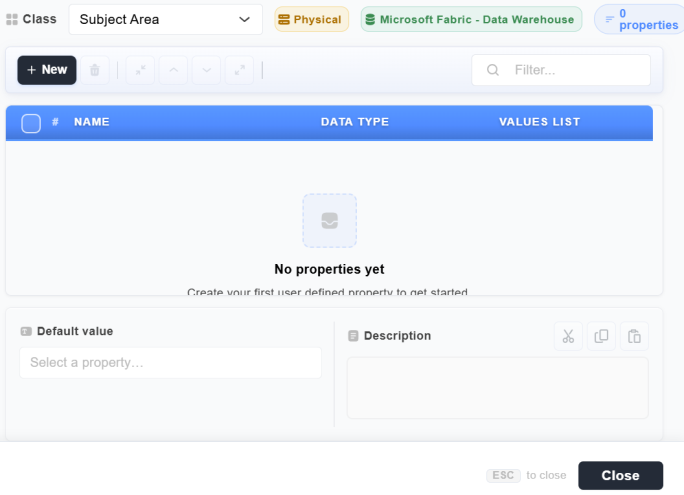
-
Select New.
A new property row is added to the grid.
-
Enter the user-defined property information in the following columns:
-
Name: Specifies the name of the UDP.
-
Data Type: Specifies the UDP datatype. Select one of the following from the list:
-
Date: Creates a Date UDP that allows values in MM/DD/YYYY format.
-
Int: Creates an Int UDP for integer values.
-
Real: Creates a Real UDP for decimal values.
-
Text: Creates a Text UDP for ASCII text.
-
List: Creates a List UDP that provides a list box with user-defined choices.
-
-
Default: Specifies the default value for the UDP, if applicable.
-
Description: Specifies the UDP description.
-
-
Select Close to save the property.
The user-defined property values are saved.
Switch Between Subject Areas
The Modeler panel provides two tabs: Model and Subject Area. To switch between subject areas, follow these steps:
-
Select the Subject Area tab, next to the Model tab.
A drop-down list of subject areas appears at the top of the panel.
-
From the drop-down list, select a subject area. For example, select Subject_Area_172.
The selected subject area opens in the workspace. You can view its associated diagram, or edit its properties and members in the Quick Editor.
Note: Select in the drop-down list to return to the full model view.