Use Complete Compare to identify, review, and merge differences between two data models. You can compare models from a local file, the Mart, or models already loaded in memory, then select which changes to merge into a base model.
Key Concepts
-
Left Model and Right Model: Complete Compare always works with two models. You choose which model provides each side of the comparison.
-
Base Model: The model that receives the merged changes. Select it using the Base model dropdown on the Comparison Results screen.
-
Merged Model: The middle panel on the results screen. It shows the base model plus your unsaved actions.
-
Draft Models: A model that has not yet been saved to the Mart. It stays in memory (in the QDM database) for the session and is auto-deleted after 30 days, so save models you want to keep.
Open Complete Compare
You can open Complete Compare from two places, which behave differently:
-
From the Overview page
-
Under Quick Actions, select Complete Compare.
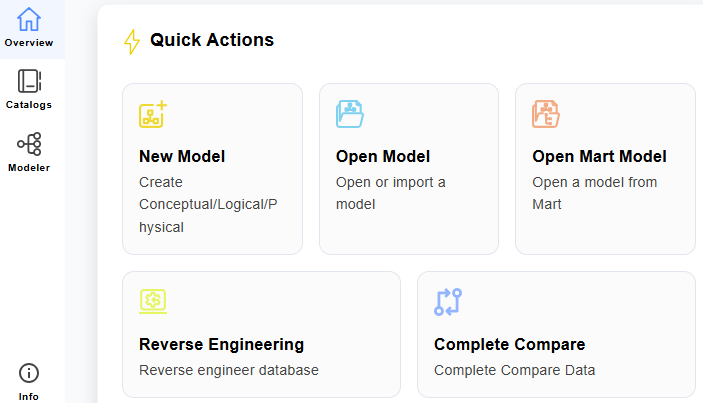
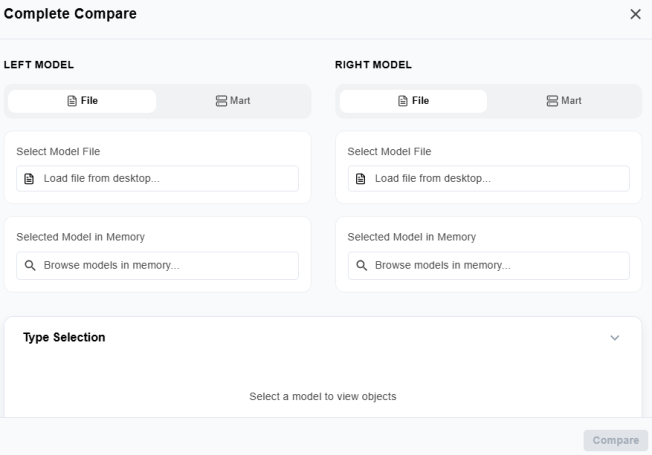
This starts a new comparison with no models selected, allowing you to choose both models.
-
-
From an Open model
-
On the diagram toolbar, select
 > Complete Compare.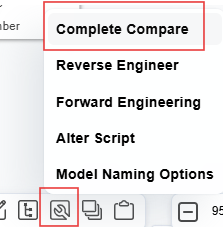
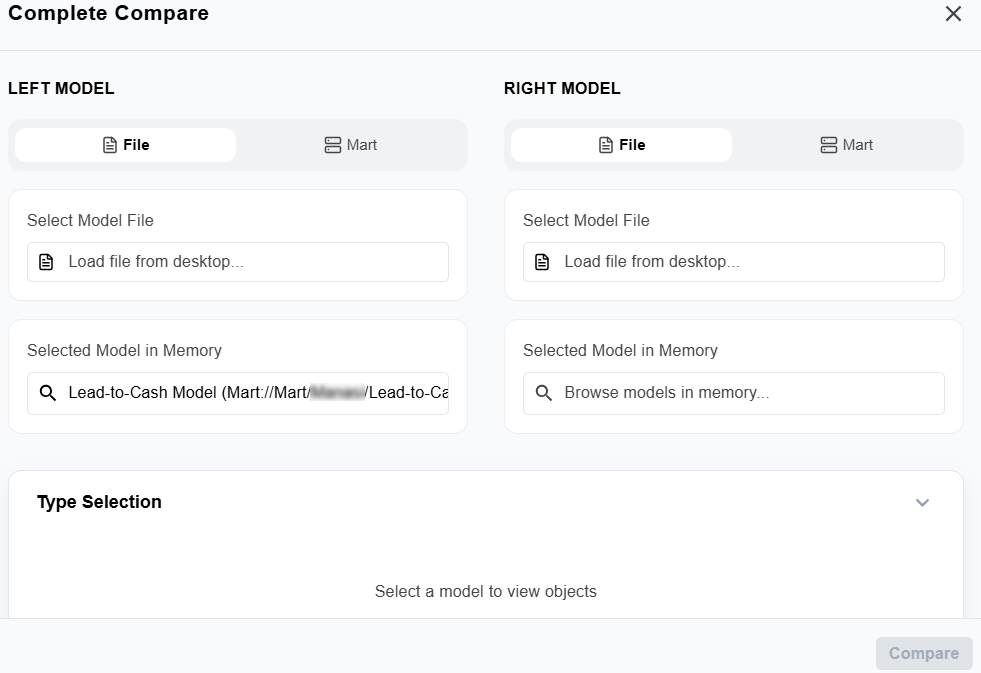
This preselects the open model as the Left Model (baseline), so you only need to select the Right Model.
-
Either way, the screen opens with the Left Model, Right Model, and Type Selection sections.
Select Models to Compare
Complete Compare requires two models:
-
Left Model - the baseline or reference model.
-
Right Model - the comparison model.
Both models support the same source options; only their role in the comparison differs.
For each model, select one of the following sources:
-
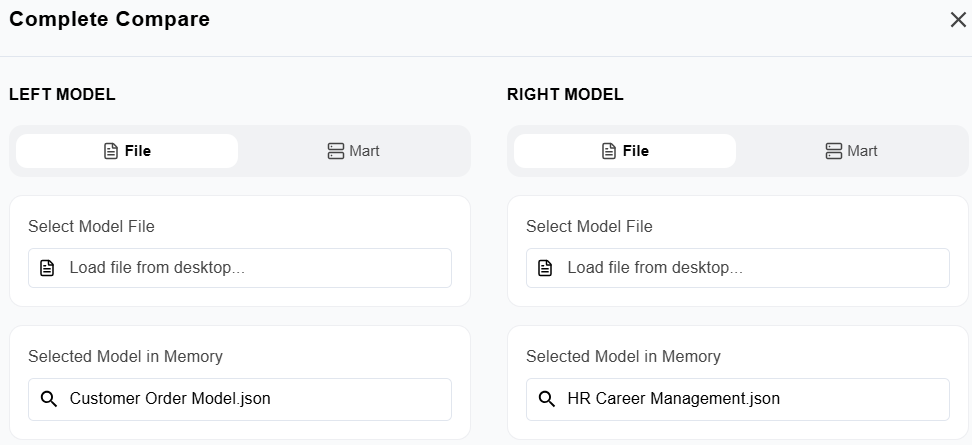
File - Load a model from your local system.
-
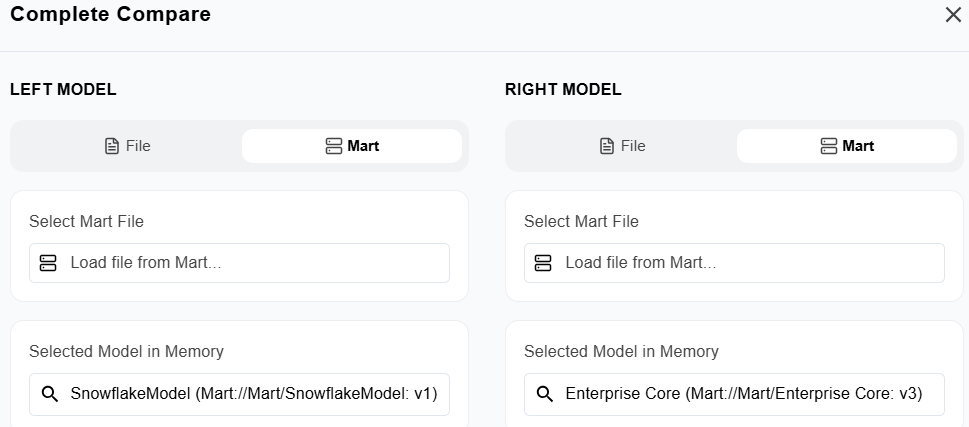
Mart - Load a stored or versioned model.
You can compare models from different sources. For example, File vs. Mart, or Mart vs. Mart.
To load a model from a file, follow these steps:
-
Select File.
-
Select Load file from desktop.
-
Browse to and select a .json model file.
The model loads as a draft and is pre-selected under Selected Model in Memory.
To load a model from the Mart, follow these steps:
-
Select Mart.
-
Select Load file from Mart.
-
In the library list, select the required Mart model, and then select Open.
The model loads as a draft and is pre-selected under Selected Model in Memory.
Reuse Models Loaded in Memory
Models loaded from a File or a Mart remain available in memory as draft models for the session.
To reuse draft models, follow these steps:
-
In the Selected Model in Memory field, select Browse models in memory.
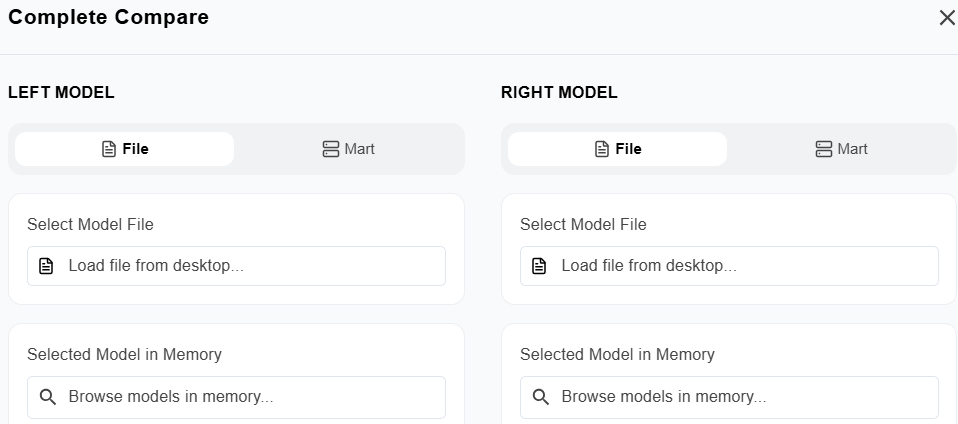
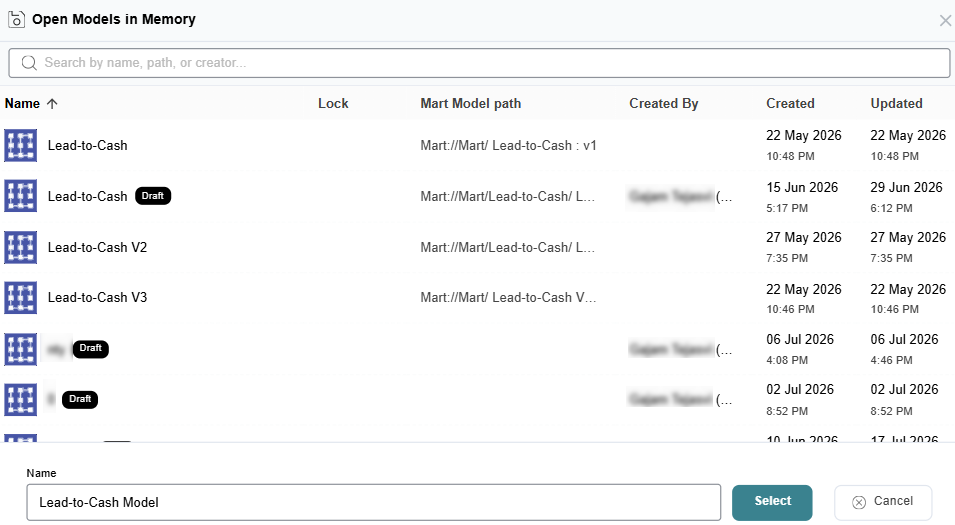
The Open Models in Memory dialog opens.
-
In the Open Models in Memory dialog, select a draft model, and then choose Select.
The selected draft model becomes the Left Model or Right Model. For example, after uploading both Customer Order Model and HR Career Management, you can reuse them from memory instead of reloading the files.
Configure Type Selection
After you select both models, expand the Type Selection section. The object list becomes available based on the selected models.
Review and select the objects to include in the comparison:
-
Domains
-
Entities
-
Relationships
-
ER Diagrams
-
Subject Areas
-
Subtype Symbols
Expand or collapse categories and clear checkboxes to exclude object types. Selecting a parent object (such as an entity) automatically includes its child objects, including attributes, key groups, and relationships.
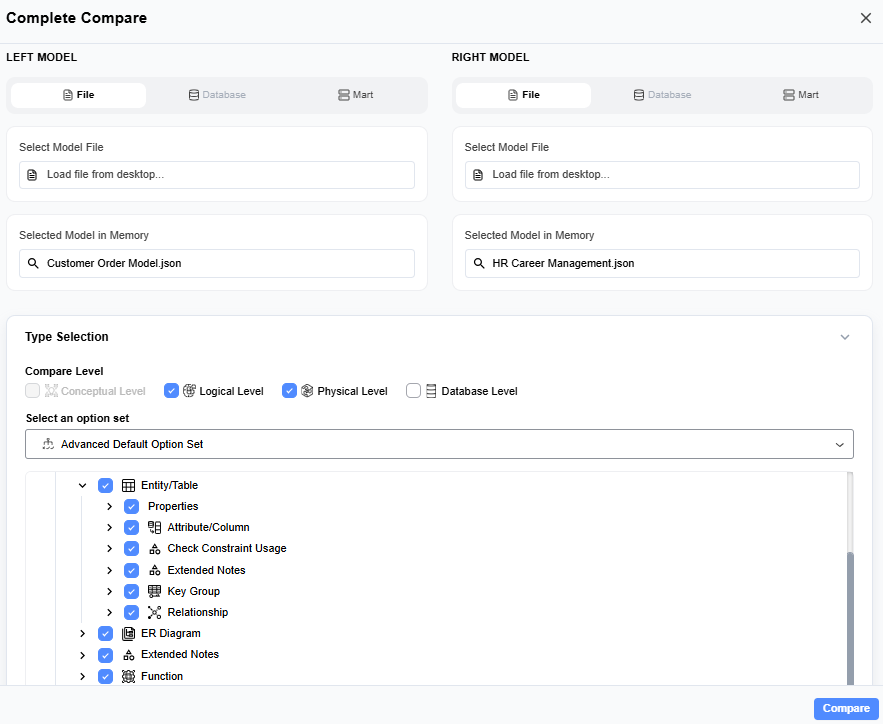
Next, select the comparison level:
-
Conceptual Level - business‑level concepts
-
Logical Level - entities, attributes, relationships, and domains
-
Physical Level - tables, columns, and keys
-
Database Level - database-specific properties.
Only levels supported by both models are enabled. For example,
-
If both models are logical, only Logical Level is enabled.
-
If both models are conceptual, only Conceptual Level is enabled.
-
If the models are logical and physical, the Logical, Physical, and Database levels are enabled, and Conceptual is disabled.
Finally, select an option set to set the comparison detail:
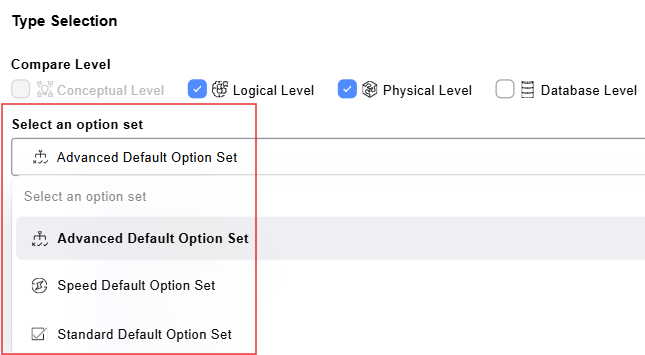
-
Advanced Default Option Set - a full, detailed comparison across all supported object types and properties.
-
Speed Default Option Set - a higher-level structural comparison of a limited set of properties.
-
Standard Default Option Set - a balanced comparison with additional properties.
Run Comparisons
To run comparisons, follow these steps:
-
Verify that both models are selected.
-
Confirm the comparison level, option set, and object types.
-
Select Compare.
The Comparison Results screen opens.
Review Comparison Results
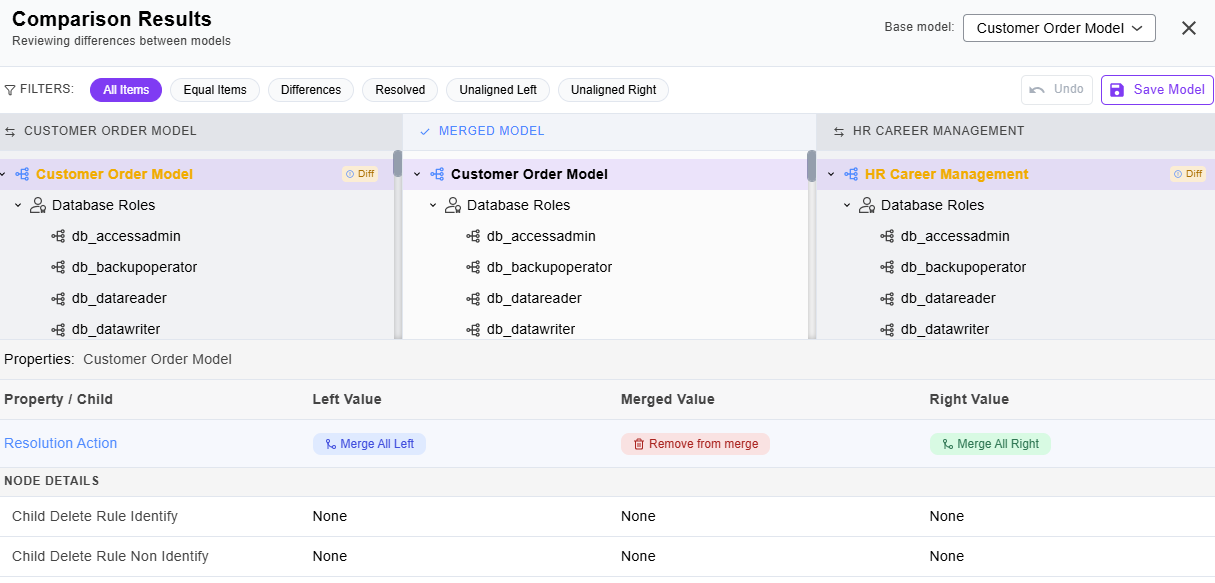
The Comparison Results screen has a Filters bar at the top and three panels: Left Model, Merged Model, and Right Model.
Expand object categories such as Database Roles, Domains, ER Diagrams, Schemas, or Tables to locate differences. Each object shows a status indicator:
-
Diff - exists in both models but differs.
-
Right Only - exists only in the Right model (shown in green).
-
Unaligned Left - exists only in the Left model.
Selecting an object highlights its matching entries across all three panels.
Use the Base model dropdown to specify which model receives changes. For example, with the base model set to Customer Order Model, every merge or removal updates Customer Order Model, using HR Career Management as the comparison source.
Use the Filters bar to narrow results:
-
All Items - displays all objects.
-
Equal Items - displays identical objects.
-
Differences - displays only objects with differences.
-
Resolved - displays objects you have already merged or removed.
-
Unaligned Left - displays objects only in the base (Left) model.
-
Unaligned Right - displays objects only in the comparison (Right) model.
Review Object Properties
Select an object to view its properties in the Properties pane at the bottom of the screen. Each row displays a property or child object along with its Left, Merged, and Right values.
The following screenshot displays the Properties pane for the Domains object. The Resolution Action row offers object-level actions - Merge All Left, Remove from merge, and Merge All Right, and the CHILDREN section lists each domain (for example, Blob, Datetime) across all three columns. Because these domains are identical in both models, the Left, Merged, and Right values match.
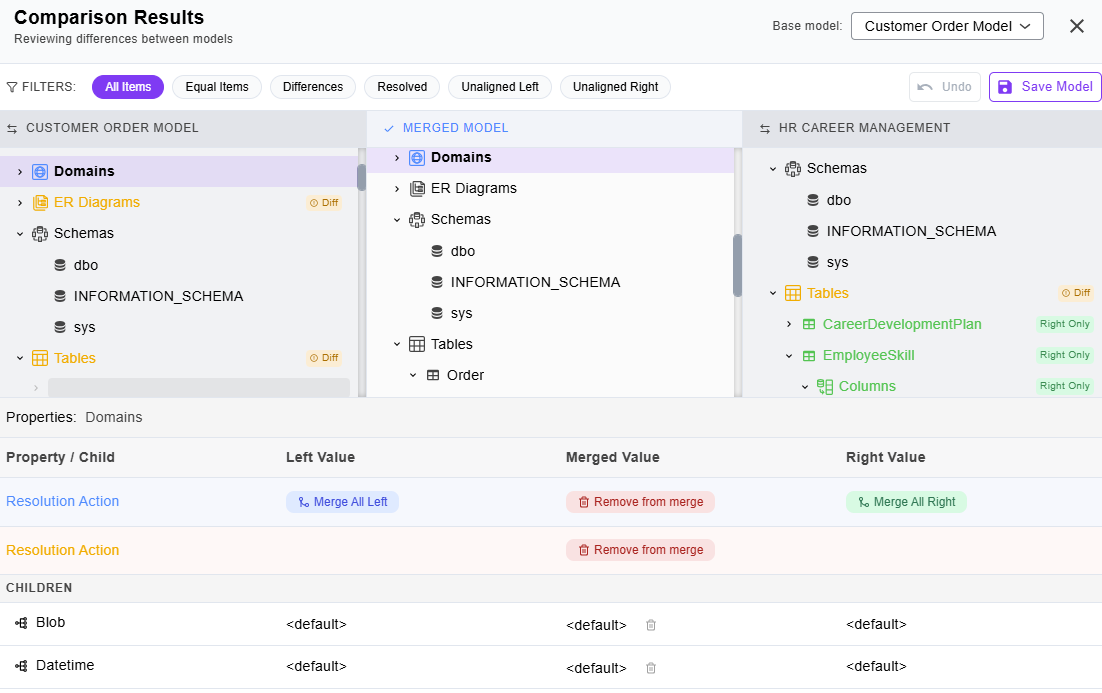
The Properties pane contains:
-
Resolution Action - object-level actions you can apply to the selected object:
-
Merge - add a single object (marked Right Only or Left Only) to the base model.
Merge All Left - apply all values from the Left model.
-
Merge All Right - apply all values from the Right model.
-
Remove from merge - exclude the object from the merged output.
The Use action - apply a single property value from one side - is available in NODE DETAILS for individual properties, rather than in the object-level Resolution Action row.
-
-
NODE DETAILS - the object's individual property values.
-
CHILDREN - child objects (for example, Columns, Parent Relations, and Child Relations under a table). Each child shows its Left, Merged, and Right value, and a delete icon in the Merged column removes it from the merged output.
Merge Differences into the Base Model
The action you take depends on how the object differs from the base model. The available resolution actions are:
-
Merge - add a single object (marked Right Only or Left Only) to the base model.
-
Merge All Left / Merge All Right - apply all values from that side.
-
Use - apply a single property value from one side.
-
Remove from merge - exclude the object from the merged output.
All actions affect only the Merged Model until you select Save Model.
Scenario 1 - Add a Right Only Object
When an object exists in the Right model, but not in the base model, it is marked Right Only.
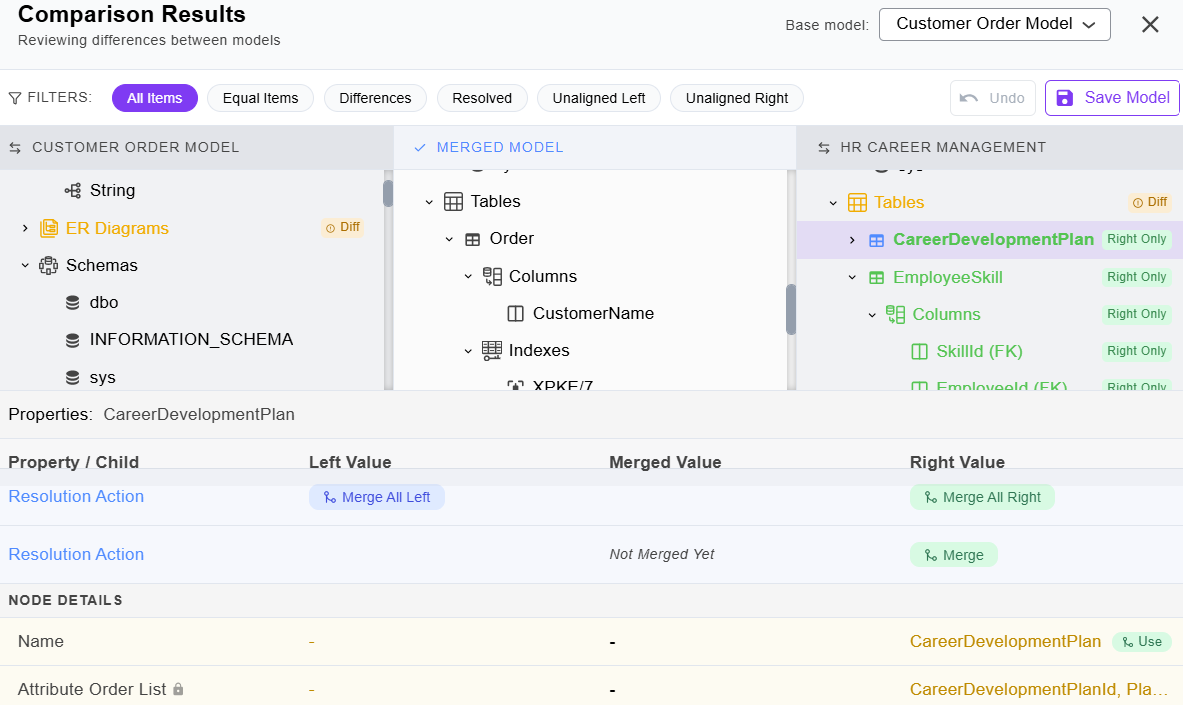
For example, HR Career Management contains a CareerDevelopmentPlan table that does not exist in the Customer Order Model. To add it to the base model, follow these steps:
-
In the Base model dropdown, confirm Customer Order Model is selected.
-
In the right panel, expand Tables and select CareerDevelopmentPlan (marked Right Only).
-
In the Resolution Action row, select Merge.
The below screenshot displays the CareerDevelopmentPlan table selected in the right panel. It is marked Right Only, its Merged Value shows Not Merged Yet, and a Merge action is available.
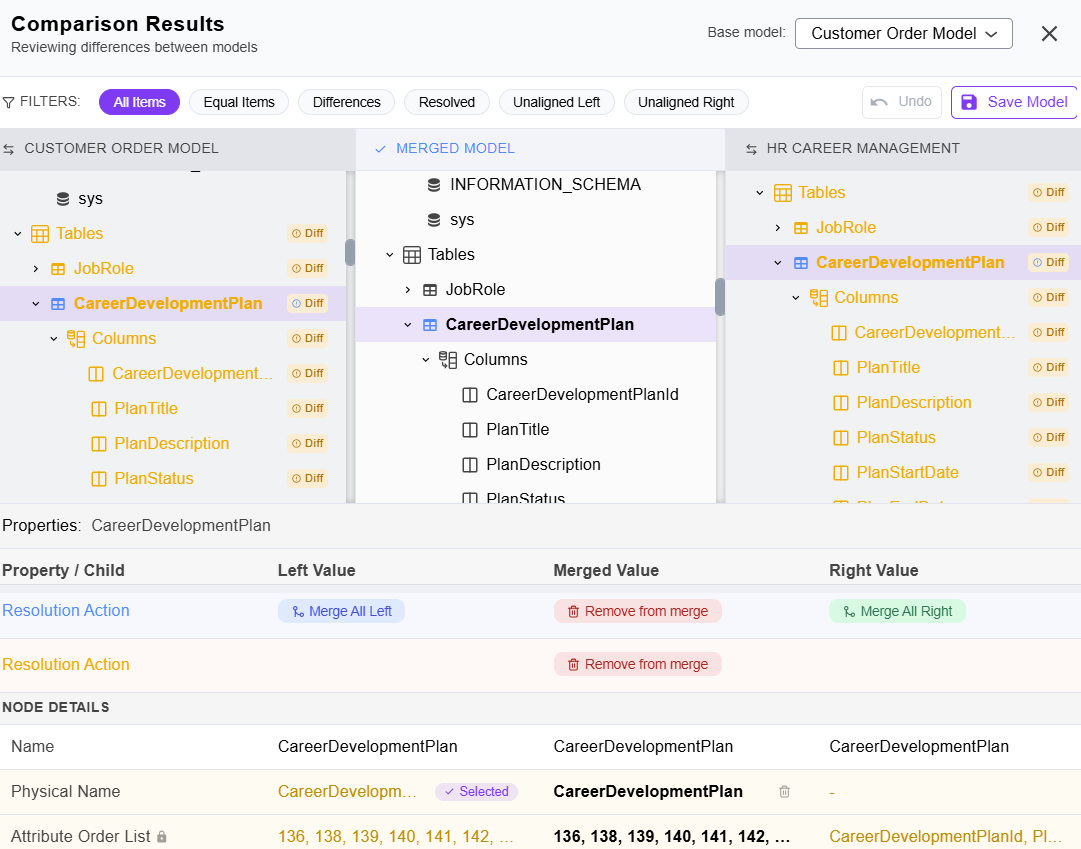
After you select Merge, the table and its related columns, parent relations, and child relations appear in the Merged Model panel.
Scenario 2 - Apply a Single Differing Property
When an object exists in both models, but a property differs, apply the desired value by selecting Use.
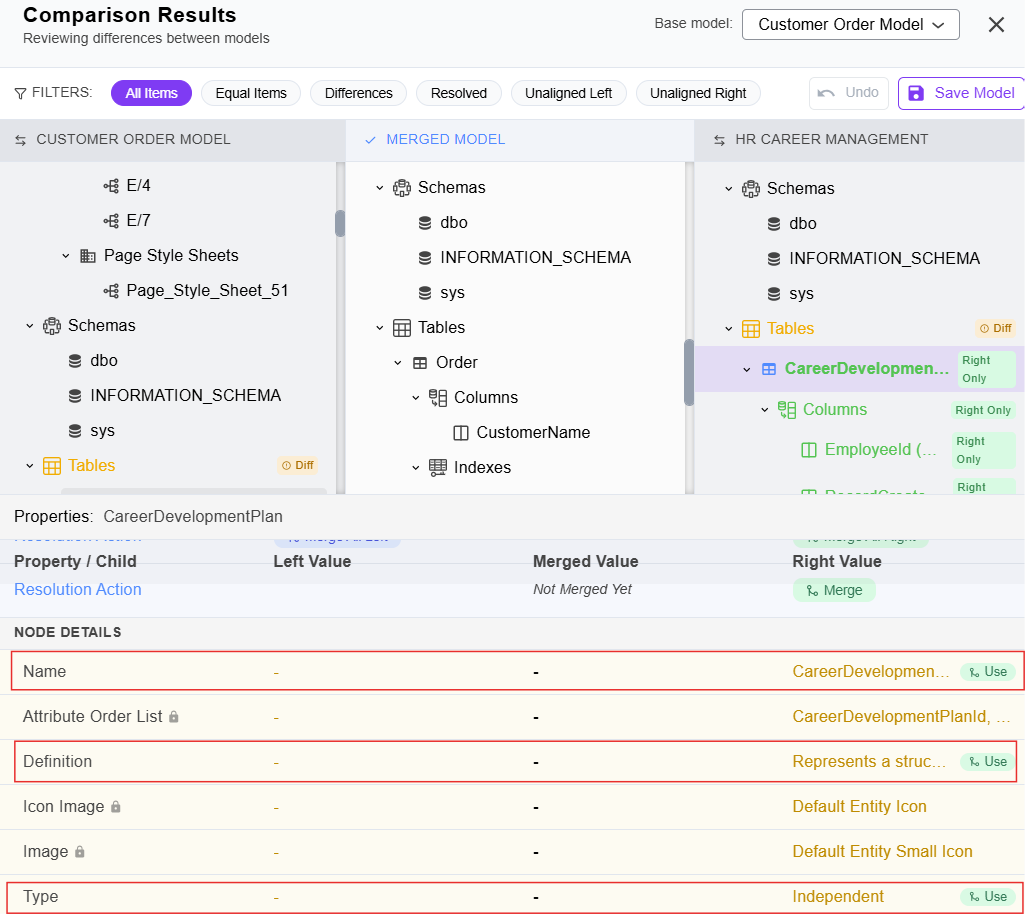
For example, the Definition of CareerDevelopmentPlan appears only in the Right Value column. To apply it, follow these steps:
-
Select the object in either panel.
-
In NODE DETAILS, locate the differing property. For example, Definition or Type.
The below screenshot displays the NODE DETAILS section, where the Name, Definition, and Type rows have a Use action and read-only rows show a lock icon.
-
Select Use for the value that you want to apply.
After you select Use, the value is applied to the Merged Value column and marked as resolved. Repeat for each property, and then select Save Model.
Scenario 3 - Review or Exclude an Identical Object
When an object is identical in both models, it appears under Equal Items and needs no merge.
For example, the db_datawriter role has the same Name and Do Not Generate values (true) in both models.
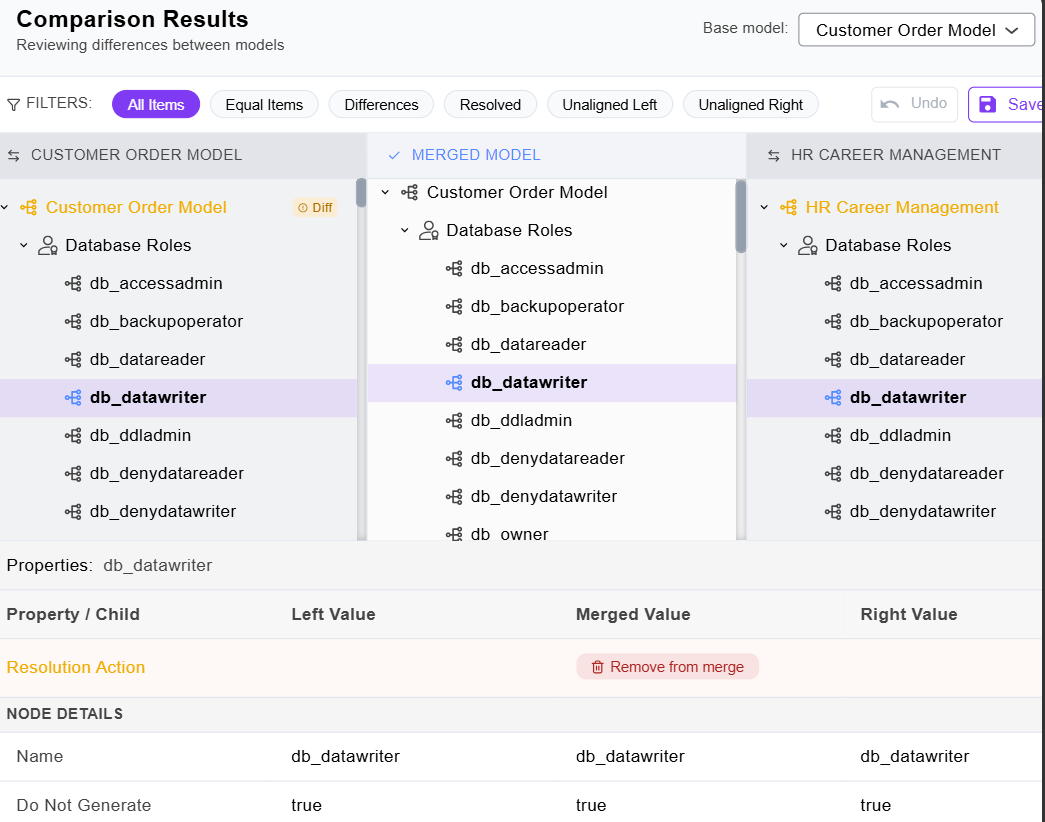
To exclude the object, select Remove from merge in the Resolution Action row. To keep the object, take no action.
Verify Results in the Merged Model
After you apply an action, check the middle Merged Model panel.
For example, if you merged the CareerDevelopmentPlan table, expand Tables. The table now appears with its columns, confirming the merge. If you removed an object, expand the same category and verify that the object no longer appears.
Save Changes and Apply Them to the Base Model
To save your changes, follow these steps:
-
Confirm the Base model is set correctly. For example, Customer Order Model.
-
Select Save Model.
Selecting Save Model applies all actions to the base model and saves it to the Mart, so it is no longer subject to the 30-day draft expiration described in Key Concepts. Until you save, the original model remains unchanged.
-
To confirm changes in the model:
-
Close the Comparison Results screen.
-
Reopen the base model.
-
Expand the relevant section. For example, Tables, Entities, or ER Diagrams.
-
The applied changes now appear in the base model.
Note: Select Undo (next to Save Model) to reverse actions before saving.
Complete Comparisons
After you review and apply changes, you can:
-
Close the comparison if it is for review only.
-
Continue refining the model.
-
Save or update the model in the mart.
-
Share the model or findings with other users.
Note: Changes are applied to the model only when you select Save Model.