The Global Search feature enables you to discover and locate entities (tables) and business terms across all models in the Quest erwin Mart Portal catalog. Every search is a semantic search by default. It interprets the meaning of your query and returns related entities and business terms based on context, so you can find the right data even when names differ across teams or domains. Results are automatically relevance-ranked for every keyword you enter.
Key Features
- Search across models in one place: Find entities or tables across all models in the Mart catalog from a single search experience. This helps you quickly discover the data you need and understand how it is distributed across your data landscape.
- Use saved Mart models for reliable results: Search includes only models that are saved in Mart, so your results reflect governed, reusable assets. Unsaved or temporary models are not included in the search.
- Work with supported object types: Search supports tables, entities, and business terms, so you can focus on the core objects used most often in modeling and analysis.
- Add entities directly to your model: Insert searched entities or business terms into your active working model, so you can move from discovery to design faster and reduce context switching.
Benefits
- Find more relevant entities with less effort: Discover entities and business terms even when different terms are used for the same concept, so you can find what you need faster.
- Get results that match your business context: Search understands domain-specific naming patterns across models, helping you identify the right entities and business terms with greater confidence.
- Connect data across domains: Identify related entities and business terms across business units or systems more easily, so you can build more complete models and support cross-functional analysis.
Entities and Business Terms Search
This walkthrough shows how to search for entities and business terms, interpret results, and add them to your working model.
- On the Overview page, use the search bar in the header area.
- Enter a keyword to search across all models. For example, user.
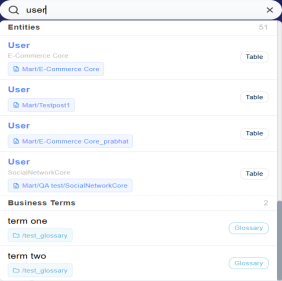
The search results appear grouped into two sections: Entities and Business Terms. The Entities section lists tables and objects stored in the model repository, for each entity you can see where it exists, which models contain it, and which model instance to work with. The Business Terms section lists each matching term with its glossary path and a Glossary label.
Results are relevance-ranked automatically and include the following:
- Exact matches.
- Semantically similar entities.
- Related business terms from the glossary.
- From the search results, select the entity you want to add.
The Add Entity to Diagram window opens.
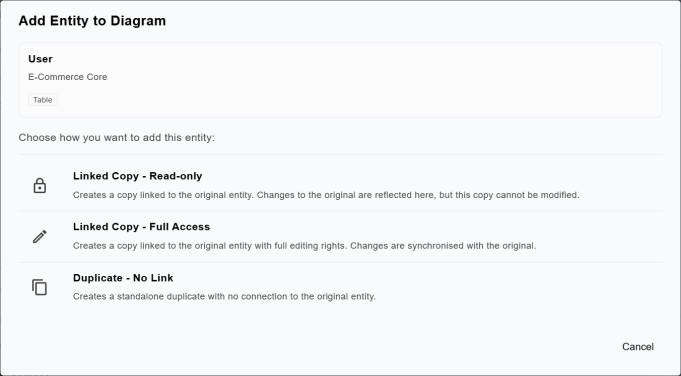
Note: Ensure you have a model open beforehand if you want to add the entity to that model.
- In the Add Entity to Diagram window, choose how to add the entity. The following table lists the options available in the Add Entity to Diagram window.
Option Description Linked Copy - Read Only Creates a linked copy that updates when the source entity changes. This copy cannot be edited. Linked Copy - Full Access Creates a linked copy that stays synced with the source entity and can be edited. Duplicate - No Link Creates an independent copy with no link to the source entity. - Select your preferred option to add an entity based on your requirements. For example, select Linked Copy - Full Access.
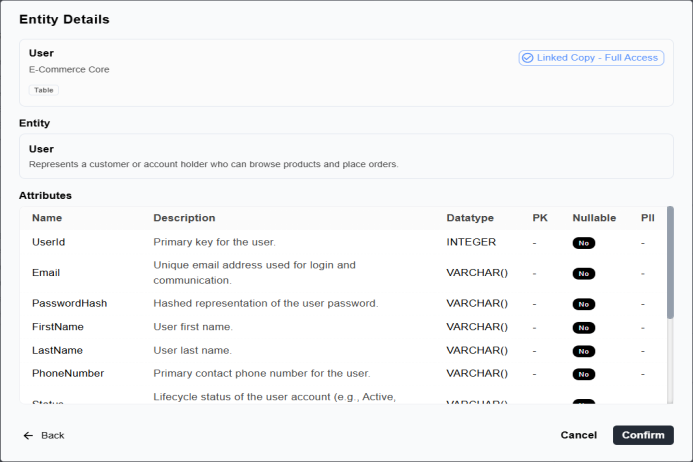
The Entity Details window opens and displays entity and its attributes.
- Select Confirm.
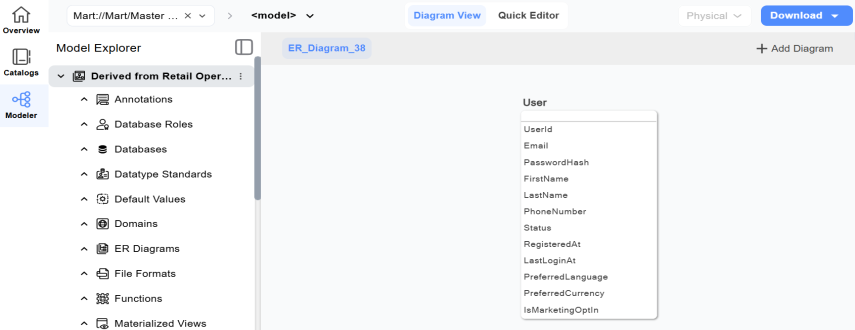
This adds the entity to your model.
Import Business Terms
To import a business term into your model, follow these steps:
- In the header search bar, enter a keyword. For example: user.
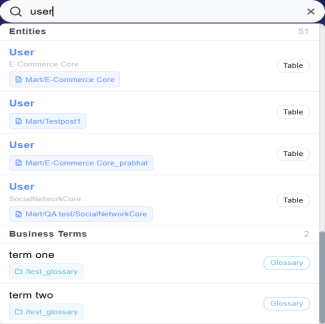
- In the Business Terms section, select the term you want to add to the model.
The Import Glossary Term window opens. It displays the term name, a Glossary Term label, the term, and a message confirming that importing creates an entity using the term name and definition.
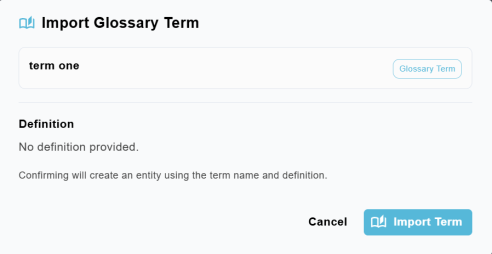
Note: Ensure you have a model open in the diagram view before you import the business term.
- Review the term details.
- Select Import Term.
The term is added to your model as an entity (table) in Diagram View, using the term name and its definition.
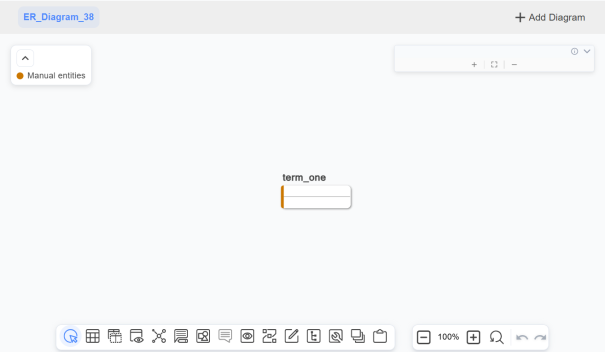
Note: Business terms do not include column-level attributes. When you import a business term, only the term itself is created as an entity (table) in your model without attributes, and the term's definition is used as the description. If the term has no definition, the window displays "No definition provided".