The AI Model Generator helps you create a data model quickly, without building it from scratch. Describe what you need, or provide a document, , image, or prompt, and AI generates the entities, attributes, keys, and relationships for you. You can then refine the model in natural language using AI Copilot.
You can start a model in several ways:
-
From prompts - Describe your model in plain language or upload an image in SVG, JPG/JPEG, and PNG formats for the AI to anlayze.Alternatively, use ready-made prompt templates in the Prompt Gallery, or enterprise-ready Industry Standard prompts tailored to your industry.
-
From documents - Extract entities and relationships from existing business documents in the MS Word and PDF formats.
-
With personalization - Apply your own standards (naming, keys, audit columns) to every model.
-
With Mart integration - Enrich AI-generated entities with your organization's governed metadata.
Whichever way you start, once the model is generated, you can refine it in natural language using AI Copilot, and then save it to the Mart.
Scenario: Building a Lead‑to‑Cash Model
As your organization grows, you need a model that shows how leads convert into opportunities and eventually result in customer orders. A Lead-to-Cash model helps teams understand this business flow and prepare it for implementation in both logical and physical forms.
Create Models Using Prompts
If you prefer to start from a prompt, you can describe your model in plain language or upload an image in SVG, JPG/JPEG, and PNG formats. You can also use the Prompt Gallery or Industry Standard Prompts. Both approaches follow the same steps, only the way you provide the prompt differs.
Note: You can attach up to 5 files, each up to 2 MB. Supported file types include SVG, JPG/JPEG, PNG, CSV, Excel, JSON, PDF, Word (.doc / .docx).
To create models using prompts, follow these steps:
-
On the Overview page, go to the AI Model Generator section.
-
In the prompt area, select a prompt using one of the following options:
-
Prompt Gallery: Select
 to open ready-made prompt templates. Select a tab based on how you want to describe your model.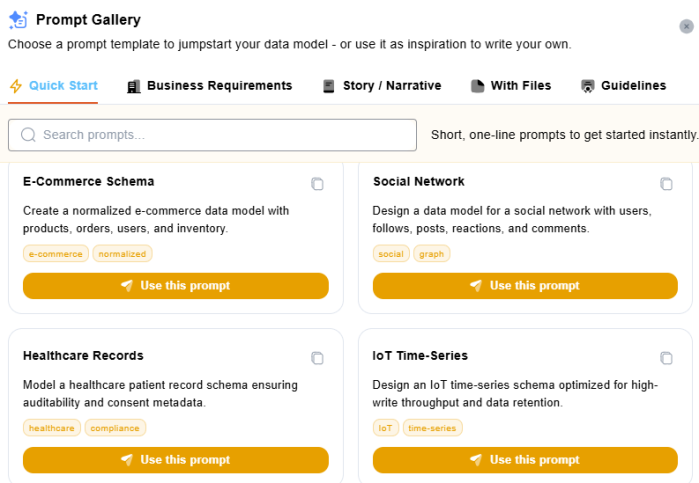
Tab Purpose When to use it Quick Start Short, one-line prompts that generate a model instantly. You want a fast starting point or are exploring ideas and prototypes. Business Requirements Structured prompts written in business language. You already have clear requirements and want more complete, structured output. Story / Narrative Prompts expressed as workflows or business scenarios. You prefer describing a process or end-to-end flow instead of listing entities. With Files Generates a model from an uploaded file such as CSV, Excel, or JSON (max 5 MB; datasets over ~1,000 rows may be rejected or partially processed). You already have structured data and want the model built from it. Guidelines Best practices for writing effective prompts. You want to improve prompt clarity and the quality of generated output. -
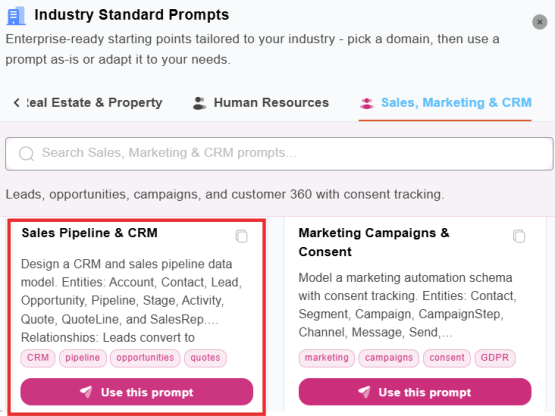
Industry Standard Prompts: Select
 to open enterprise-ready prompts tailored to your industry. First select the domain that matches your business area, and then select a prompt within it.
Domain Purpose When to use it Banking & Payments Prompts for accounts, transactions, payments, and ledgers. You model banking, payment processing, or financial transactions. Insurance Prompts for policies, claims, underwriting, and coverage. You model policy administration, claims, or risk data. Healthcare & Life Sciences Prompts for patients, providers, encounters, and clinical data. You model healthcare records, care delivery, or life-sciences data. Retail & E-Commerce Prompts for products, carts, orders, and customers. You model online stores, catalogs, or order management. Manufacturing & Supply Chain Prompts for products, inventory, suppliers, and production. You model manufacturing operations, BOMs, or supply networks. Telecommunications Prompts for subscribers, plans, usage, and networks. You model telecom services, billing, or network assets. Energy & Utilities Prompts for meters, consumption, assets, and billing. You model utilities, metering, or energy distribution. Government & Public Sector Prompts for citizens, services, cases, and permits. You model public services, case management, or civic records. Education & EdTech Prompts for citizens, services, cases, and permits. You model public services, case management, or civic records. Media & Entertainment Prompts for media, content, and audience workflows. You model content catalogs, viewership, or media operations. Travel & Hospitality Prompts for bookings, properties, guests, and itineraries. You model reservations, stays, or travel services. Logistics & Transportation Prompts for shipments, routes, fleets, and tracking. You model supply chain, delivery, or fleet operations. Real Estate & Property Prompts for listings, leases, tenants, and property assets. You model property portfolios, leasing, or tenancy. Human Resources Prompts for employees, roles, payroll, and org structures. You model workforce, payroll, or organizational data. Sale, Marketing & CRM Prompts for leads, opportunities, campaigns, and customer 360 with consent tracking. You model sales pipelines, CRM, or marketing flows.
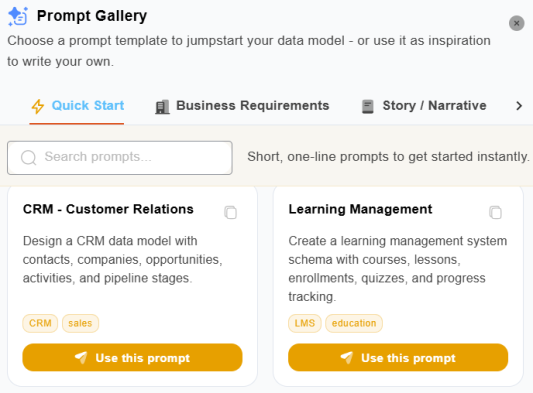
For the Lead-to-Cash scenario, select the Quick Start tab, and select the CRM - Customer Relations card.
For the Lead-to-Cash scenario, select the Sales, Marketing & CRM domain, and select the Sales Pipeline & CRM card.
Note: Use the search box in either panel to quickly find a prompt by keyword.
-
-
Select Use this prompt.
The selected prompt opens in AI Model Generator prompt area.
-
Refine the prompt to reflect your business requirements.
For example,
Design a data model that represents Lead‑to‑Cash. Include Lead, Opportunity, Customer, Order, and Invoice. Show how leads convert to opportunities and how opportunities result in customer orders.
-
Select
 and select Logical/Physical.
 -
Select Create.
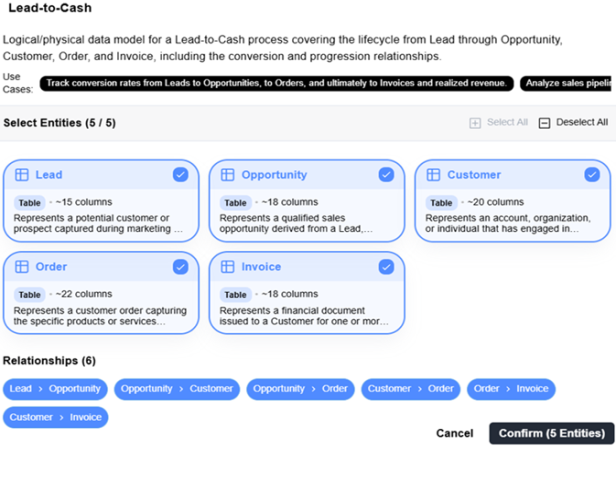
The Lead-to-Cash Core review and selection section appears.
-
Review the generated entities and relationships, and adjust the selection if required.
-
Select Confirm.
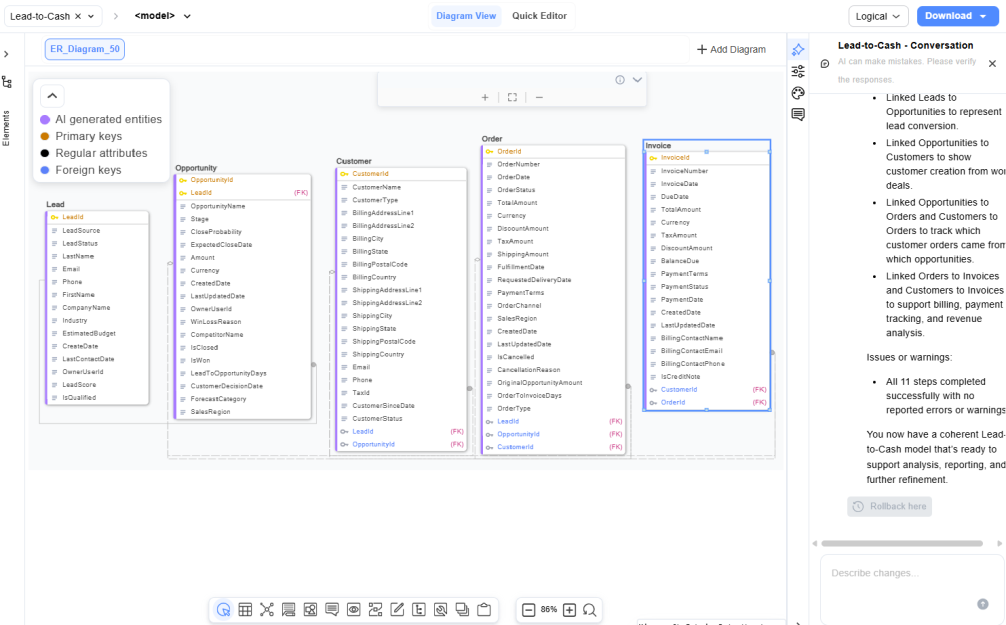
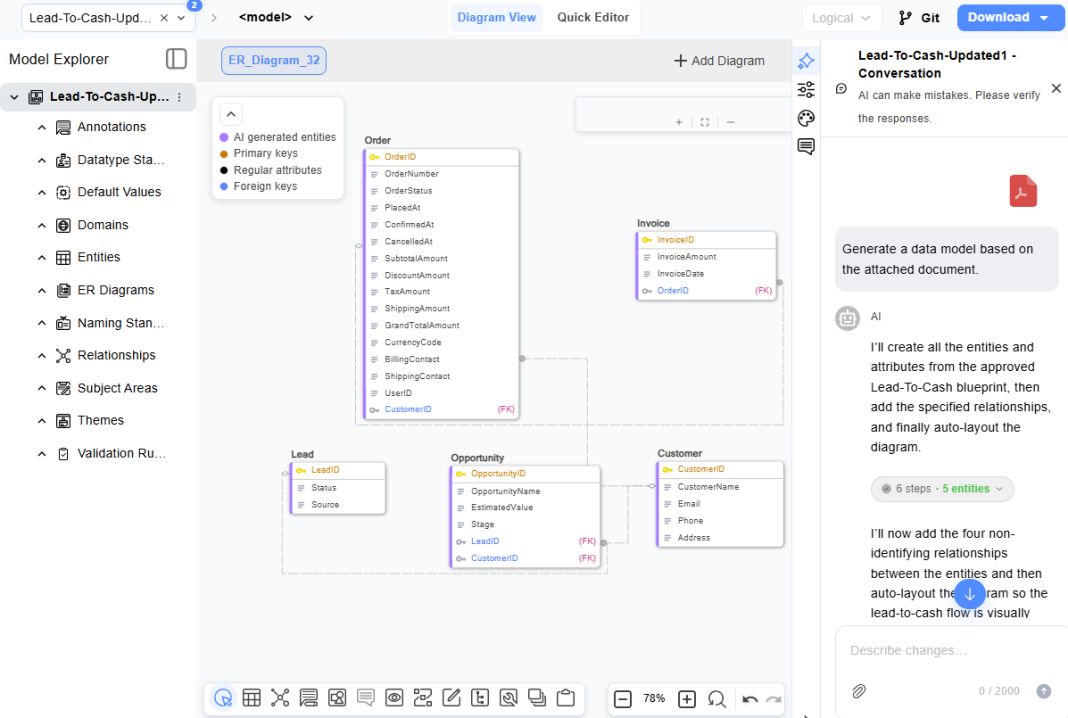
AI analyzes the selected entities and relationships, generates the model, and opens it in the Diagram View. The AI Copilot Conversation pane opens alongside the diagram with the actions that generated the model. You can continue to refine your model using further descriptions here.
Tips for using the Prompt Gallery
-
Start with a simple prompt, and then refine it incrementally.
-
Use real business terminology, such as Lead, Opportunity, Order, and Invoice.
-
Review the Guidelines tab to improve prompt quality.
-
Use With Files for data-driven modeling when your file size and row count are within supported limits.
-
Always review generated entities, attributes, and relationships before finalizing the model.
-
Build Models from Word and PDF Documents
You can generate a data model from Word (.doc and .docx) and PDF documents. The AI Model Generator extracts content from both the text and the images embedded within the document, and uses it to generate model entities, attributes, and relationships.
To build models from Word or PDF documents, follow these steps:
-
On the Overview page, go to the AI Model Generator section.
-
In the prompt area, select
 .
. -
Select the Word or PDF document you want to use, and then select Open.
For example, you might select a PDF document that describes a Lead-to-Cash business process and includes an ER diagram. AI Copilot analyzes the document content and diagram to identify entities, attributes, keys, and relationships, then automatically generates a logical data model that represents the business requirements, including entities such as Lead, Opportunity, Customer, Order, and Invoice.
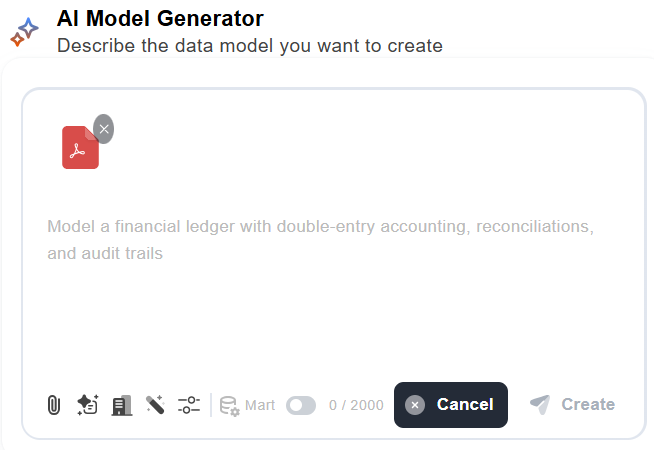
The document appears in the prompt area.
-
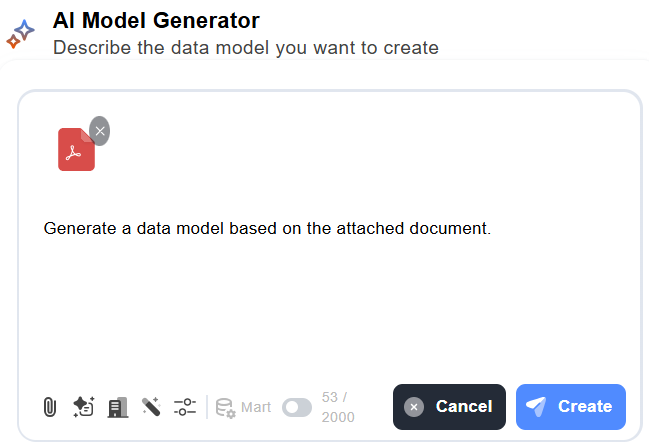
Enter a prompt in the prompt area. For example,
Generate a data model based on the attached document.
-
Select Create.
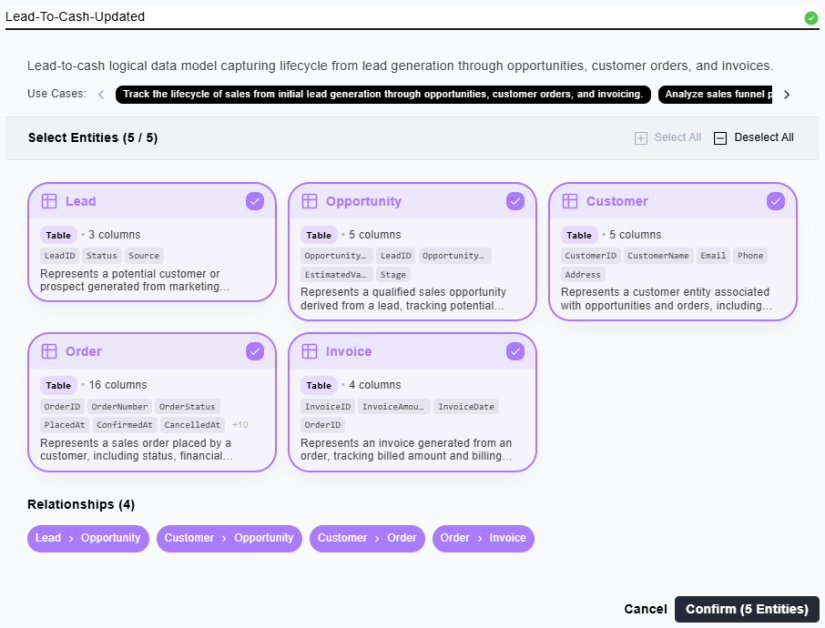
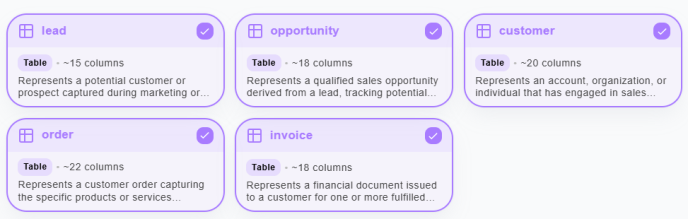
The review and selection section (for example, Lead-To-Cash-Updated) appears, showing the generated entities and relationships from your document.
-
Review the generated entities and relationships, and edit your selections by selecting or clearing the corresponding checkboxes.
-
Select Confirm.
AI analyzes the selected entities and relationships, generates the model, and opens it in the Diagram View. The AI Copilot Conversation pane opens alongside the diagram with the actions that generated the model. You can continue to refine your model using further descriptions here.
Personalize AI-Generated Models
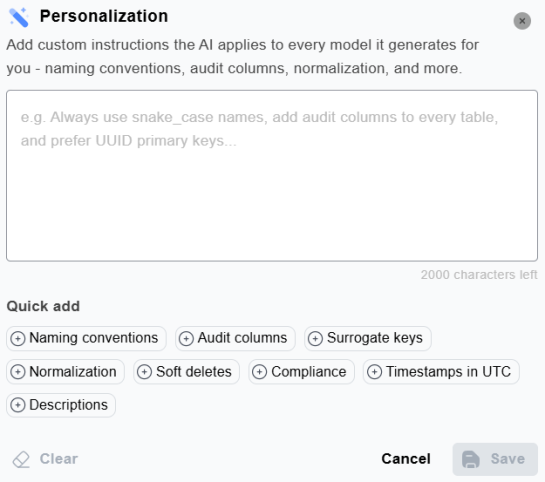
Personalization lets you add custom instructions that AI applies to every model it generates for you. Use it to set naming conventions, audit columns, normalization rules, and key preferences, so all your generated models match your standards.
To personalize your models, follow these steps:
-
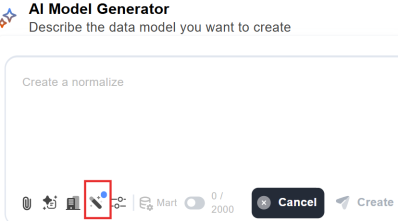
In the AI Model Generator prompt area, select
 .
.The Personalization section opens.
-
In the text box, enter your custom instructions. For example, Use snake_case for table and column names.
-
(Optional) Use the Quick add buttons to insert common rules, such as Naming conventions, Audit columns, Surrogate keys, Normalization, Soft deletes, Compliance, Timestamps in UTC, and Descriptions.
-
Select Save.
Your instructions are validated to confirm they are relevant to data modeling, and then applied. A blue dot appears on the Personalization icon to indicate that saved instructions are active.
Saved instructions apply globally to every model you generate with the AI Model Generator - whether from a plain-language prompt or an uploaded Word or PDF document - until you update or clear them.
Note: Personalization instructions apply to all future models. To apply instructions to a single model, select Clear, enter the instructions for that model, generate it, and then clear or update the instructions before you generate your next model.
For example, you save this personalization instruction:
Use snake_case for table and column names.
Then you generate a model from a plain-language prompt:
Design a data model for a Lead-to-Cash scenario. Include Lead, Opportunity, Customer, Order, and Invoice, and show how they relate.
AI generates the entities—lead, opportunity, customer, order, and invoice, following your saved instruction, so all table and column names use snake_case.
Enrich AI-Generated Models with Mart Metadata
When you enable Mart Integration during AI model generation, the system automatically matches your AI-generated entities with governed metadata from your organization's Quest erwin Mart Portal repository. This enrichment ensures that your model uses canonical names, standardized attributes, and validated definitions, reducing duplication and improving consistency across your organization.
To enable Mart integration, switch on the Mart Integration option ( ) in the AI Model Generator before you select Create. When the integration is enabled, a confirmation label appears, indicating that Mart matching is active.
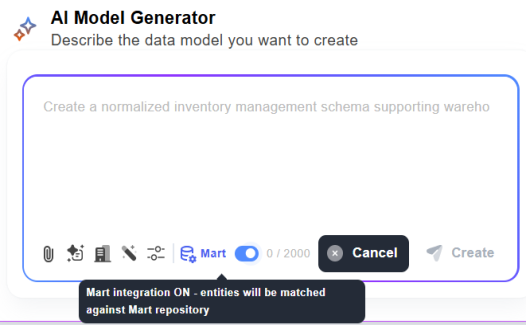
After you enter your prompt and select Create, the process runs in phases:
-
AI generates and Mart matches: The AI processes your prompt and generates a high-level set of entities and relationships. Each generated entity name is then matched against the Quest erwin Mart Portal repository to identify corresponding governed entities. If a match is found, the system records the association; if no match exists, the entity remains AI-only. While matching runs, a progress indicator appears in the preview dialog: Checking Mart repository for matching entities...
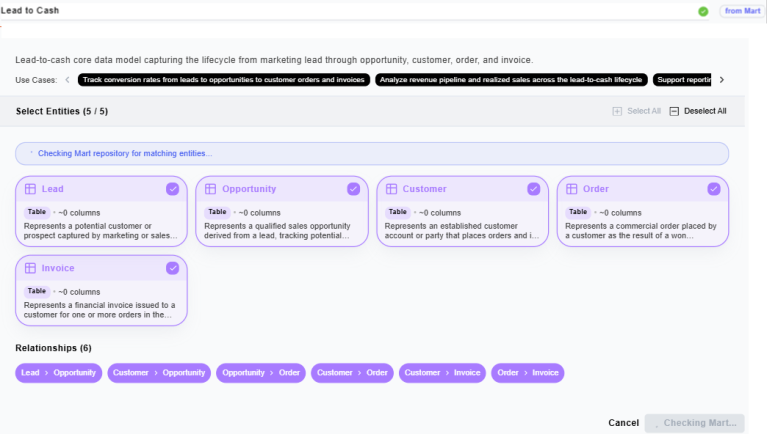
Note: To prevent duplicate entities, the assistant reuses the canonical name and attributes of an existing entity in the connected Mart repository. This ensures that your model leverages existing business definitions rather than creating redundant entries.
-
Preview with Mart highlights: The preview dialog displays all generated entities and visually distinguishes Mart-matched entities from AI-only entities:
- A blue border indicates a Mart-matched entity (AI-only entities have a purple border).
- A MART badge on the entity card shows "Attributes sourced from Mart repository".
- A count badge at the top of the dialog shows how many entities were matched (for example, 4 from Mart).
- A preview of the first few Mart attributes appears on each matched entity card.
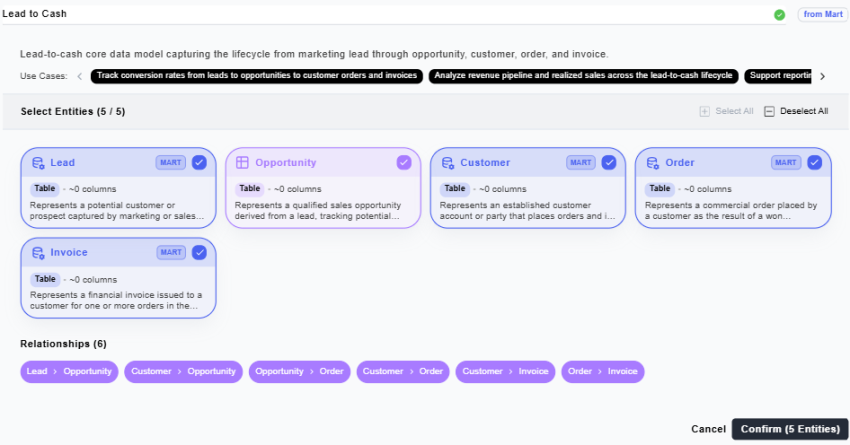
You can select or clear any entity before confirming, whether it is Mart-matched or AI-only.
-
Confirm and create: When you confirm the preview, Mart-matched entities are created using the official Mart metadata, including the name, description, columns, data types, and primary key flags, which are fetched fresh from Mart at creation time. AI-only entities are created using the AI-generated definition. Both types of entities appear in the final diagram, allowing you to see which definitions come from Mart and which are AI-generated.
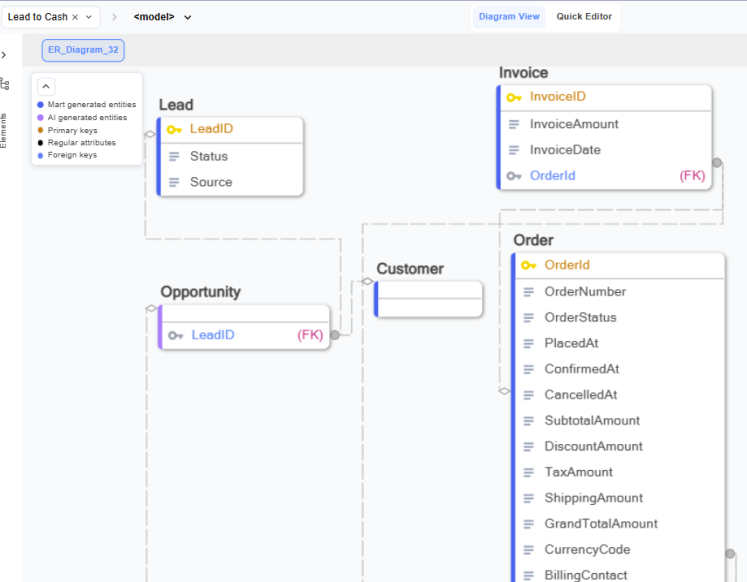
Note: Mart matching does not block the generation process. If Mart is unavailable or no match is found for an entity, generation continues normally, and the entity is created as an AI-only entity.
Refine Models using AI Copilot
After the initial model is generated, you can continue refining it in the AI Copilot Conversation pane. This allows you to update the model incrementally as new business requirements emerge.
For example, if the sales team needs better visibility into where opportunities are managed, you can add that detail without rebuilding the model.
To refine models using AI Copilot, follow these steps:
-
In the AI Copilot Conversation pane, enter a prompt. For example,
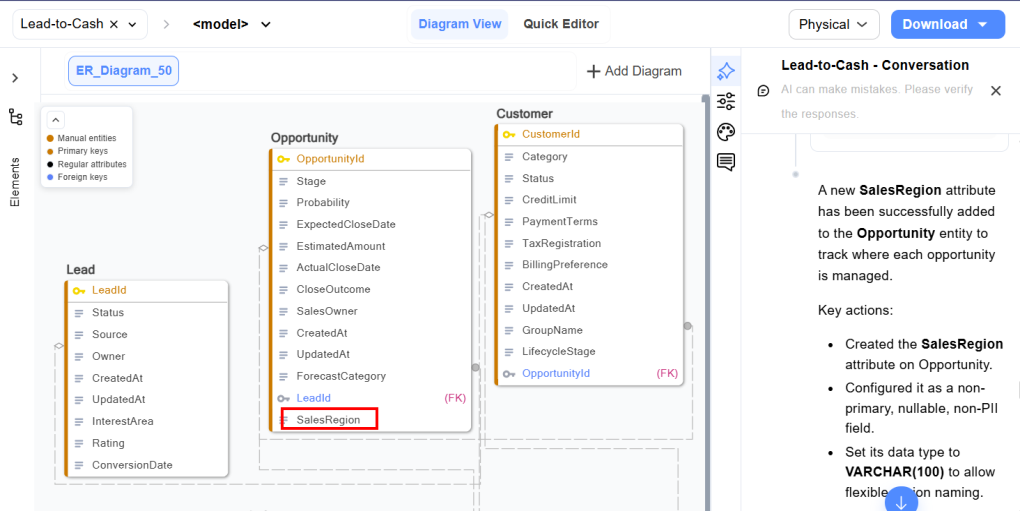
Add a Sales Region attribute to Opportunity to track where each opportunity is managed.
AI updates the model directly. For example, it adds the SalesRegion attribute to the Opportunity entity.
-
Review the updated diagram to confirm that the Lead-to-Cash flow remains clear and accurate.
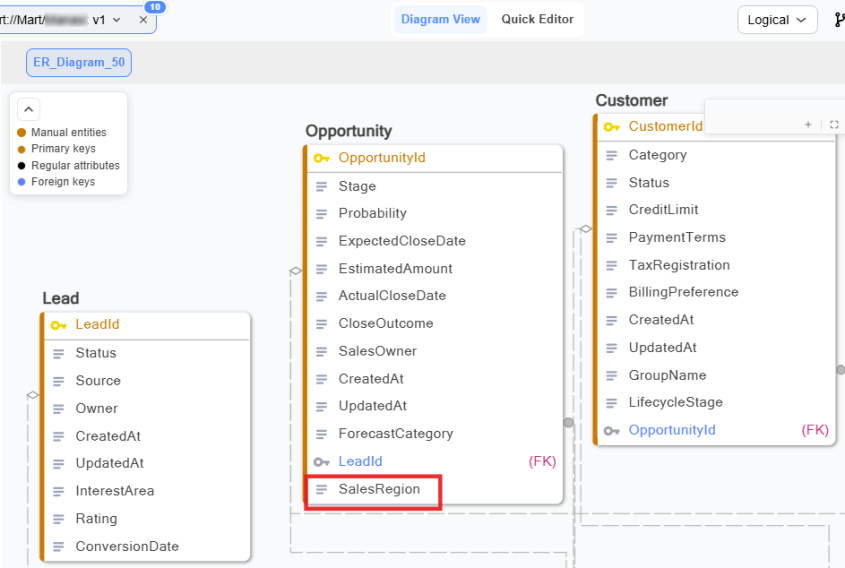
After refining the model, review the changes in both views to make sure business intent and implementation details remain aligned.
-
In Logical view, confirm that the added attributes align with business requirements.
-
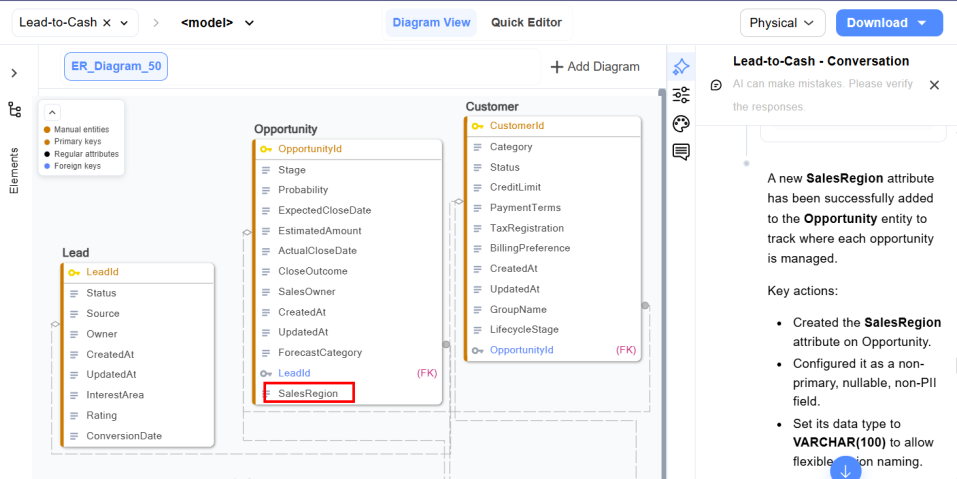
In Physical view, verify that the same changes are reflected as database columns, keys suitable for implementation.
-
Both views remain synchronized, helping ensure that business meaning and technical design stay aligned as the model evolves.
Saving Models to the Mart using AI Copilot
After you refine the Lead-to-Cash model, save it to the Mart so that your team can access, review, and refine it further. Instead of using the diagram toolbar, you can save the model directly from the AI Copilot Conversation pane by using a natural language prompt.
-
In the AI Copilot Conversation pane, enter a prompt. For example,
Save this model to the Mart as Lead-to-Cash Core at the following path: /Mart/<library_name>
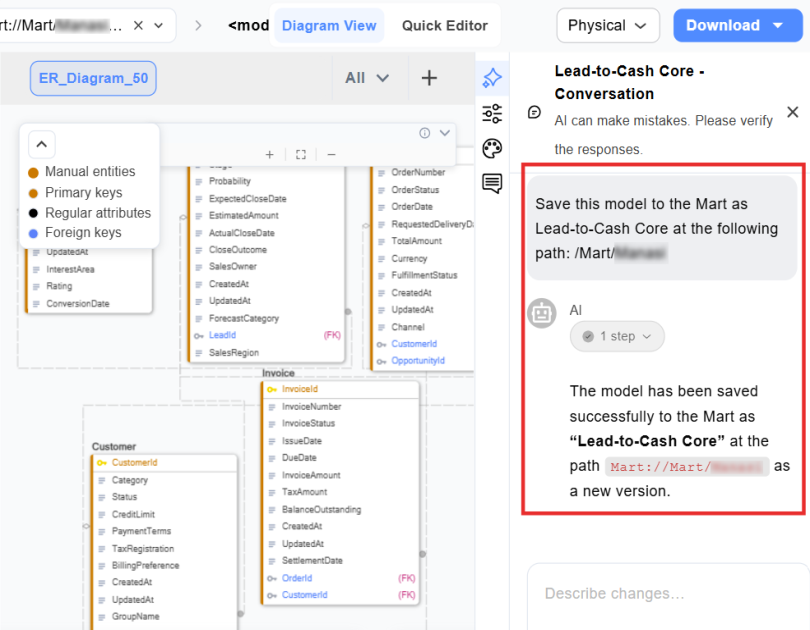
AI saves the model to the specified library in the Quest erwin Mart Portal, and confirms the action in the conversation pane. If you do not specify a library, the model is saved to the root node.
Note: If you do not specify a library, the model is saved to the root node.
Note: The specified mart path must already exist in the Mart repository. If the path does not exist, AI Copilot returns an Invalid Model Path error and prompts you to provide a valid Mart path.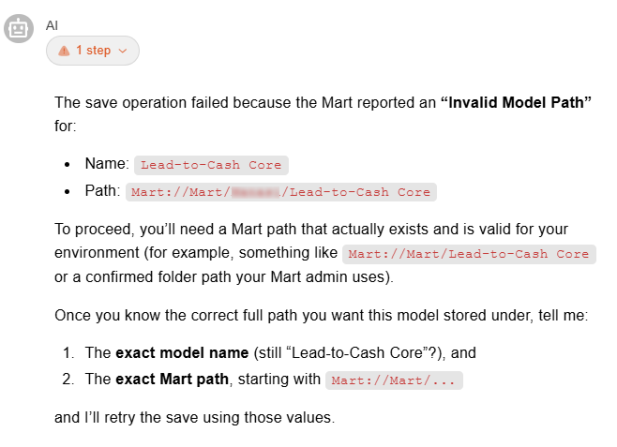
After the model is saved, it is stored centrally in the Mart, where your team can open it from the Catalog Manager, version it, and continue refining it collaboratively.
After you make changes to the model and save it to Quest erwin Mart Portal again, Incremental Save records only the changes made since the previous save instead of rewriting the entire model each time. Incremental Save applies to models saved manually from the diagram toolbar and to models saved through AI Copilot. This helps optimize save operations and version tracking in Quest erwin Mart Portal.
When you save the updated model, the following Save dialog appears. Enter a description for the changes, and then select Save.
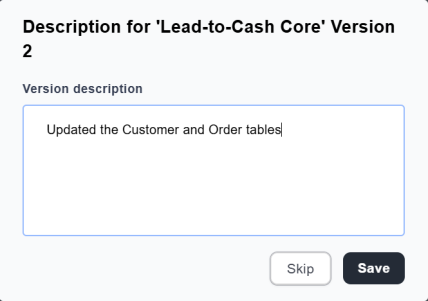
The updated model is saved as the next version in Quest erwin Mart Portal.
Your Lead-to-Cash model is now generated, refined with AI Copilot, and saved to the Mart—ready for your team to version and build on, with logical and physical design kept in sync.