This topic walks you through how to create each type of model, why it exists, and how they naturally flow into one another, using the following business scenario.
Scenario: Lead‑to‑Cash Modeling in a Growing Organization
When an organization scales its revenue operations, it requires a clear and consistent way to understand how demand is converted into cash.
-
Sales leaders need confidence in pipeline health and revenue forecasts.
-
Finance teams require accurate and traceable order, invoice, and payment data.
-
Executives depend on a single, trusted view of revenue performance across the enterprise.
Lead‑to‑Cash modeling meets these needs by representing the revenue process at multiple levels of detail. Each model type is designed to answer a specific business question and to support a different stage of organizational maturity.
The following sections explain the purpose of each model and show how the logical model builds on the conceptual model, and how the physical model builds on the logical model, to support strategic alignment, operational control, and financial accuracy:
Common Workflow (steps 1–5)
The following steps apply to all model types.
To create a model:
-
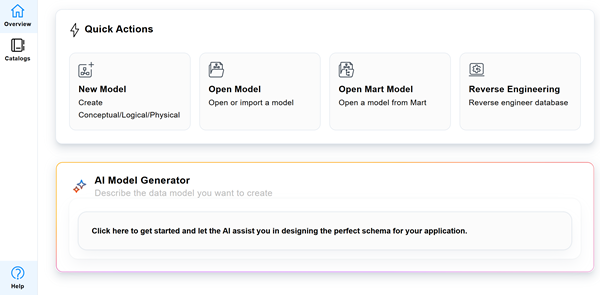
On the Quest Data Modeler Overview page, under Quick Actions, select New Model.
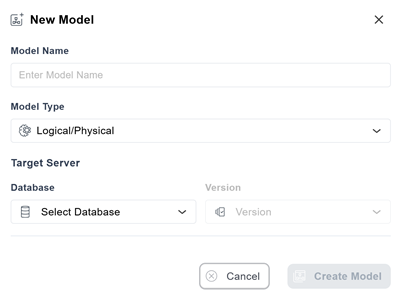
The New Model dialog appears.
-
In the Model Name field, enter a name for the model.
-
Select a model type from the drop-down menu:
-
Conceptual
-
Logical
-
Physical: Select the database and version.
-
Logical/Physical: Select the database and version.
Note: For information on when and how to use the logical/physical model type, refer to the Build Your First Data Model topic.
-
-
Select Create Model.
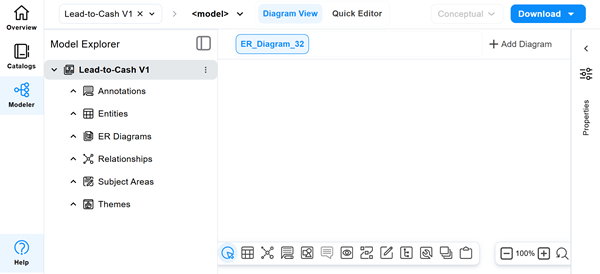
A blank model is created. You can now add model elements relevant to the selected model type.
-
To save the model for future use, do one of the following:
-
Download the model
-
Select Download.
-
From the drop-down list, choose the required format.
-
Select Export to JSON to save the model in a format that can be re-uploaded to Quest Data Modeler.
-
-
Save the model to a Mart library:
-
Select
 , and then select Save.
 -
On the Save page, select the library where you want to save the model.
-
Select Save.
-
-
Conceptual Model
At the earliest stage, leadership needs clarity rather than detail. Sales, finance, and operations must align on the core elements of the sales lifecycle and how they relate. To achieve this alignment, a conceptual model is created.
Conceptual models include the following components:
-
Entities: Objects or concepts that represent data within the system.
-
Relationships: Associations between entities that define how they interact. You can create the following types of relationships:
-
Identifying
-
Non-identifying
-
Many-to-many
-
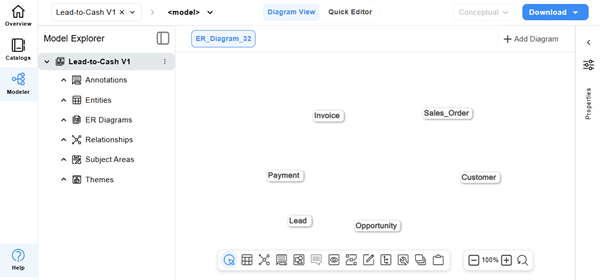
For the Lead-to-Cash scenario, identify the following core entities:
-
Lead
-
Opportunity
-
Customer
-
Sales Order
-
Invoice
-
Payment
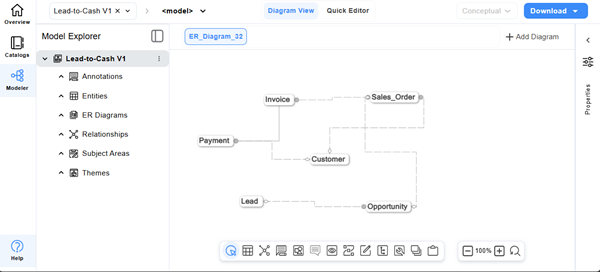
Define the following high-level relationships between entities:
-
A Lead converts into an Opportunity: Non‑identifying
-
An Opportunity results in a Sales Order: Non‑identifying
-
A Sales Order generates an Invoice: Non‑identifying
-
An Invoice is settled by a Payment: Identifying
-
A Customer is associated with Opportunities, Orders, and Payments: Non‑identifying
Adding Entities
To add an entity:
-
Open the Conceptual model.
-
On the toolbar, select
 , and then select a location in Diagram View to add the entity.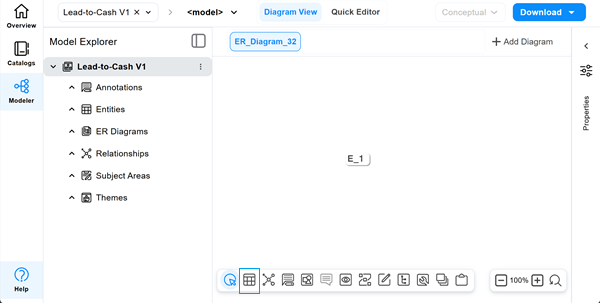
-
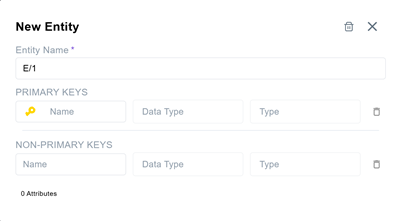
In the Entity Name field, enter the required name. You can add primary and non-primary keys here, or add them later in Quick Editor. Click anywhere outside the dialog box to close it.
-
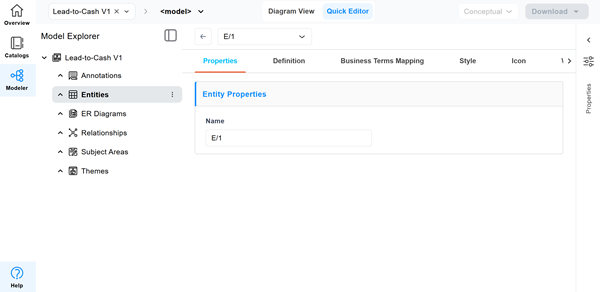
In Diagram View, double-click the entity.
The Quick Editor opens.
-
Update other properties as required, and then select Diagram View to return.
The entity is added to the diagram with the default name E_n, where n is a sequential number.
The New Entity dialog appears.
Similarly, add more entities in the model. Entities can also be added from Model Explorer.
Adding Relationships
To add a relationship:
-
On the toolbar, select
 .
. -
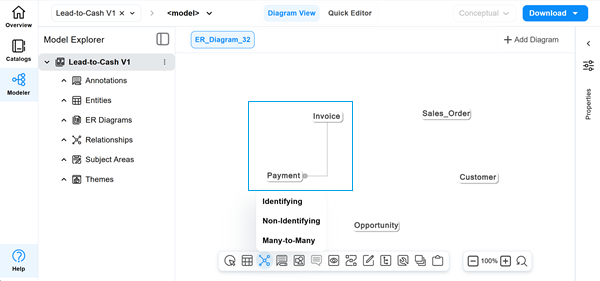
Select the type of relationship you want to add. For example, Identifying.
-
In Diagram view, select the parent entity, drag to the child entity, and then select it to create a relationship.
When the relationship is created, the cursor changes to the identifying relationship symbol, and the relationship appears in the diagram.
The identifying relationship is added.
Similarly, add the remaining relationships to complete the conceptual model.
The conceptual model is optional for organizations with a well-established sales process. However, it is especially valuable when the process is new or evolving, or when cross-team alignment is needed before any technical design begins.
Before moving to the logical model, stakeholders must validate the conceptual model to ensure a shared understanding of the end‑to‑end revenue flow.
How This Leads to the Next Model
After stakeholders validate the conceptual model and agree on the core elements of the revenue process, you can create the logical model to define the information required to manage and measure revenue.
Logical Model
To support reporting and analysis, sales and finance teams need measurable insight into the following:
-
Pipeline value
-
Forecasted revenue
-
Conversion rates
-
Outstanding invoices
This requires structured data, not just concepts. The logical model translates business concepts into structured information, enables reporting and analysis, and remains independent of database technology.
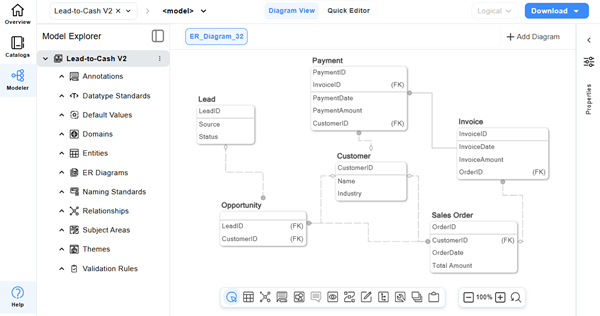
In the logical model, you create entities that correspond to the conceptual entities you defined earlier. For each entity, you then define attributes that represent the specific data fields required to capture and manage business information. For example, a Customer entity can include attributes such as CustomerID, Customer Name, Address, and Phone Number.
Business Attributes:
-
Lead: LeadID, Source, Status
-
Opportunity: OpportunityID, EstimatedValue, CloseDate, Stage
-
Customer: CustomerID, Name, Industry
-
SalesOrder: OrderID, OrderDate, TotalAmount
-
Invoice: InvoiceID, InvoiceDate, InvoiceAmount
-
Payment: PaymentID, PaymentDate, PaymentAmount
Key Groups:
Key groups define how entities are identified, related, and accessed in the logical model. They provide a foundation for consistent relationships and future physical implementation.
Key groups do not implement database constraints or indexes; those decisions are made in the physical model.
Types of Key Groups:
The logical model supports the following key group types:
-
Primary key group
Uniquely identifies each instance of an entity.
-
Alternate key group
A secondary unique identifier recognized by the business but not selected as the primary key.
-
Non‑unique key group (Inversion entry)
A non‑unique combination of attributes frequently used to search or access data.
-
Foreign keys (via relationships)
Created when a relationship is defined and a parent key migrates to a child entity.
Foreign keys are not defined as standalone key groups.
Adding Attributes
You can add attributes to the logical model by using the Model Explorer or Quick Editor. Attributes can also be defined when you create entities in the logical model.
This section focuses on adding attributes by using Quick Editor, which provides a fast and efficient way to define and update attributes directly in the logical model.
To add an attribute:
-
Open the Logical model.
-
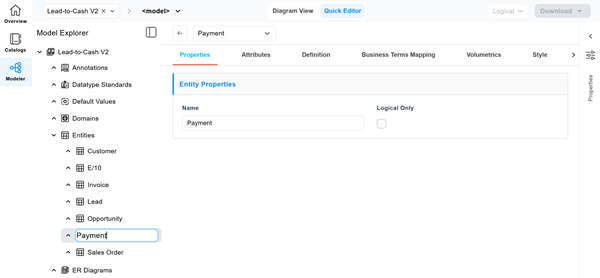
Double‑click the entity to which you want to add attributes. For example, Payment.
The Quick Editor opens.
-
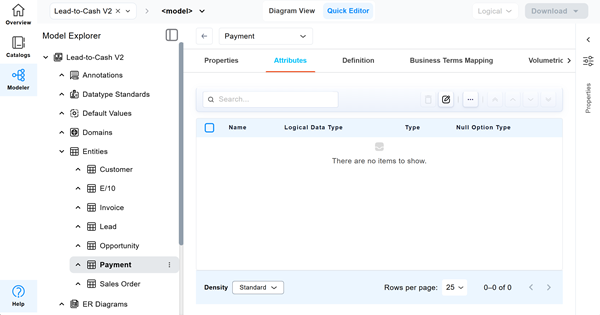
Select the Attributes tab.
-
Select
 .
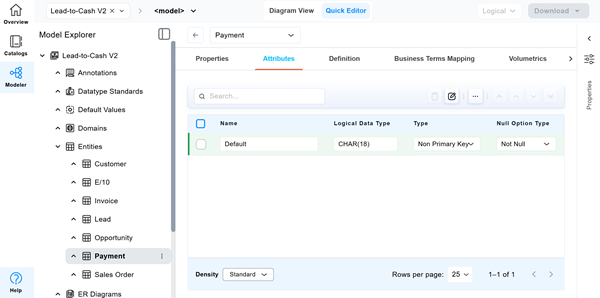
.A new row is added for defining an attribute.
-
Define the attribute by specifying values in the following fields:
-
Name: Enter a meaningful name for the attribute.
-
Logical data type: Select the appropriate logical data type.
-
Type: Specify whether the attribute is Primary or Non‑Primary.
-
Null option: Specify whether the attribute allows Null or Not Null values.
-
The attribute is added to the entity. For example, PaymentID is added to the Payment entity.
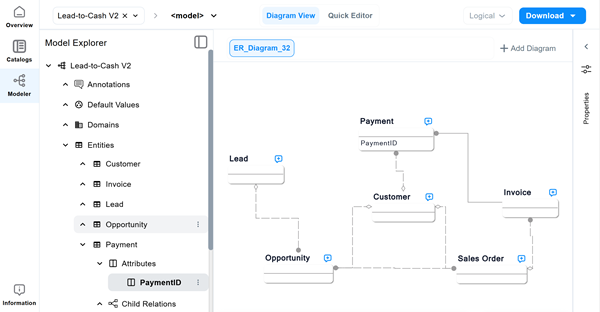
Similarly, add the remaining attributes.
Adding Key Groups
In Quest Data Modeler key groups are added either automatically by the system or explicitly by the user.
-
Automatic key group creation (system‑driven)
System automatically creates key groups based on common modeling actions.
-
Primary key definition
When one or more attributes are marked as Primary Keys, QDMautomatically creates Primary Key Groups and assigns those attributes to it.
-
Alternate key definition
When a unique key is defined (for example, a unique combination of attributes), QDM creates an Alternate Key Group.
-
Identifying relationships
When an identifying relationship is created, the parent entity’s primary key migrates to the child entity and becomes part of the child entity’s Primary Key Group.
In these cases, the user does not explicitly create a key group. QDM creates the key group implicitly based on attribute settings and relationship definitions.
-
-
Manual key group creation (User‑driven)
You can add key groups through the Attribute Editor or through the Key groups editor, even though key groups remain owned by the entity.
To add a key group manually:
-
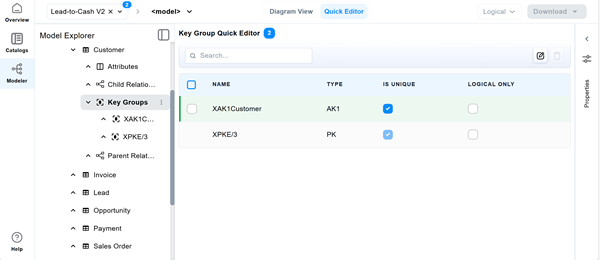
In the Model Explorer, expand the entity to which you want to add a key group, and then select the Key Groups node.
-
Select Quick Editor.
-
Select
. -
From the drop‑down, select New Alternate Key or New Inversion Entry.
A new row is added for defining the key group.
-
Define the key group by specifying values in the following fields:
-
Name: Enter a meaningful name for the key group .
-
Type: Review the key group type selected in the previous step. This field is read-only and cannot be changed here.
-
Is Unique: Indicate whether the key group is a unique business identifier for the entity.
-
Logical Only: Specify whether the key group applies only to the logical model.
-
-
For example, in the Lead-to-Cash scenario:
-
Primary key group → Customer ID
The Customer ID primary key group uniquely identifies each customer across the enterprise.
-
Alternate key group → Customer Email
The Customer Email alternate key group represents a secondary, business‑recognized unique identifier that can later be enforced as a unique constraint in the physical model.
-
Non‑Unique Key Group (Inversion Entry)
Add the attributes commonly used to search or filter data. For example, Customer Last Name.
The inversion entry documents that users frequently search for customers by last name. In the physical model, this can later be implemented as a non‑unique index.
Relationship Reminder
Foreign keys are not added as key groups. Foreign keys are created automatically when relationships are defined. They originate from primary or alternate key groups in the parent entity.
For example,
Customer ID (Primary key in Customer)
→ migrates to
Customer ID (Foreign key in Sales Order)
Primary and alternate key groups define how Lead‑to‑Cash entities are uniquely identified, while non‑unique key groups (inversion entries) capture common access patterns used for searching and reporting.
Single‑attribute key groups are valid and meaningful; composite key groups should be defined only when required by explicit business identification rules. For example:
Country Code + Phone Number
How This Leads to the Next Model
After the logical model defines the structure and relationships of revenue data, the next step is to determine how that data will be stored, enforced, and optimized for a specific database platform. This is the purpose of the physical model.
The logical model provides a consistent foundation for physical design across data platforms. In SQL systems, entities typically map to tables with columns and relationships enforced through foreign keys, while in NoSQL systems, entities can be implemented as collections with fields and platform‑specific relationship handling.
Physical Model
The physical model translates the validated logical design of the Lead-to-Cash process into an implementation-ready structure. At this stage, the focus shifts from business meaning to technical precision, so that revenue data can be safely operated in production systems.
What Changes When Moving from Logical to Physical
The Physical model does not change business meaning. Instead, it enforces it.
Key changes introduced at this stage include:
-
Defining physical data types
-
Enforcing mandatory and uniqueness rules
-
Implementing referential integrity
-
Preparing the model for performance and scale
Physical Structures in the Lead-to-Cash Scenario
Core Tables:
The following physical tables are created from the logical entities:
-
Lead
-
Opportunity
-
Customer
-
Sales_Order
-
Invoice
-
Payment
Each table corresponds directly to a logical entity, preserving the Lead-to-Cash lifecycle.
Keys and Constraints
Primary Keys:
Logical primary key groups are implemented as physical primary keys. For example:
-
Customer → Customer_ID
-
Sales_Order → Order_ID
-
Invoice → Invoice_ID
-
Payment → Payment_ID
These keys uniquely identify each record and support traceability across the revenue flow.
Foreign Keys:
Relationships defined earlier are enforced using foreign keys, such as:
-
Opportunity.Customer_ID → Customer.Customer_ID
-
Sales_Order.Opportunity_ID → Opportunity.Opportunity_ID
-
Invoice.Order_ID → Sales_Order.Order_ID
-
Payment.Invoice_ID → Invoice.Invoice_ID
This ensures that invoices cannot exist without orders and payments cannot exist without invoices.
The Physical model delivers a reliable, enforceable representation of the Lead-to-Cash process. It ensures that revenue data is accurate, auditable, and ready for integration with operational systems such as CRM, billing, and finance platforms.
Adding Tables
In the Physical model, each logical entity is implemented as a physical table.
To add a table:
-
Open the Physical model.
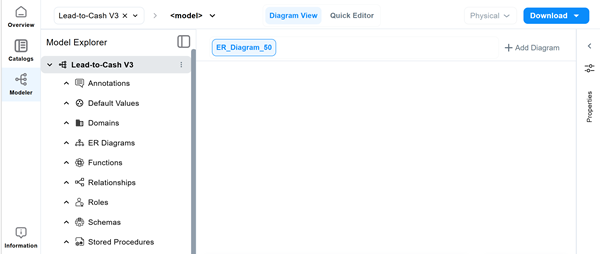
-
On the toolbar, select
, and then select a location in Diagram View to add a table.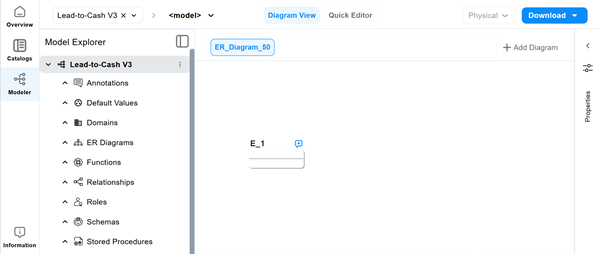
The table is added to the diagram with the default name E_n, where n is a sequential number.
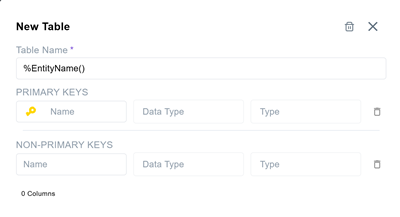
The New Table dialog appears.
-
Enter the required name. You can also add primary keys and non-primary keys here or choose to add them in Quick Editor.
-
Double-click the table to update the name and other properties.
The Quick Editor opens.
-
Update properties as required, and then select Diagram View to return.
The new table appears in Diagram View.
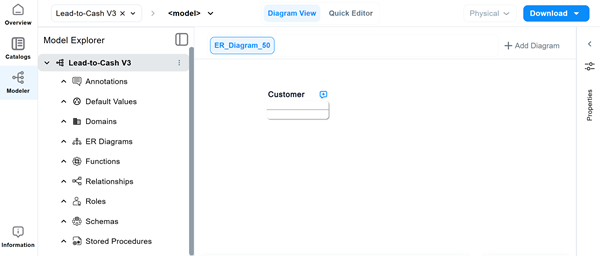
Similarly, you can add more tables in the model.
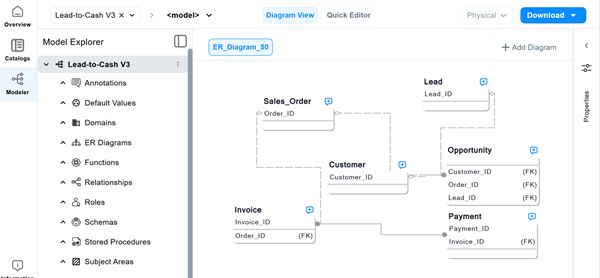
Add a table for each logical entity, such as Customer, Opportunity, Sales Order, Invoice, and Payment.
Apply naming conventions that align with organizational or platform standards. Verify that each table includes a primary key derived from the logical primary key group.
Adding Columns
Logical attributes are implemented as physical columns within their corresponding tables.
To add a column:
-
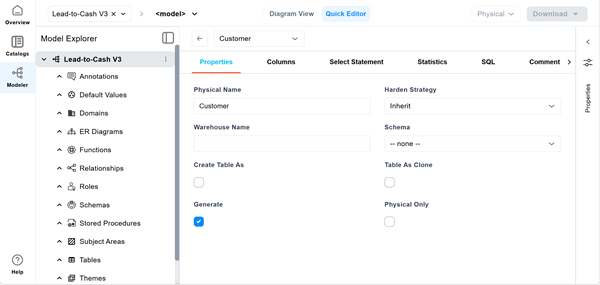
In Diagram View, double‑click the table to which you want to add columns. For example, Customer.
The Quick Editor opens.
-
Select the Columns tab.
-
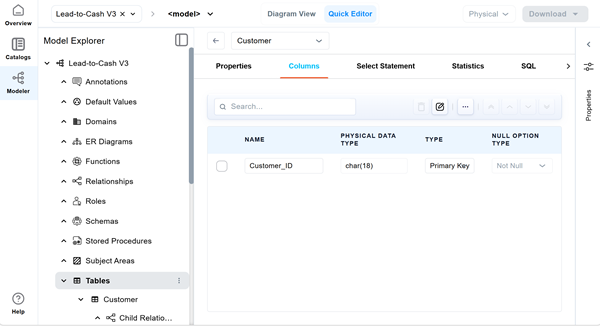
Select
.A new row is added for defining a column.
-
Define the column by specifying values in the following fields:
-
Name: Enter a meaningful name for the column.
-
Physical data type: Select the appropriate physical data type.
-
Type: Specify whether the column is Primary key or Non‑Primary key.
-
Null option: Specify whether the column allows Null or Not Null values.
-
The column is added to the table. For example, Customer_Name is added to the Customer table.
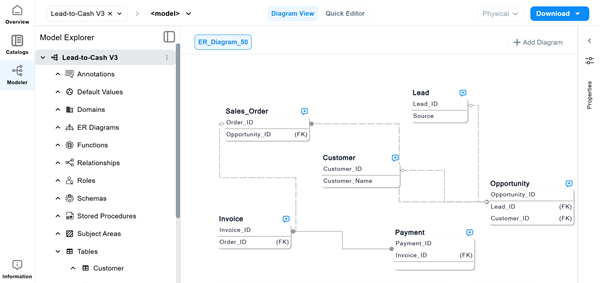
Similarly, add the remaining columns.
Once access patterns and relationships are clearly understood and tables and columns are finalized, Indexes are defined.
Adding Indexes
Indexes optimize data access and improve query performance. Before adding indexes, complete the following planning steps:
-
Review reporting and access requirements for the Lead to Cash process.
-
Confirm that primary keys are indexed. (created automatically by QDM).
-
Add indexes on foreign key columns.
-
Add secondary indexes on frequently filtered or sorted columns, such as status or date fields.
-
Review and adjust indexes to balance performance and maintenance overhead.
To add an index to a table:
-
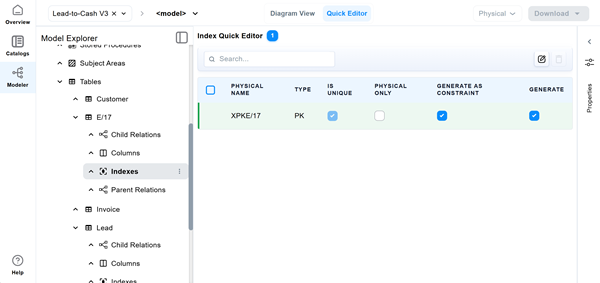
In the Model Explorer, expand the table to which you want to add an index, and then select the Indexes node.
-
Select Quick Editor.
The Quick Editor opens.
-
Select
. -
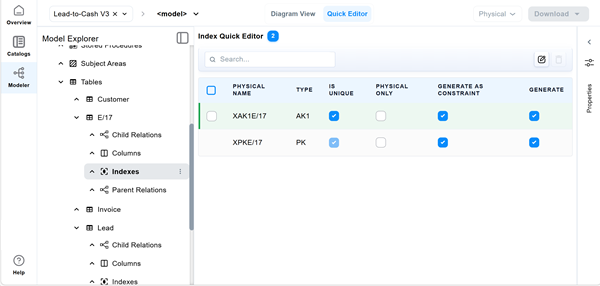
From the drop‑down list, select an index type, for example, New Alternate Key.
A new row is added for defining an index.
-
Define the index by specifying values in the following fields:
-
Physical Name: Enter a meaningful name for the index .
-
Type: Review the index type selected in the previous step. This field is read-only and cannot be changed here.
-
Is Unique: Indicate whether the index is a unique business identifier for the entity.
-
Physical Only: Specify whether the index applies only to the physical model.
-
Generate as constraint: Generate the index as a constraint. When this option is enabled, the Constraint Name field in this editor is populated with the index name.
-
Generate: Generate SQL during forward engineering. Clear the checkbox if you do not want to generate SQL.
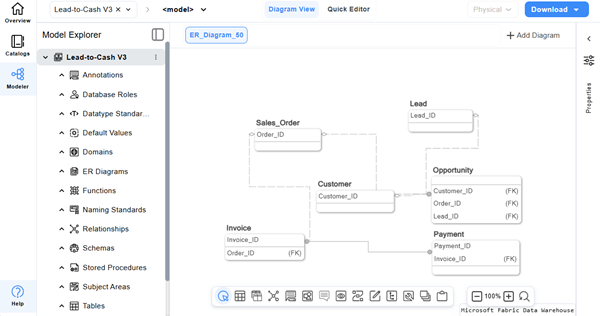
The index is created. Similarly, you can add more indexes in the model.
-
Summary
The physical model completes the Lead‑to‑Cash modeling process by enforcing validated business structure through tables, columns, keys, and indexes. This ensures that revenue data is accurate, traceable, and ready for operational execution across sales and finance systems.