Browse Metadata
After harvesting data models to erwin ER360, you can browse their metadata to view model structure, object properties, and relationships. The harvested models are listed in a tree structure in the Metadata pane, where you can either select the model or drill down and select objects to view their information. You can also view ER diagrams and Data Flow Impact Analysis of models and Jira ticket ID and its status.
View Model Metadata
- Go to Application Menu > Browse Metadata. The Metadata page appears.
- In the Metadata pane, select a model.
The model's metadata, including its properties and object details, appears in the right pane.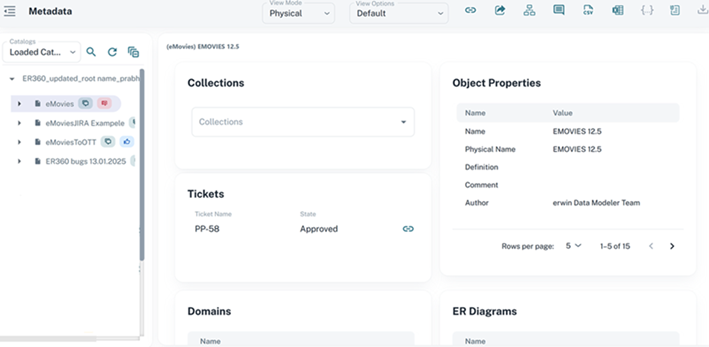
The count of each object type in the model appears in the Metadata pane. Use the following options based on your preferences or requirements:View Mode: Select Logical or Physical to switch the model view. For conceptual models, the model is always displayed in Conceptual view and the View Mode cannot be changed.
View Options: Select Default to use the standard view, or choose a user-defined view to display a customized set of metadata fields.
View Object Metadata
To view an object's metadata:
- In the Metadata pane, expand an object type.
- Select an object to view its details.
For example, expand Domains and select address.
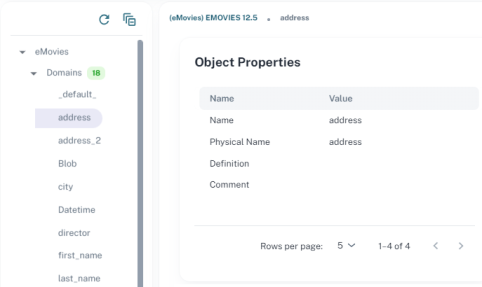
Information about the domain's columns and properties appears. For unavailable properties, N/A is displayed.
View Data Flow Impact Analysis
To view the Data Flow Impact Analysis for an object, click  .
.
The Usage view opens by default.
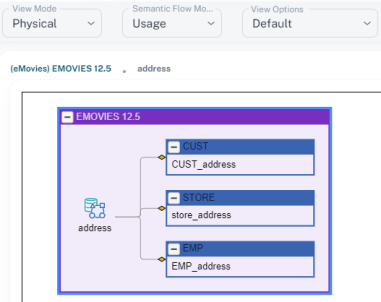
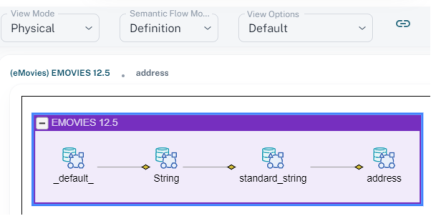
To switch to the Definition view, click Semantic Flow Mode and select Definition.
View ER Diagrams
To view ER diagrams available for a model, follow these steps:
-
In the Metadata pane, click ER Diagrams.
A list of ER diagrams appears.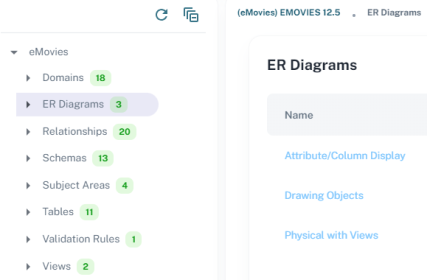
-
Under ER Diagrams on the right side, click a diagram.
The selected ER Diagram opens.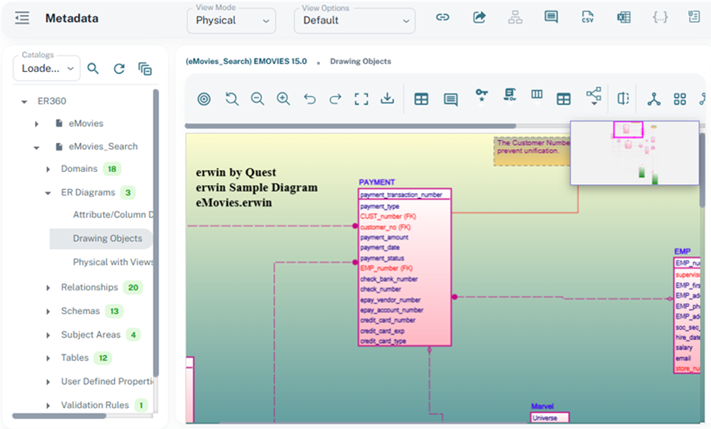
This ER diagram displays in the same format as in erwin Data Modeler (erwin DM), including entity and relationship representations. Selecting an object on the diagram displays its properties in the Object Properties pane.
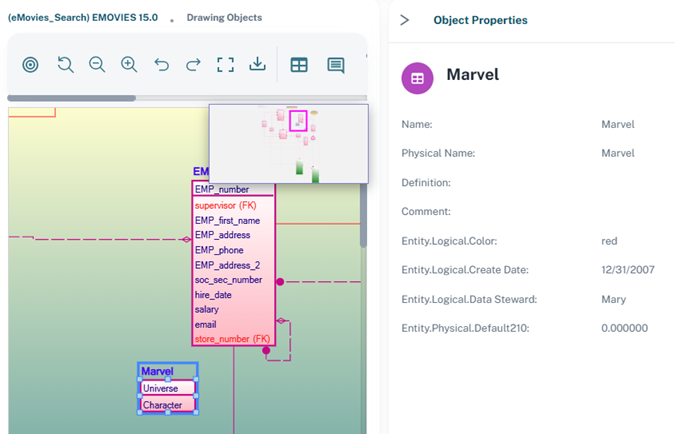
Use the toolbar buttons to control the diagram's display level, such as expanding or collapsing entity details.
Changes made to the diagram in erwin ER360 are not saved back to the model.
When you open an ER diagram for a conceptual model, it displays the conceptual entities and relationships. However, the View Mode option is not available for conceptual model diagrams.
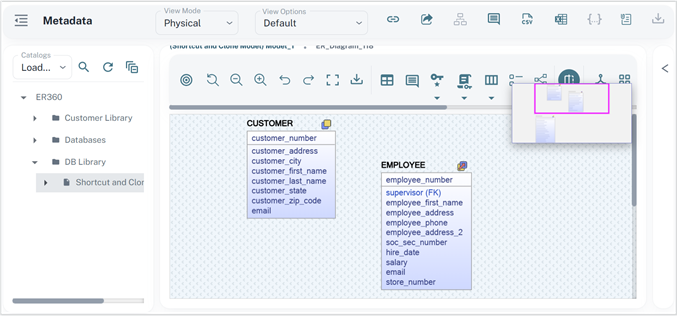
When a model with shortcut and clone entities is harvested to erwin ER360, these entities are displayed with distinct icons in the ER diagram.
The following ER diagram showcases how the shortcut  and clone
  icons appear for their respective entities.
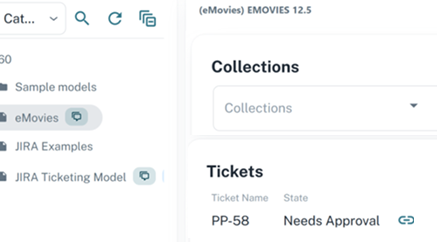
View Jira Ticket ID and State
Jira integration in erwin ER360 gives a complete view of model-related tasks. After you save a model to Mart and harvest it, ER360 shows the linked Jira ticket ID, status, and comments. This two way synchronization automatically sync ticket details, comments, and status updates without switching between applications. For more information, refer to the Integrating Jira with erwin DM topic.
To view Jira ticket information for a model:
- In the Metadata pane, select a model.
The selected model's metadata appears, including the Jira ticket ID and current status.
Apart from the above features and options, the toolbar also provides options for comments, collaboration, and reports.

The following table describes these options:
| Option | Description |
|---|---|

|
Copies the link for the selected object. |

|
Sends the selected object's link as an email. Ensure that SMTP settings are configured before using this option. |
|
|
Displays the data flow impact analysis for the model. |

|
Adds comments, endorsements, warnings, or certifications to the selected object. |

|
Downloads the selected object's metadata as CSV files. |

|
Downloads the selected object's metadata as Excel (XLSX) files. |

|
Downloads the metadata as a JSON file for JSON models or objects. |

|
Attaches files or links to the selected object. Supported file types: CSV, DOC, DOCX. JPEG, JPG, JFIF, PDF, PNG, AND XLSX (maximum size: 2 MB). |
