Enterprise Architecture automatically captures and displays model relationships from derivation history when you harvest a catalog from erwin Mart Portal into erwin ER360. Derivation is the process of creating a new data model based on an existing one, inheriting its structure and adding modifications. You no longer need to manually trace or recreate model-to-model links.
The harvest process scans each model, extracts its derivation history, and stores it in the erwin ER360 database. Enterprise Architecture automatically generates model relationships from this metadata.
Enterprise Architecture provides the following benefits:
- Saves time: You no longer need to manually trace and recreate model-to-model links after each harvest.
- Improves accuracy: Relationships are derived directly from harvested derivation metadata, reducing the risk of missing or incorrect links.
- Simplifies setup: Relationship linking is fully automated, so you can get started without manual configuration steps.
- Scales with your environment: As long as derivation metadata is available, the system re-establishes linkages automatically, regardless of the number of derived models in your catalog.
Entity and Table-Level Analysis
You can drill down to the entity or table level to compare source and derived models, helping you understand which objects were inherited from the original model and which were added or modified after derivation. This granular view enables detailed impact analysis and traceability across your data architecture. The Entity/Attribute Tracking screen provides you with side-by-side comparison views that show exactly how each model component evolved through the derivation chain.
When you harvest a catalog from erwin Mart Portal into erwin ER360, the following process runs automatically:
- The harvest process scans each model and reads its derivation history.
- The derivation relationship metadata is extracted and stored in the erwin ER360 database.
- Enterprise Architecture reads the stored metadata and automatically renders the model derivation relationships in the diagram.
This process runs automatically with every catalog harvest. No additional steps are required.
After the harvest, you can view and enhance the generated diagram using the options available in the Enterprise Architecture page.
Working with the Enterprise Architecture Diagram
You can build and view an enterprise-level data architecture diagram for all harvested models and their metadata. The Enterprise Architecture page provides a cleaner, less cluttered interface, with smaller model nodes that allow more models to be displayed on screen at once.
To create and view an enterprise architecture diagram, follow these steps:
-
From the Application Menu, select
 .
.
The Enterprise Architecture page appears.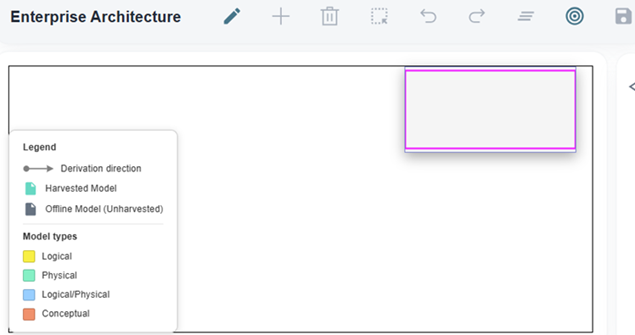
-
Click
 .
. -
Click
 and select the model(s) you want to add to the diagram.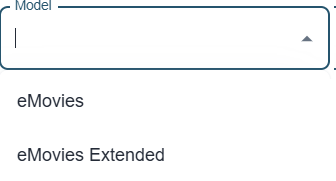
-
Click Submit.
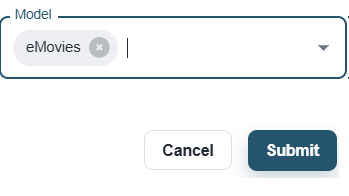
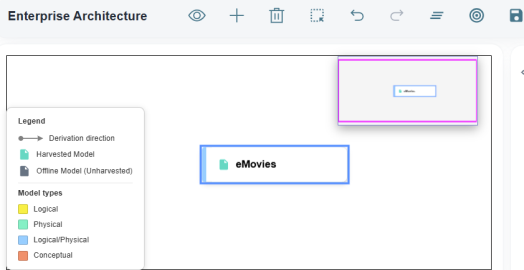
The diagram updates to show the selected models and their derivation relationships.
-
Use the following options to enhance or edit the diagram:
Option Description 
Use this option to add annotations to the diagram 
Use these options to undo or redo changes, or clear the diagram. -
Click
 .
.
Load Derivation History for Models
You can load derivation history for a specific model or display all harvested models and their relationships at once. You can also view entity and table-level changes between source and derived models.
To load derivation history for a specific model:
-
Follow steps 1- 4 mentioned in Working with the Enterprise Architecture Diagram section to add models to the EA diagram. Make sure you select a derived model in step 3. For example, eMovies Extended.
- In the EA diagram canvas, right-click on the derived model.
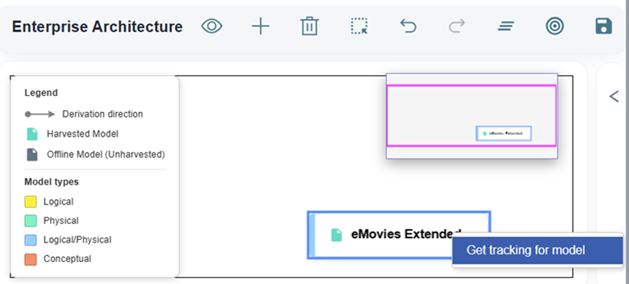
- Click Get tracking for model.
The diagram automatically loads the parent model from which the selected model was derived and displays the derivation relationship between them.
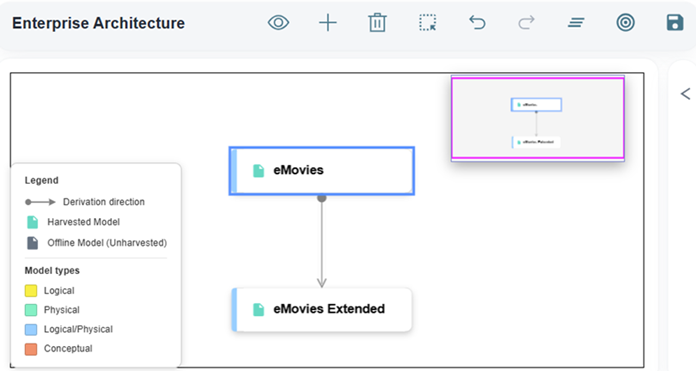
After displaying the derivation relationship, you can drill down to the entity and attribute level to see exactly which objects were inherited, added, or modified:
-
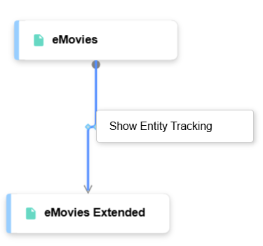
After the relationship is displayed on the diagram, right-click on the relationship line (the connector) between the source and derived models.
-
Click Show Entity Tracking.
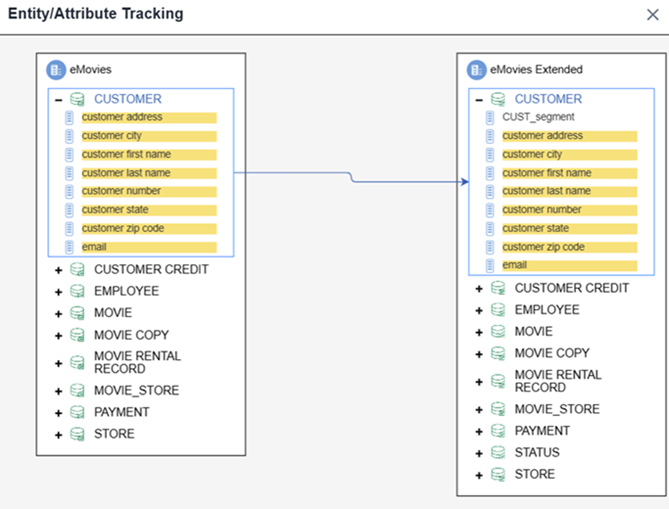
The Entity/Attribute Tracking screen opens, displaying a side-by-side comparison of the source model and derived model entities and attributes.
-
Yellow highlighted: Entities and attributes inherited from the source model.
-
White (unmarked): New entities and attributes added only in the derived model.
To load all harvested models and their relationships onto the canvas at once:
-
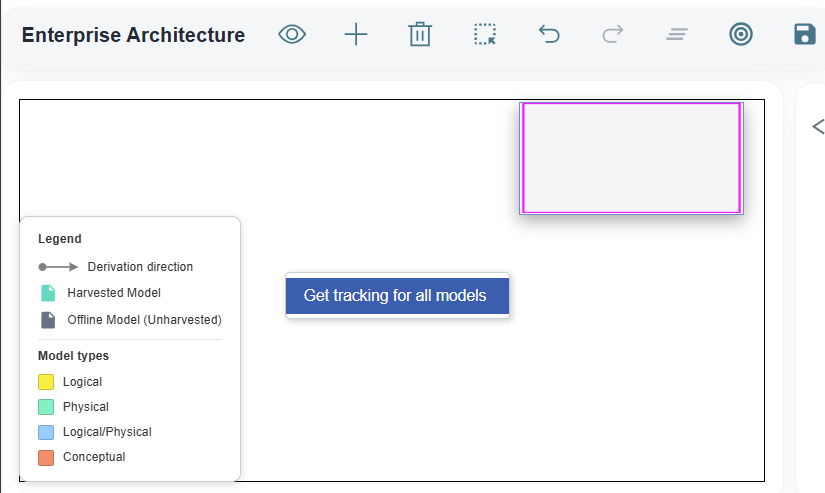
Right-click on an empty area of the EA diagram canvas.
-
Click Get tracking for all models.
The diagram automatically pulls in all models currently harvested into erwin ER360 and displays the relationships between them.
These relationships are built automatically from the derivation history and tracking information gathered and stored during harvest. The following types of relationships are displayed:
- Direct derivation relationships: Where one model was derived directly from another.
- Derivation branch relationships: Where a separate branch of derivation exists off the original model.
Relationships are created automatically from the derivation metadata stored in erwin ER360 during harvest.
Understanding the EA Diagram
Diagram Layout
The diagram renders derivation chains from top to bottom:
- The top-level (root) source model, the original model from which all others are derived, appears at the top.
- Derived models extend to the bottom, reflecting the chain of derivation.
Model Status
Hovering over a model node on the diagram displays summary information about that model, including its current status.
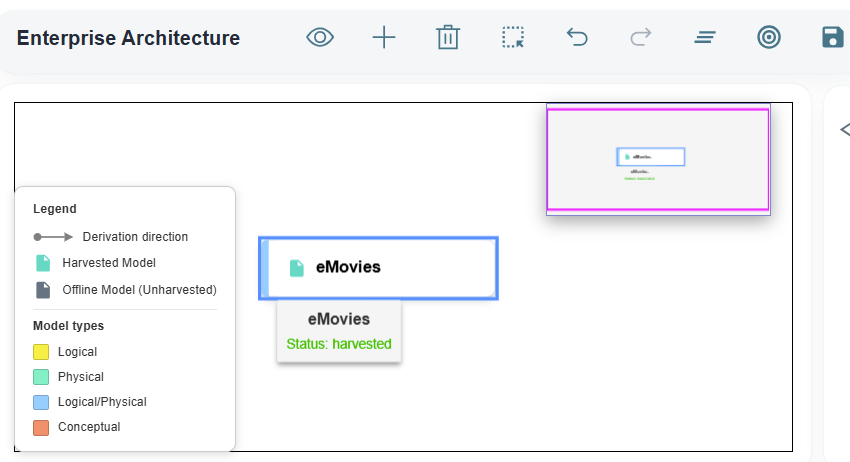
Each model node has one of the following statuses:
| Status | Description |
|---|---|
Harvested  |
The model has been harvested into erwin ER360 and its metadata is fully available. The model node appears in its standard style. |
Offline  |
The model is known through derivation history - erwin ER360 knows the model exists and that other models were derived from it - but it has not itself been harvested into erwin ER360. The model node appears grayed out in the diagram. |
For Example, if Model B was derived from Model A, but Model A has never been harvested into erwin ER360, Model A appears as a grayed-out node with an Offline status. This indicates that erwin ER360 has identified it as a source model through the derivation history of Model B, even though Model A's full metadata is not yet available.
Model Types Color Coding
The Enterprise Architecture diagram uses color coding to help you distinguish between different model types at a glance. Each model node on the canvas is displayed in a color that corresponds to its model type.
The following image showcases the color coding used for each model type.
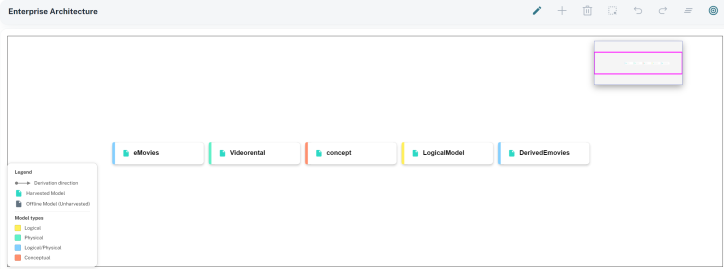
The color coding is applied automatically based on the model type as defined in erwin DM at the time of harvest. No manual configuration is required.
Viewing Entity and Table Lineage
The Enterprise Architecture diagram displays entity and table lineage across model types, showing how objects are connected across the CDM, LDM, and PDM layers. This gives you visibility into the full life cycle of a data object—from its definition as a business concept through to its physical implementation.
You can use this view to:
- Understand dependencies: See which physical tables are linked to which logical entities and business concepts.
- Assess the impact of changes: Identify all downstream model layers affected by a change at any level of the hierarchy.
- Validate traceability: Confirm that business requirements defined in Conceptual models are fully carried through to Physical implementations.