The Dashboard displays charts and customer data to show key information for the business and users in a card format. This gives you access to add and view pictorial presentations of your data and actions on the erwin Mart Portal.
I n addition to displaying key information, you can add charts for your data footprint, model overview and history, profile user data, and session overview. You can also customize the Dashboard by rearranging and resizing the components.
To access Dashboard, on the menu, click  Dashboard.
The Dashboard appears.
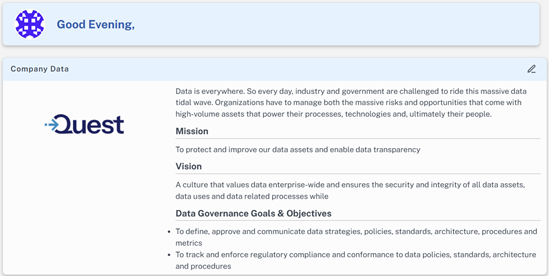
The screenshot above displays the Dashboard, with the Company Data pane and charts. By default, no charts are added to the Dashboard. To add them, refer to the Dashboard section.
On the Dashboard, you can customize the following:
Dashboard
The Dashboard lets you add charts to track the models on the Mart Portal. You can re-size and rearrange the cards and Company Data panes to fit your organization's requirements.
To customize the dashboard, click Edit ( ) at the right top corner. The dashboard switches to edit mode and displays dashboard options.

For more information about dashboard customization, refer to the following list:
 Adding Charts
On the edit mode, to add dashboard charts, click next to Select Panel to see the different charts available for the dashboard.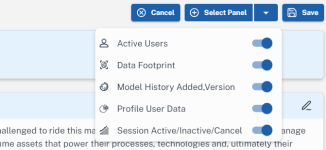
You can switch the following charts on to add them to the dashboard:
-
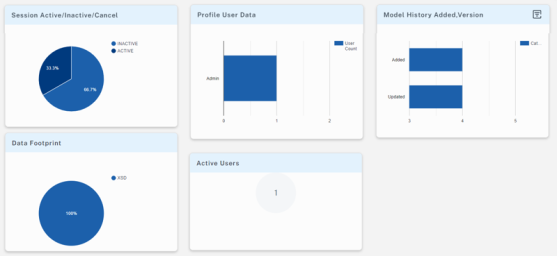
Active Users: Use this chart to view active users.
-
Data Footprint: Use this chart to view the type of data that you have in your catalogs.
-
Model History Added, Version: Use this chart to view model history in terms of when they were added and updated.
-
Profile User Data: Use this chart to view user count under each profile type.
-
Session Active/Inactive/Cancel: Use this chart to view the number of active, inactive, and closed sessions.
The enabled charts are displayed under the Company Data pane on the Dashboard.
Resizing and Rearranging Dashboard Components
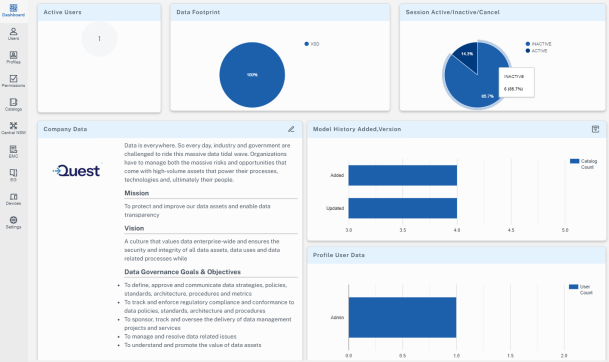
On the edit mode, you can drag and drop the charts at anyplace on the dashboard to rearrange them. You can re-size the charts and Company Data pane to adjust their size vertically, horizontally, and diagonally.
The following screenshot displays the rearranged dashboard with the Company Data and charts on the Dashboard.
Company Data
The Company Data pane is a configurable wiki-like page, where you can display key information for business users, important images, hyperlinks, text, and more.
To configure the Company Data pane on the Dashboard, follow these steps:
-
On the Company Data pane, click
to edit the company data.
The Company Data appears in the edit mode.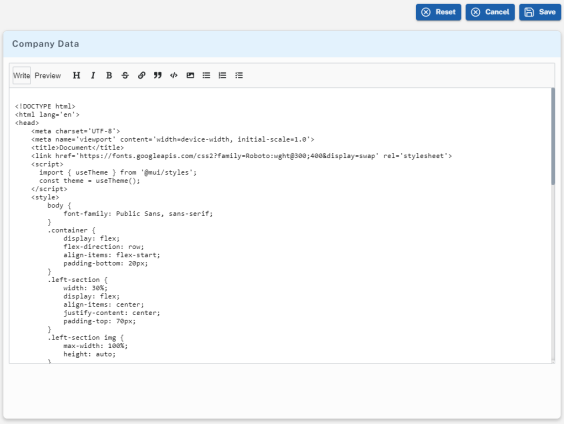
- On the Write tab, use HTML syntax to edit the page.
- Click Preview to preview your changes.
- Click Save.
To revert the changes that you made, click Reset.