Create a New Model
If an existing model does not meet your requirements, you can create a new model.
Follow these steps:
- Do one of the following:
- On the File tab, click New.
- On the Home tab, click New.
- On the Quick Access Toolbar, click New.
The New Model dialog box opens.
- Work on the following options:
- Select Conceptual, Logical, Physical, or Logical/Physical.
- Select the target database and its version number.
- Select <Default> for Template.
- Click OK.
A new blank model opens.
Skip step b and c when working with conceptual models.
To create a model that is same as an existing model, complete the following fields:
- Select Match template.
- Click Browse Files or Browse Mart and select a template model from your local computer or Mart.
- Click OK.
If you are not connected to the Mart and you click the Browse Mart button, you are prompted to connect to the Mart. Connect to the Mart to select a template model from Mart.
The objects in the selected template model appear in the new model. The type, target database, and the theme of the template model are applied to the new model.
To create a model that is same as an existing model, but of a different type, work on the following fields:
- Select Conceptual, Logical, Physical, or Logical/Physical.
- Select Match template target server.
- Click Browse Files or Browse Mart and select a template model from your local computer or Mart.
- Click OK.
The objects in the selected template model appear in the new model, as appropriate for the selected type. The theme of the template model is applied to the new model. The target database of the template model is set for the new model, if necessary.
To create a model that is based on a template, complete the following fields:
- Select Conceptual, Logical, Physical, or Logical/Physical.
- Select the target database and its version number.
- Click Browse Files or Browse Mart and select a template model from your local computer or Mart.
- Click OK.
The objects in the selected template model appear in the new model, as appropriate for the selected type and target database. The default theme is applied to the new model.
Preserve Template Binding:
If you choose to use a template while creating a model, select Preserve the template binding to:
- include template information, objects, and properties in the new model.
- be able to sync the model with the template.
AI Data Model
You can use AI to create starter-level data models using simple natural language prompts. This enables you to generate foundational models and then refine or expand them to meet specific requirements.
To create models using AI, follow these steps:
-
In erwin DM, connect to erwin Mart Portal.
-
Click File > New.
The New Model screen appears.
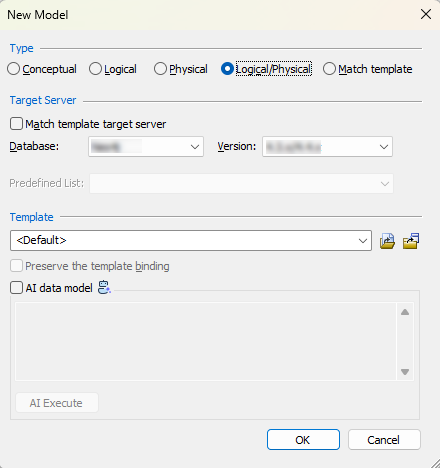
The Conceptual model and AI data model features are available starting erwin DM 15.2.
-
Click Logical, Physical, or Logical/Physical based on the model type that you want to create.
-
In the Database list, select the database, and then in the Version list, select the appropriate version.
-
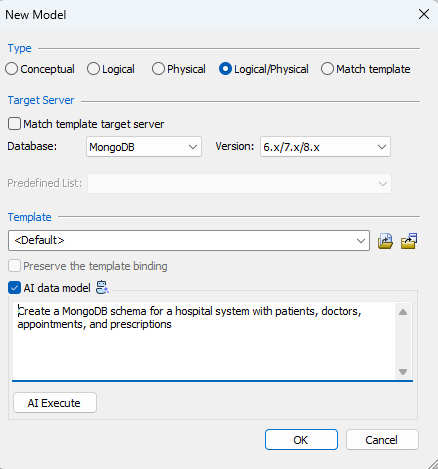
Select the AI data model checkbox.
Clicking this option enables the prompt box.
-
Enter your model description in the AI prompt box.
For example, Create a MongoDB schema for a hospital system with patients, doctors, appointments, and prescriptions.
-
Click AI Execute.
Based on your prompt, a script is generated. You can review, edit, save, and reuse this script. Or you can also cancel the script and modify your prompt.
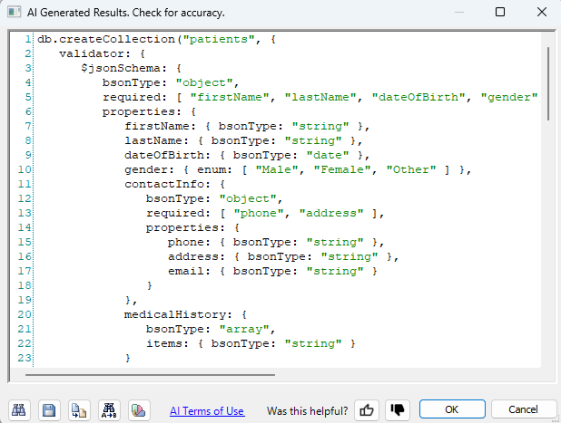
-
Click OK.
-
Then, click OK.
A logical/physical model is created based on the generated script. The model has four collections, appointments, doctors, patients, and prescriptions according to the prompt.
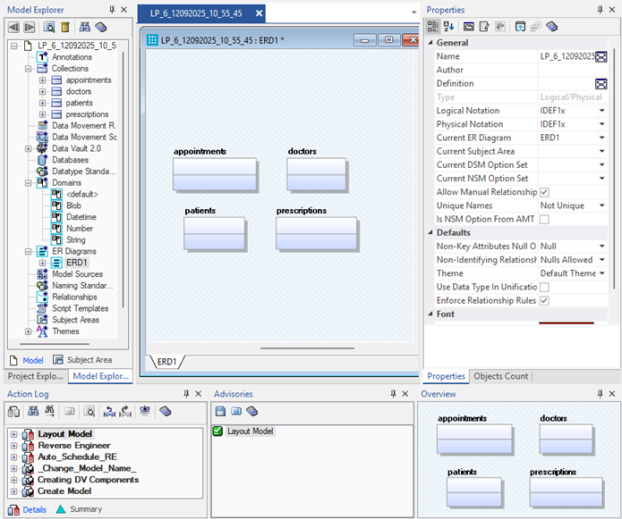
You can use this model as a base and build it further.