You can reference entities across models by copying them and pasting them as shortcuts into other models. By default, a Shortcut is read-only and stays synchronized with its source until it is cloned.
Reuse any entity using the Paste as Shortcut option from the Home menu. You can update the source entity and its attributes in the source model, and then use the Sync Shortcut option to refresh all linked shortcuts.
To make a Shortcut editable for local changes, clone the entity or attribute. This allows scoped edits while keeping the rest in sync.
This approach ensures data integrity, improves data governance, and reduces duplication.
This feature is supported for the following database models:
-
Azure Synapse
-
DB2
-
Informix
-
MySQL
-
ODBC
-
Oracle
-
PostgreSQL
-
SAP
-
Snowflake
-
SQL Server
-
Teradata
Creating Shortcuts
You can copy entities and paste them as shortcuts into different models. However, you cannot copy attributes or columns between models. Also, the Paste as Shortcut feature is not supported for non-relational databases.
The source model must be saved either locally or in the Mart for the Paste as Shortcut option to work. If the source model is not saved, the system cannot create a valid reference for the Shortcut.
To create a shortcut, follow these steps:
- Open a model and select one or more entities that you want to copy.
- On the ribbon, click Home > Copy.
- Go to the target model, and then click Paste as Shortcut.
The object is pasted as a shortcut in the target model.
Syncing Shortcuts
To synchronize shortcuts with the source entity, follow these steps:
-
Open the source model that contains the entity from which the shortcuts were created.
-
Right-click the source entity in the diagram, and then click Sync Shortcut.
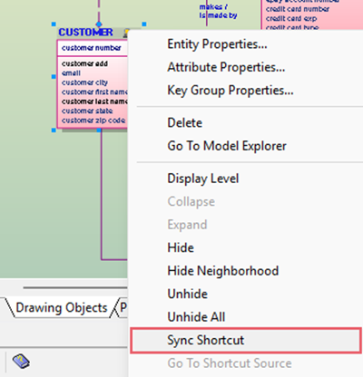
Similarly, you can synchronize at the attribute level. Synchronizing updates all related shortcuts in other models.
To synchronize shortcuts, all related models must be open—the source and the targets.
Creating Clones
To clone a shortcut that you can modify, follow these steps:
-
Open the source model that contains the source entity.
-
Right-click the source entity and click Entity Properties.
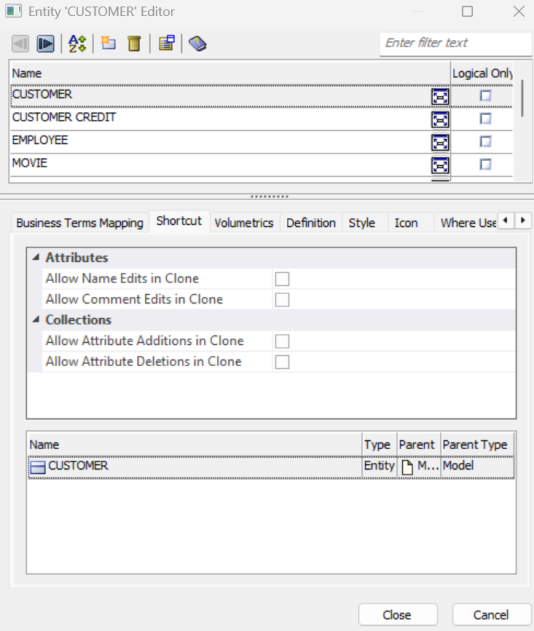
The Entity Editor opens.
-
On the Shortcut tab, specify which properties can be modified independently in the cloned shortcut using the following options:
Tab
Property
Description
Shortcut
Allow Name Edits in Clone
Specifies whether the name of a cloned shortcut can be modified independently of the source entity Allow Comment Edits in Clone
Specifies whether comments and definitions in a cloned shortcut can be modified independently of the source entity Allow Attribute Additions in Clone
Specifies whether new attributes can be added to the cloned shortcut without affecting the source entity Allow Attribute Deletions in Clone
Specifies whether attributes can be deleted from the cloned shortcut without affecting the source entity Name Displays the name of the shortcut-related object Type
Displays the type of the shortcut-related object
Parent
Displays the parent object associated with the shortcut
Parent Type Displays the type of the parent object associated with the shortcut When a property is enabled for cloning, changes to that property are maintained locally in the cloned shortcut and are not synchronized from the source entity. Properties that are not enabled continue to synchronize with the source object.
-
Click Close.
-
Right-click the entity in the diagram and click Sync Shortcut.
Go to the target model, your Shortcut is cloned. You can modify it as needed, depending on the properties you excluded from syncing.
To clone shortcuts at the attribute level:
-
Open the source model that contains the entity.
-
Right-click the attribute and click Properties.
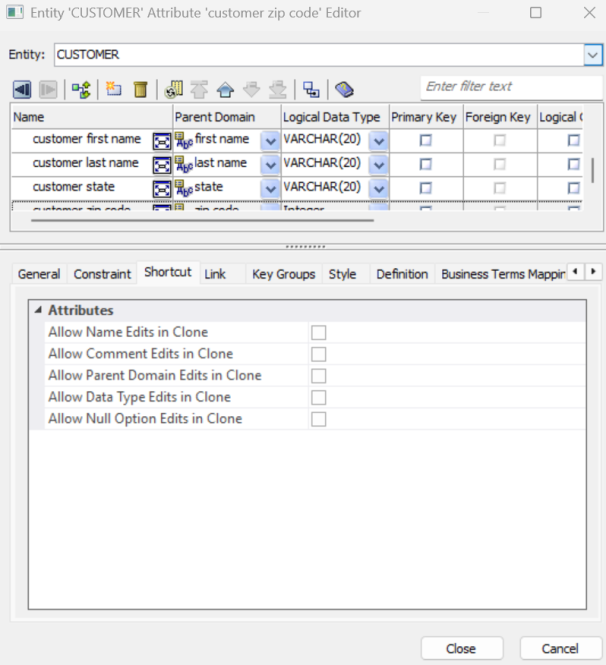
The Attribute Editor opens.
-
On the Shortcut tab, select the properties you want to exclude from syncing.
-
Click Close.
-
Right-click the attribute, click Sync Shortcut.
After cloning:
-
Changes to the original object no longer affect the shortcut.
-
An entity can be out of sync while its attributes remain in sync—and vice versa.
-
Attributes remain in the shortcut but become independent. You can modify or delete them without affecting the original object.
To view the location or the properties excluded from syncing, go to the target model, right-click the entity shortcut, and open the Entity Editor. On the Shortcut tab, you can view the location and the properties.
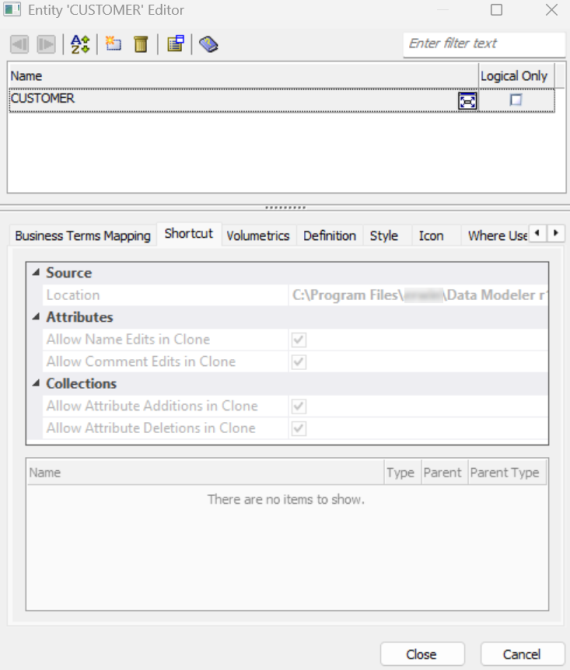
Similarly, you can check which attribute properties are excluded from syncing.